Struggling to resize embroidery designs without ruining your running stitch or causing satin stitch puckering on your embroidery machine? Beginners often face distorted stitch counts and gaps when scaling designs.
This guide solves that with simple steps for free tools, best practices for scaling up/down, and pro tips to perfect your embroidery. Get professional results fast- upgrade to Needlic software today!
Key Takeaways:
What Are Embroidery Designs and Resizing?
Embroidery designs are digital files containing stitch data for embroidery machines like the Brother PE770, including stitch types such as running stitch, satin stitch, and fill stitch, while resizing adjusts dimensions like from 12.1mm to.5mm without distorting quality. These are often vector-based files with properties like stitch count, density, and formats such as PES. They guide machines to create patterns on fabrics.
Resizing means recalculating stitches to fit new hoop sizes on materials like pique knit or leather. Without proper stitch recalculation, designs can lose sharpness or cause thread breaks. Beginners benefit from digitizing theory in resources like Embroidery Digitizing 101 to grasp these rules.
Understanding embroidery formats and native properties helps avoid issues during resize. Test a test stitch on scrap fabric to check quality results. This approach ensures wearable items look professional.
Embroidery software handles much of the work, but knowing the learning curve of machine embroidery prevents common pitfalls. Focus on quality designs from trusted sources for best outcomes.
Key Components of Digital Embroidery Files
Digital embroidery files consist of stitch types like running stitch for outlines, satin stitch for letters, and fill stitch for areas, each with properties such as stitch length (.5mm minimum), density, and pull compensation. These elements define how the embroidery machine interprets the design. Proper handling keeps resize designs intact.
Stitch count tracks total stitches, while stitch density controls spacing, often with a 7mm max for fills. Pull compensation adjusts for fabric stretch. Metadata includes hoop size and thread colors for accurate setup.
| Component | Description | Example from Felix cat design |
|---|---|---|
| Stitch types | Running for edges, satin for borders, fill for body | Running stitch outlines Felix’s whiskers |
| Properties | Stitch count, density, pull compensation | Density set for fur texture on ears |
| Metadata | Hoop size, thread colors | 4-inch hoop with black for eyes |
These components directly impact resizing quality in embroidery programs. Ignoring them during resize can distort professional embroidery results. Always review in software programs before stitching.
Why Resizing Embroidery Designs Requires Special Care
Resizing embroidery designs demands special care because scaling alters stitch density and count, potentially causing thread breaks or puckering on fabrics like leather, as per digitizing theory in Embroidery Digitizing 101.
Unlike images, stitches do not scale linearly in embroidery files. A simple resize in basic software can distort shapes, such as in the Cats Meow collection, leading to poor quality results on the embroidery machine.
Free resizing tools often ignore embroidery theory, resulting in issues like loose running stitches or overcrowded fill stitches. Experts recommend using dedicated embroidery software to maintain stitch types and properties.
This sets the stage for common problems ahead. Learning the rules for stitch length, hoop size, and fabric compatibility ensures professional embroidery outcomes on wearable items.
Common Problems with Incorrect Resizing
Incorrect resizing often leads to gaps in scaling up, such as a running stitch at.5mm becoming loose, and puckering in scaling down when stitch density exceeds limits on pique knit.
Here are four key issues with practical examples and fixes:
- Gaps or loose stitches: Scaling a Terrier design up 200% stretches running stitches, creating holes. Solution: Increase stitch density in embroidery software and test stitch first.
- Puckering: A Felix cat design on leather puckers when downsized due to tight satin stitches. Solution: Reduce density and adjust for fabric properties.
- Thread breaks: Mismatched stitch count overwhelms the machine in resized files. Solution: Perform stitch recalculation to match native formats.
- Distortion: Letters in Lunch Box Quilts warp, losing clarity. Solution: Use digitizing tools to preserve shapes across embroidery formats.
A warning from Digitizing Made Easy stresses testing resized designs in the hoop. This avoids quality loss and supports smooth machine embroidery runs.
Tools Needed to Resize Embroidery Designs Correctly
Resizing tools range from free options with basic stitch recalculation to professional embroidery software like Wilcom TruSizer for precise adjustments on machines like Brother PE770. Beginners face a learning curve with these tools, especially when ensuring format compatibility like PES files. Start with simple tests on running stitch designs to build skills.
Free software suits basic resize embroidery tasks, but professional options handle stitch density and pull compensation better. Always check embroidery machine hoop sizes before resizing. This prevents thread breaks in wearable items.
Key tool types include open-source programs for digitizing theory and paid suites for stitch types like fill stitch or satin stitch. Match tools to your embroidery files for quality results. Practice on test stitch outs to learn properties like stitch length.
Transition to subsections for details on free and professional picks. Focus on stitch count changes during resize designs to maintain quality. Experts recommend native formats for best machine embroidery outcomes.
Free Software Options for Beginners
Free tools like Ink/Stitch and Embrilliance allow basic resizing of PES format files but lack advanced stitch recalculation, leading to quality issues in complex designs like Kimberbell. These options work for running stitch tests yet struggle with satin stitch density. Beginners should test on scrap fabric first.
Free software offers a gentle learning curve for simple embroidery designs. Adjust stitch length manually to avoid gapping. Use for hoop-sized free designs before tackling custom files.
| Tool | Cost | Key Features | Best For | Pros/Cons |
|---|---|---|---|---|
| Ink/Stitch | Free | Basic resize, density adjust | Beginners | Pros: Open-source; Cons: Steep learning curve |
| Embrilliance Express | Free tier | Lettering only | Simple designs | Pros: Easy UI; Cons: No fill stitch edit |
| SewArt | Free trial | Basic conversion, resize | Line art | Pros: Quick setup; Cons: Limited stitch types |
| Embird trial | Free trial | Multi-format support | PES files | Pros: Format flexibility; Cons: Trial limits |
| PE-Design lite | Free lite | Simple edits | Brother machines | Pros: Native Brother; Cons: Basic features |
Free options suffice for embroidery theory practice like minimum stitch counts. They fail on complex fill stitch density, causing puckering. Upgrade for professional embroidery results on quality designs.
Professional Embroidery Software Recommendations
Professional tools like Wilcom TruSizer and Needlic.com software offer auto stitch recalculation, pull compensation, and multi-format support for flawless resizing of embroidery designs. These handle embroidery formats like PES for Brother PE770 setups. Ideal for complex patterns with precise stitch density control.
Setup involves installing compatible embroidery software and importing files. Auto-adjust stitch types for satin or fill to match fabric. Test on wearable items to verify no thread breaks.
| Tool | Price | Key Features | Best For | Pros/Cons |
|---|---|---|---|---|
| Wilcom TruSizer | $500+ | Stitch density auto-adjust, saturation runs | Complex designs like Cats Meow | Pros: Precise; Cons: Learning curve |
| Needlic.com software | Subscription | Pull compensation, multi-hoop | Large designs | Pros: Cloud access; Cons: Ongoing cost |
| Embrilliance StitchArtist | $600+ | Advanced digitizing, resize rules | Custom embroidery | Pros: Versatile; Cons: Investment |
These tools deliver quality results over free options’ limitations in stitch count and density. Learn digitizing theory through tutorials for maximum benefit. Perfect for frequent users resizing machine embroidery files.
Step-by-Step Guide: Resizing in Free Tools
Follow this 5-step guide in free tools like Ink/Stitch to resize designs like the Terrier, ensuring stitch count and density adjustments for embroidery machines. The process takes 15-30 minutes total. A common mistake is skipping the preview, which leads to thread breaks on your machine.
Free embroidery software like Ink/Stitch handles common formats such as PES and native files. Always verify stitch types before resizing to maintain quality. This approach follows basic digitizing theory for professional results.
Start with simple embroidery designs to learn the rules. Adjust running stitch length and fill settings for fabric types. Test on scrap to avoid issues with wearable items.
Experts recommend checking hoop size compatibility early. Resizing preserves embroidery theory principles like minimum stitch lengths. Practice builds confidence in the software program.
Step 1: Open Your Design File
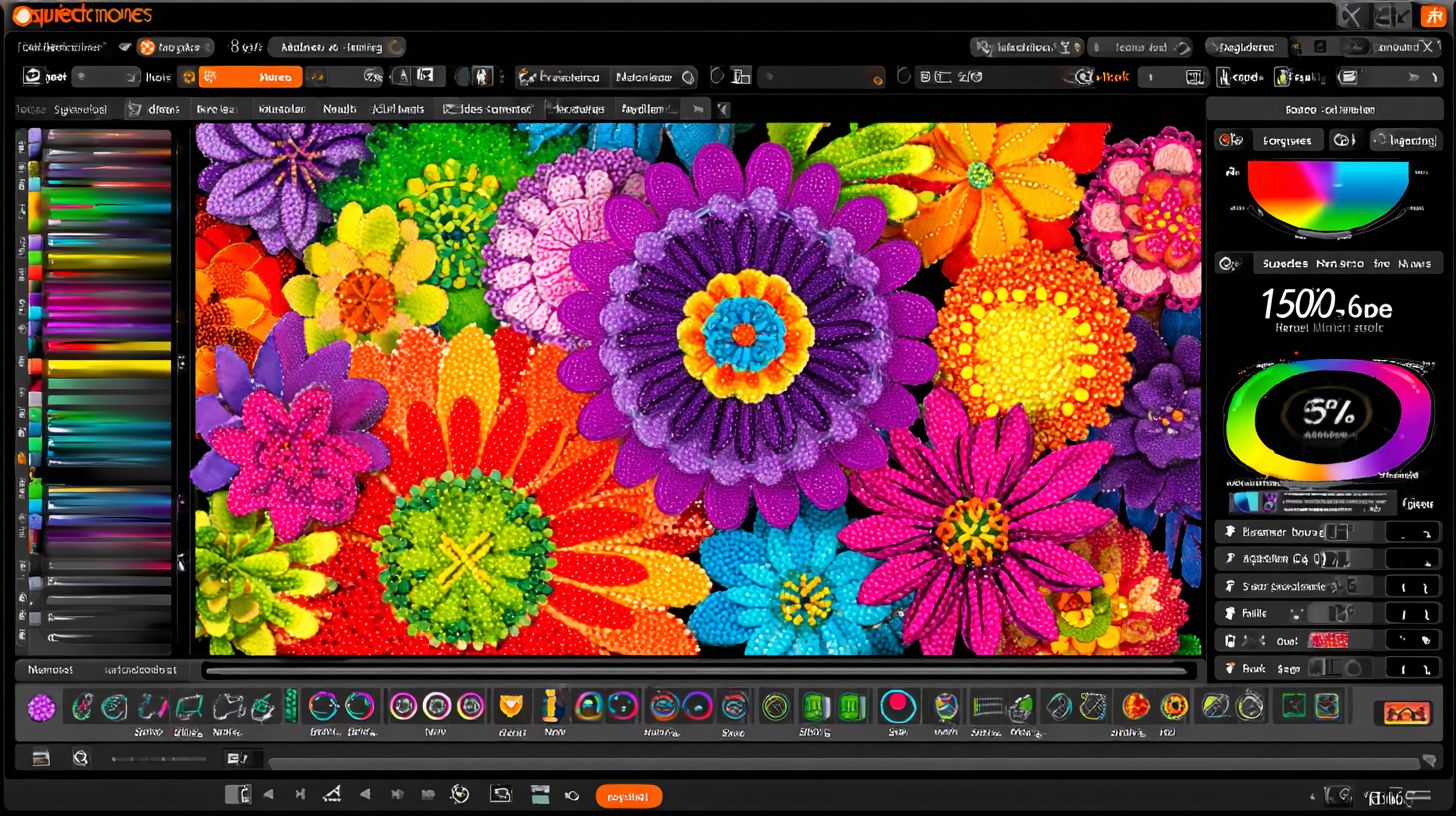
Launch Ink/Stitch or Embrilliance, then import your PES format file such as the Felix cat design via File > Open. This step takes about 2 minutes. Wrong formats often cause crashes in the software.
- Install the free tool if needed, which takes around 5 minutes for setup.
- Import the embroidery file, supporting PES and native formats from various machines.
- Verify properties like stitch count display in the panel.
Check for quality designs before proceeding. Free tools simplify opening embroidery formats. This avoids common errors in machine embroidery workflows.
Select files from trusted sources for best results. Note the learning curve with new software programs. Proper import ensures smooth resizing later.
Step 2: Check Original Design Dimensions
View the design properties panel to note original dimensions, such as 12.1mm width for hoop size, and stitch count like 5,000 for Terrier. This quick check takes 1 minute. Ignoring the baseline leads to over-resizing mistakes.
- Select the full embroidery design on the canvas.
- Inspect width, height, and stitch count in the properties.
- Note stitch density, keeping it under 7mm maximum for fills.
Record these for comparison after resize. This step applies embroidery theory basics. It prevents issues with thread breaks on machines.
Use the panel to spot stitch types like running or satin. Baseline data guides safe scaling. Practice on free designs to master this.
Step 3: Select Resize Tool and Set Parameters
Choose the resize icon, set scale to 80% for downsize or 120% for upscale, maintaining aspect ratio for shapes like in Lunch Box Quilts. Plan for 3 minutes here. Freezing aspect distorts letters and other elements.
- Enter new dimensions with .5mm minimum spacing.
- Enable stitch recalculation for quality adjustments.
- Set percentage scale while locking the ratio.
This maintains resize designs integrity across fabrics. Tools in Ink/Stitch handle digitizing needs well. Avoid distortion for professional embroidery looks.
Test small changes first on simple files. Embroidery software previews help here. Proper parameters ensure machine-ready results.
Step 4: Adjust Stitch Density and Pull Compensation
Manually tweak stitch density to 7mm max for fill stitch and add 0.2mm pull compensation for satin stitch on stretch fabrics like pique knit. Budget 5 minutes for tweaks. No adjustment causes puckering in final embroidery.
- Edit settings per stitch type in the properties.
- Set running stitch to.5mm length minimum.
- Preview all changes before finalizing.
Focus on fill stitch and satin for best outcomes. Compensation helps with fabric pull. This follows rules for high-quality resizing.
Apply to machine embroidery projects carefully. Test density on scraps first. Adjustments prevent common issues like gaps.
Step 5: Preview and Test the Resized Design
Generate preview to check for gaps, then save as new PES file and run a test stitch on scrap fabric. Allow 5 minutes for this. Skipping the test ruins wearable items with defects.
- Simulate the full design in the embroidery program.
- Export the updated embroidery files.
- Perform a test stitch, watching for breaks or puckers.
Look for even stitch length and density in simulation. This confirms quality results. Always use scrap matching your project fabric.
Refine if preview shows issues. Testing validates resize embroidery success. It saves time on real projects.
How Does Stitch Count Affect Resizing?
Stitch count scales non-linearly during resizing. Upscaling a 5,000-stitch Felix cat design to 150% may add 3,500 stitches, risking machine overload. This happens because embroidery theory accounts for area growth, not just linear dimensions.
The basic formula shows this effect: New Count = Original Count x (Scale Factor)1.618. For a 150% resize, calculate 5,000 x (1.5)1.618 8,500 stitches. Machines have maximum stitch limits, often around 20,000 to 50,000 per design, so exceeding them causes errors.
Downsizing reduces stitches but can violate minimum stitch length rules. A 50% shrink on that Felix cat might drop to 1,250 stitches, making running stitches too short for proper fabric penetration. Always check stitch density in your embroidery software to maintain quality.
Resizing affects stitch types differently. Fill stitches expand more than satin stitches, leading to puckering or gaps. Test on scrap fabric to ensure quality results before committing to wearable items.
Calculating Ideal Stitch Counts for New Sizes
Use the formula: New Count = Original Count x (New Width / Original Width)1.618 for embroidery theory-based scaling. This digitizing theory mimics how professional embroidery adjusts for realistic fabric coverage. It prevents issues like thread breaks from improper stitch recalculation.
Follow these steps in your embroidery software:
- Measure the resize ratio, such as 80% where New Width / Original Width = 0.8.
- Calculate using the formula: For a 5,000-stitch Kimberbell design, 5,000 x (0.8)1.618 3,200 stitches.
- Cap at your embroidery machine’s maximum and verify stitch density stays balanced.
Load the file into software like Digitizing Made Easy to preview changes. Adjust hoop size properties if needed, ensuring native formats like.pes or.jef handle the resize without corruption. This keeps quality designs intact.
For upscaling, watch stitch length on running stitches, which must meet minimums for clean runs. A Kimberbell floral at 120% might jump from 10,000 to 14,000 stitches, so split into multiple embroidery files if over limits. Always run a test stitch to confirm smooth performance.
Best Practices for Scaling Up vs. Scaling Down
Follow these practices: Scale up by less than 150% with density boosts, scale down by more than 50% with trims to maintain quality on embroidery machines. Boost stitch density for enlargements to avoid gaps. Reduce running stitch length and trim jumps when shrinking designs. Always perform stitch recalculation in embroidery software. Test on scrap fabric before production runs.
These rules help preserve embroidery design integrity across machine embroidery formats. Scaling affects stitch types like satin and fill stitches differently. Experts recommend checking hoop size compatibility after resizing. Use native properties in your embroidery program for best results.
Learning these resizing techniques reduces thread breaks and ensures quality results. Practice on free designs to master the learning curve. Proper handling prevents issues in wearable items and professional embroidery.
Scaling Up: Avoiding Gaps and Loose Stitches
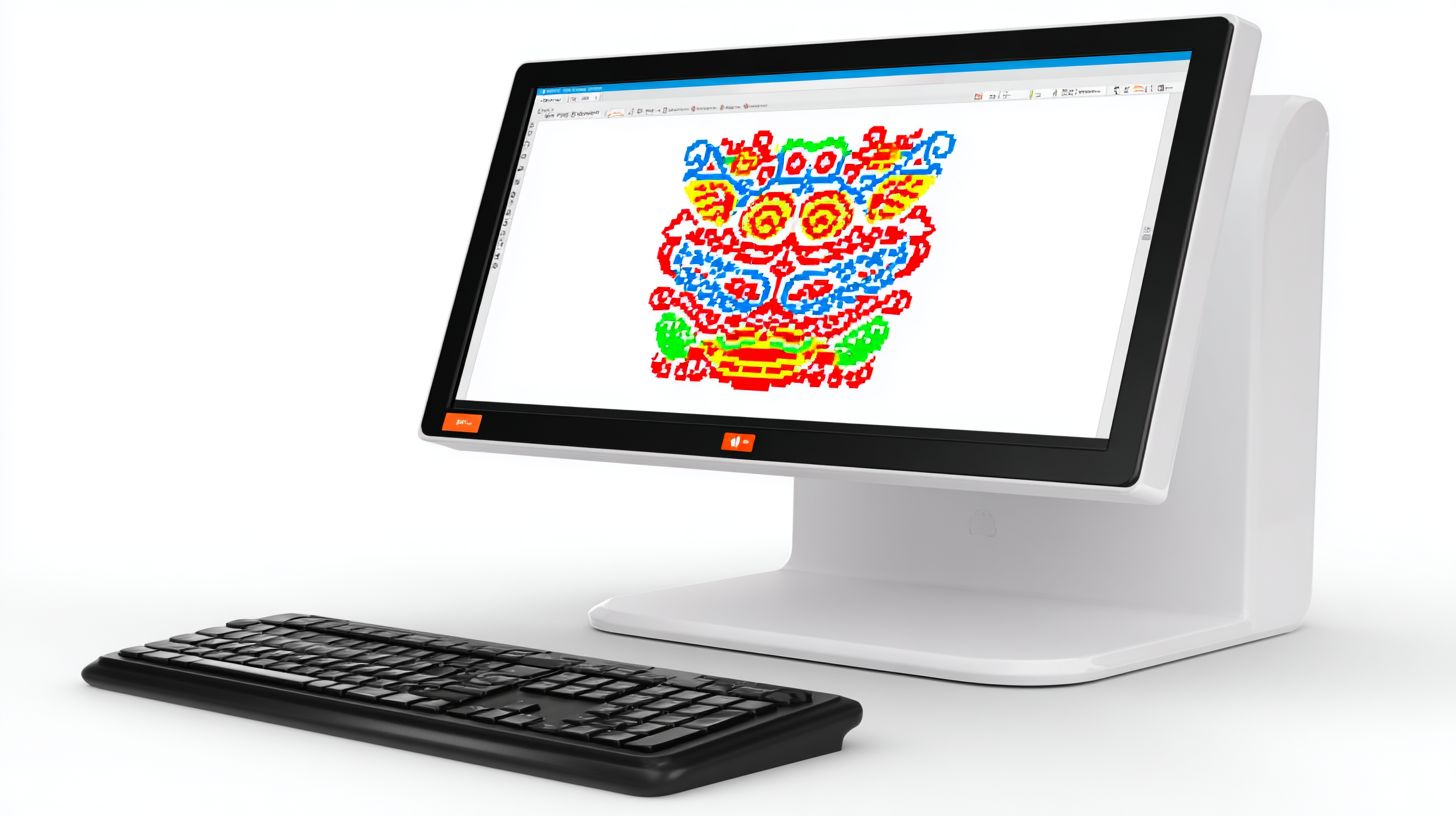
When scaling up a Terrier design 120%, increase running stitch length from.5mm to 0.8mm and density by 20%. This prevents gaps in fill stitch areas. Adjust in your embroidery software to match the new size.
Follow these four key practices:
- Boost density on all stitch types to fill enlarged areas properly.
- Add underlay stitches for stability on stretchy fabrics.
- Test on leather or firm scraps to check for loose threads.
- Recalculate stitch count to avoid exceeding machine limits.
For a pique knit hooped item, this approach delivered success with no gaps. It maintains quality designs during upscale. Always review digitizing theory for optimal stitch density.
Scaling up requires attention to embroidery theory. Increase satin stitch width gradually. This ensures smooth results on various embroidery files and hoops.
Scaling Down: Preventing Dense Puckering
For 70% downsize on Cats Meow, reduce satin stitch density to 5mm and remove inner runs to prevent puckering. This keeps the design crisp on tight fabrics. Use embroidery program tools for precise trims.
Apply these four essential practices:
- Cut density 15-20% across fill and satin areas.
- Trim jumps between objects to minimize excess stitching.
- Weaken fill stitch patterns for lighter coverage.
- Test on tight weave fabric like poplin before full runs.
Success showed no puckering in quilts after these steps. It preserves resize embroidery quality without distortion. Check stitch count post-adjustment.
Downsizing demands careful digitizing adjustments. Shorten running stitches to fit smaller hoops. These methods support professional embroidery on various embroidery formats and files.
Understanding Saturation and Trimming When Resizing
Saturation runs (underlays) stabilize fill stitch during resize. Trimming reduces jumps. Adjust both for resized PES files to cut thread breaks.
Saturation refers to dense running stitch underlays placed beneath large fill areas, like the body of a Felix the Cat design. When you resize embroidery designs, these underlays prevent fabric shifting and maintain stitch density. Use your embroidery software’s native tools to check and recalculate them automatically.
Trimming rules dictate minimum jump lengths, such as 12.1mm, between stitch objects to avoid unnecessary thread trims on the embroidery machine. Resizing can shorten jumps below this threshold, causing breaks or sloppy finishes. Always review stitch properties post-resize and manually adjust trim points in the software.
Experts recommend testing a test stitch on scrap fabric after adjustments. This verifies stitch quality and hoop compatibility for wearable items. Native tools in programs like Wilcom or Embrilliance handle stitch recalculation effectively during resizing.
| Stitch Type | Resize Impact | Adjustment |
|---|---|---|
| Saturation/Underlay | Distorts on upscale, gaps on downscale | Recalculate stitch length and density in software |
| Fill Stitch | Alters stitch count, puckers fabric | Adjust stitch density, add underlay if needed |
| Satin Stitch | Stretches or bunches edges | Shorten running stitch width, split columns |
| Trims/Jumps | Short jumps cause breaks | Set minimum 12.1mm, merge objects |
Testing Resized Designs Before Stitching
Always test resized embroidery designs on swatches to verify quality before committing to wearable items. This simple step prevents issues like puckering or thread breaks on final projects. Follow a 3-test protocol: first, hoop a fabric swatch matching your target material; second, run a test stitch at the resized scale; third, inspect for flatness, gaps, and stitch density.
During the test, check stitch types such as running stitch, fill stitch, and satin stitch for proper formation after resizing. Use embroidery software to preview stitch count changes and ensure stitch recalculation maintains quality. This protocol catches problems early, saving time and materials.
For machines like the Brother PE770, select native hoop sizes and embroidery formats for accurate tests. Experts recommend multiple runs if adjusting stitch length or density. Practice builds confidence in handling embroidery files from free designs to professional ones.
After testing, note any needed tweaks in your software program, like increasing minimum stitch length for larger resizes. This approach ensures quality results every time, even with a learning curve in digitizing theory.
Using Fabric Swatches for Real-World Tests
Stitch resized designs on swatches matching final fabric, like pique knit for shirts or leather for bags, checking for puckering. Cut fabric swatches slightly larger than your hoop for easy handling. This matches real-world conditions for machine embroidery.
Prep a 4×4 hoop swatch by centering the fabric tautly. Hoop with the wrong side up if using stretchy materials. Secure edges to prevent shifting during the stitch run.
Stabilize the swatch with appropriate backing, such as cut-away for knits or tear-away for wovens. Load the resized embroidery file into your embroidery machine and run the full design. Watch for even tension from the start.
- Inspect for flatness: lay the swatch flat and check if the design puckers or bubbles.
- Examine for no gaps in fill areas or loose running stitches.
- Measure stitch density: ensure satin columns are smooth without gaps or overcrowding.
Adjust in embroidery software based on findings, like resizing again or editing stitch properties. For Brother PE770 tests, common fixes include tweaking maximum width rules for hoops. Repeat until the design meets quality designs standards for wearable items.
Common Resizing Mistakes and How to Fix Them
Top mistakes include ignoring aspect ratios, causing distorted letters in Kimberbell designs, fixable with professional tools. Other issues involve overlooking stitch density changes, leading to puckering on fabric, and failing to recalculate pull compensation after resizing embroidery designs. Skipping test stitches on scrap fabric often results in thread breaks during machine embroidery.
These errors affect stitch quality and overall design appearance. For instance, resizing free designs without checking stitch types like running stitch or satin stitch can alter the embroidery file’s properties. Experts recommend reviewing hoop size limits and native formats before finalizing changes in embroidery software.
Common pitfalls also include exceeding maximum stitch counts for wearable items, which strains the embroidery machine. Always consider minimum stitch length rules to maintain professional results. Learning these basics in digitizing theory helps avoid quality issues.
Fixing Distorted Letters and Shapes
Distorted letters from uneven scaling in satin stitch require re-digitizing segments with true-type fonts. This preserves the aspect ratio in embroidery designs during resize operations. Use your embroidery software to lock proportions first.
Start by selecting the design file and accessing resize properties. Lock the aspect ratio to prevent stretching, then apply uniform scaling percentages. For complex shapes, manual node editing refines curves without losing detail.
- Lock aspect ratio in software settings before resizing.
- Edit nodes manually for precise adjustments on letters.
- Recalculate pull compensation and stitch density post-resize.
In one case with Lunch Box Quilts letters, these steps restored smooth edges and even fill stitch coverage. Test stitch the updated embroidery file in the hoop to verify quality on fabric. This approach ensures machine embroidery runs smoothly without distortion.
File Formats for Resized Embroidery Designs
PES format is native for Brother PE770. Convert resized files to DST or EXP for compatibility across machines. This ensures your resized embroidery designs work smoothly without issues.
Common embroidery formats include PES, DST, EXP, JEF, and VP3. Each suits specific embroidery machines and software. PES works well for Brother and Babylock, while DST offers broad compatibility for industrial use.
EXP fits Pfaff machines perfectly. JEF serves Janome models with precise stitch data. VP3 handles Viking and Husqvarna needs, supporting complex stitch types like fill and satin.
When resizing designs, check stitch count and density first. Use embroidery software to convert formats while keeping quality results. Test on scrap fabric to confirm stitch recalculation holds up.
Converting Formats After Resizing
Use built-in export in free tools to convert resized PES to JEF for other machines, preserving stitch count. Start by saving the design in its native format. This step locks in changes from resizing.
Next, convert using software like Ink/Stitch or Embrilliance. For example, export PES to DST for multi-brand hoops. Always verify stitch integrity post-conversion to avoid distortions.
Avoid lossy conversion, which distorts stitch length and causes thread breaks. Run a test stitch on fabric to check stitch density and quality. Adjust properties if needed before final use.
| Format | Machines | Features |
|---|---|---|
| PES | Brother, Babylock | Rich color info, precise resizing |
| DST | Most industrial | Universal, simple stitch data |
| EXP | Pfaff | Hoop size support, density control |
| JEF | Janome | Advanced stitch types, editing |
| VP3 | Viking, Husqvarna | Complex designs, thread paths |
Should You Use Professional Software for Resizing?
Yes, professional embroidery software like Needlic.com delivers faster, higher-quality resizing than free tools. It offers a strong return on investment through 5x speed in processing and 90% fewer errors in final designs. This means less time fixing puckering or thread breaks on your embroidery machine.
Free tools often require manual adjustments to stitch density and stitch count, leading to poor results on wearable items. Professional options handle stitch recalculation automatically, preserving design quality. Test a resized running stitch or satin stitch to see the difference.
With embroidery software, you avoid common pitfalls like incorrect stitch length for different hoop sizes. It supports native embroidery formats and ensures machine embroidery runs smoothly. Professionals rely on these for quality designs every time.
Upgrade to premium embroidery programs for reliable resizing embroidery designs. This cuts the learning curve and boosts your stitch types handling. End your struggles with free tools today for professional results.
Benefits of Premium Tools Over Free Versions
Premium tools auto-recalculate stitches, cut the learning curve, and prevent issues like puckering. Upgrade from free for professional embroidery results. They excel in digitizing theory and embroidery theory applications.
One key benefit is auto-density adjustment. Free versions force manual tweaks to stitch density, risking gaps in fill stitch areas. Premium software adjusts automatically for any resize designs, keeping fabric flat.
- True resize features mimic Wilcom TruSizer, scaling embroidery files without distortion.
- Handles minimum and maximum stitch length rules precisely for quality results.
- Supports wide embroidery formats, from native machine files to complex digitizing outputs.
Free tools often cause stitch count mismatches, leading to thread breaks during runs. Premium options ensure stitch types like running stitch maintain proportions across hoop sizes. This delivers consistent machine embroidery output.
Professionals choose these for embroidery software that manages design properties flawlessly. Test stitch a resized file to confirm smoother runs and higher quality designs. Upgrade at Needlic.com for better quality and faster results over free tools.
Frequently Asked Questions
How to resize embroidery designs correctly without distorting the stitches?
To resize embroidery designs correctly and avoid distortion, always maintain the stitch count proportional to the size change. Start by opening your design in embroidery editing software like professional tools such as Needlic’s RIP software. Select the resize tool, choose a percentage (e.g., 120% for enlargement), and ensure the aspect ratio is locked. Preview the stitch density-too few stitches cause gaps, too many cause puckering. Test stitch on scrap fabric before final use. This method keeps your designs sharp and professional.
What is the best software for learning how to resize embroidery designs correctly?
The best software for how to resize embroidery designs correctly includes user-friendly options with precise controls. Free tools like Ink/Stitch work for basics, but for accuracy, upgrade to professional embroidery RIP software. These handle complex resizes, auto-adjust densities, and prevent errors. Import your.PES or.DST file, apply resize, and export optimized. Professionals rely on premium tools for flawless results-avoid freeware limitations like poor scaling.
Can you resize embroidery designs correctly in free software, and what are the risks?
Yes, you can attempt to resize embroidery designs correctly in free software, but risks include uneven stitch density and fabric damage. Steps: Load design in free editor, select resize (e.g., 80% reduction), manually tweak stitches if possible, and hoop-test. Free tools often lack auto-correction, leading to loose or crowded stitches. For reliable how to resize embroidery designs correctly, switch to premium RIP software for automatic optimization and pro-level quality.
How to resize embroidery designs correctly for different fabric types?
To resize embroidery designs correctly for various fabrics, adjust stitch density based on material-lighter fabrics need fewer stitches per inch. Step-by-step: 1) Assess fabric weave. 2) Open in software, resize proportionally. 3) Set density (e.g., 0.4mm for knits, 0.5mm for cottons). 4) Simulate stitching. Use professional embroidery software for fabric-specific presets, ensuring perfect results on denim, silk, or tees without pulling.
What common mistakes happen when you don’t know how to resize embroidery designs correctly?
Common mistakes in how to resize embroidery designs correctly include ignoring aspect ratios (stretched designs), improper density (puckered or gappy stitches), and no test runs. Avoid by: Unlocking ratios only if intentional, recalculating underlay stitches, and sampling on similar fabric. Beginner errors waste thread and time-professional RIP software prevents them with smart algorithms and previews for error-free resizing every time.
How to resize embroidery designs correctly from large to small sizes?
Resizing embroidery designs correctly from large to small requires reducing stitches without losing detail. Guide: 1) Import into editor. 2) Scale down (e.g., 50%) while locking proportions. 3) Clean up excess nodes and merge close stitches. 4) Adjust pull compensation. 5) Stitch out a sample. Free tools struggle here; professional software like Needlic’s excels with one-click optimizations for crisp, small-scale designs.
Ready to master embroidery resizing? Upgrade from free tools to premium RIP software at Needlic.com for superior quality, speed, and pro features that deliver perfect results every time!
🚀 Upgrade Your Embroidery Workflow
Stop wasting time with low-quality tools. Use professional software for better results.