As a commercial embroidery professional, you’re juggling tight deadlines and high-volume orders in your busy work area. Free tools slow you down with manual tweaks and errors. Discover the best embroidery workflow using Wilcom Embroidery Studio or Hatch Embroidery Software for superior embroidery digitization.
This guide delivers step-by-step productivity tips to streamline your embroidery machine process-from design prep to production-boosting speed and quality.
Key Takeaways:
What is a Professional Embroidery Workflow?
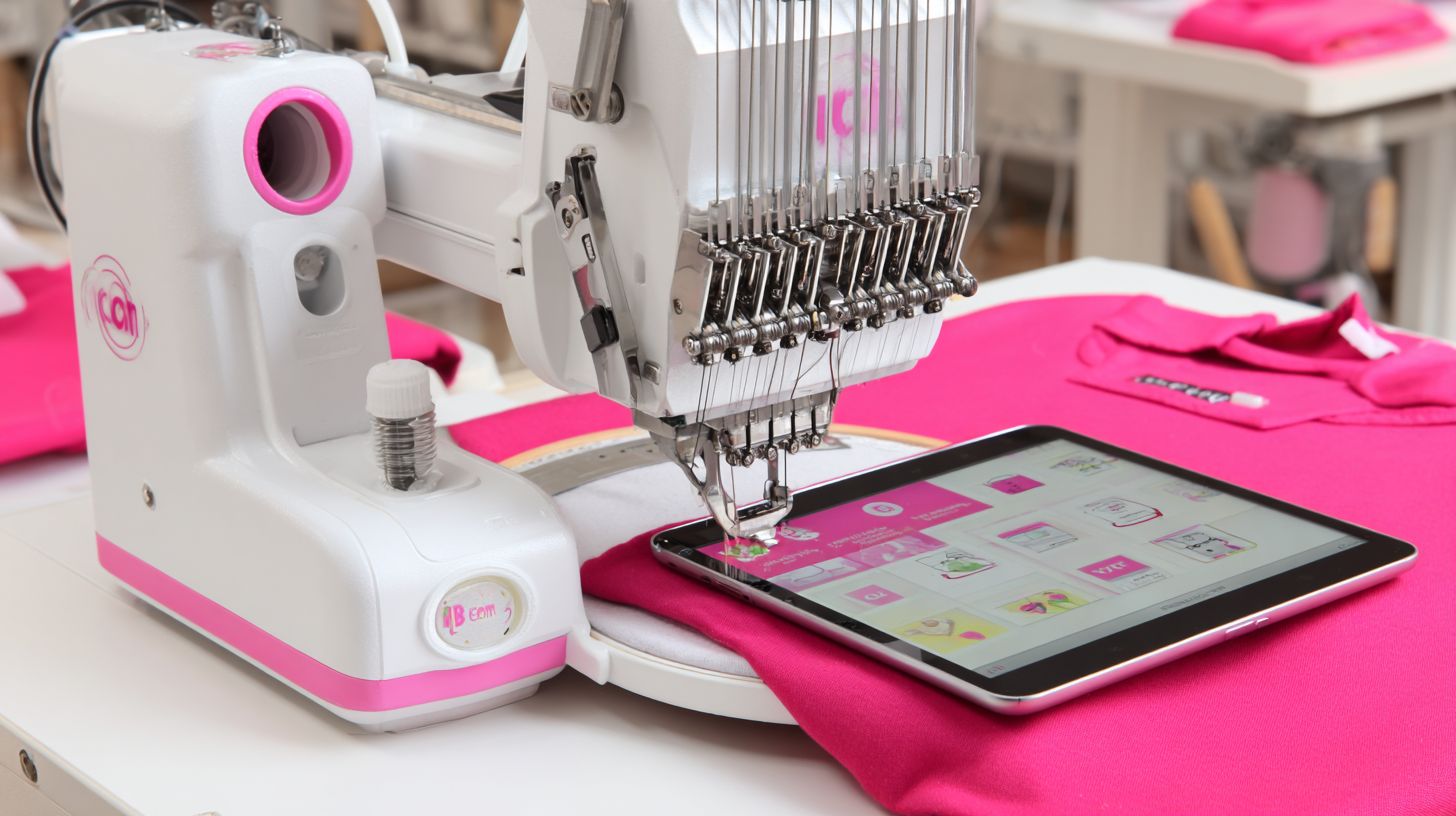
A professional embroidery workflow transforms raw designs into high-quality stitched products through a streamlined sequence of digitizing, optimization, machine setup, testing, and production execution. This integrated process uses tools like Wilcom Embroidery Studio and multi-needle machines such as the Brother nq1700e to handle commercial orders efficiently. It ensures consistent quality from vector images to final garments.
Professionals set up dedicated stations to move designs through embroidery digitization and stitch types like fill stitches and satin stitches. This approach cuts down on errors in stitch order and color changes. Expect smoother handling of file formats such as SVG from Inkscape.
The workflow boosts productivity tips by organizing thread colors and needle changes. It prepares for high-volume runs with proper backing sizes and stabilizer types like cutaway or tearaway. Later sections detail these steps for your home studio or shop.
Experts recommend focusing on embroidery software like Hatch Software or Embrilliance for precise pull compensation and jump stitches. This setup supports multi-needle machines for faster output. It minimizes issues like hoop burn or wrist fatigue during long sessions.
Key Components of an Efficient Embroidery Process
Efficient embroidery processes rely on dedicated zones like digitizing station, sampling room, and hooping station to minimize movement and errors. These areas form the backbone of a production workflow. They handle everything from vector-to-stitch conversion to final checks.
- Digitizing station: Use software like Hatch Software or Brother PE-Design for converting vector images into stitches, adjusting stitch density and embroidery fonts.
- Sampling room: Perform test stitching on scrap fabric to check thread tension, stitch types, and tension recovery before full runs.
- Hooping station: Employ magnetic hoops for quick swaps, selecting stabilizer types like cutaway stabilizer or tearaway stabilizer based on fabric.
- Production area: Run multi-needle machines like the SWF K-Series for high-volume commercial embroidery, managing needle replacement and color change.
- Work area: Organize thread colors by Pantone matching with dust-free thread, keeping bobbin case supplies handy for smooth operation.
- Quality control bench: Inspect for hoop burn, weekly maintenance logs, and overall finish after embroidery legacy checks.
Position these stations in a linear flow from digitizing to quality control. This layout reduces handling time between embroidery machine steps. Include space for path effects tweaks in software.
For best results, integrate AI generator tools in digitizing for initial drafts. Schedule weekly maintenance at the production area to avoid downtime. This setup supports scalable embroidery workflow for pros.
Essential Tools and Software for Pros
Professional embroiderers use specialized machines and software like Wilcom Embroidery Studio and Brother nq1700e to achieve consistent, high-volume output beyond hobbyist capabilities. Pros invest in multi-needle machines such as the SWF E-1501C and premium software for scalability in commercial embroidery. These tools handle complex designs with precise stitch density and file formats like DST and PES.
Upgrading supports production workflow by automating needle changes, color changes, and thread tension adjustments. In a busy home studio or shop, they reduce hoop burn and wrist fatigue during long runs. Experts recommend pairing software with a dedicated digitizing station for efficient embroidery digitization.
Key benefits include seamless integration of vector image imports from SVG format and support for stitch types like fill stitches and satin stitches. This setup optimizes stitch order and minimizes jump stitches. Professionals gain a reliable work area for handling various backing sizes and stabilizer types.
Regular weekly maintenance like needle replacement and bobbin case cleaning keeps machines running smoothly. Use dust-free thread and a sampling station for test stitching to ensure quality. These investments elevate productivity tips for pros managing high orders.
Why Upgrade from Free Tools to Premium RIP Software
Free tools like Inkscape with Ink/Stitch extensions limit production with manual stitch adjustments, while premium RIP software like Wilcom Embroidery automates optimization for faster processing. Hobbyists struggle with path effects and basic SVG paths that require constant tweaks. Premium options excel in embroidery fonts and pull compensation for professional results.
| Tool | Price | Key Features | Best For | Pros/Cons |
|---|---|---|---|---|
| Ink/Stitch | $0 | basic SVG paths | hobby | free but steep learning curve |
| Wilcom | $1500+ | auto pull compensation | commercial | comprehensive but costly |
| Hatch | $200+ | embroidery fonts | small business | versatile yet affordable |
| Brother PE-Design | $1300 | file formats DST/PES | home | machine-specific, limited export |
| Embrilliance | $150+ | stitch types | pros | user-friendly, modular add-ons |
Beginners upgrading to Wilcom Embroidery Studio save time on stitch density adjustments across designs. Hatch Software and Brother PE-Design handle embroidery legacy files smoothly in a hooping station. Embrilliance offers quick edits for thread colors and sampling room tests.
Premium tools connect with multi-needle machines and magnetic hoops for efficient runs. Use cutaway stabilizer or tearaway stabilizer with auto tension recovery. This shift boosts embroidery machine output in any production workflow.
Step 1: Selecting and Preparing Your Design
Design selection starts with scalable vector files like SVG to ensure crisp embroidery results across sizes without pixelation. Professionals source from libraries such as coldesi.com or The Embroidery Legacy for royalty-free options. This approach saves time in commercial embroidery workflows compared to starting from scratch.
Custom creation in tools like Inkscape allows precise control over vector images. Focus on compatibility with embroidery software like Wilcom Embroidery, Hatch Software, or Brother PE-Design. Keep files lightweight to avoid delays in production workflow.
Prepare designs by simplifying paths and checking for file formats that import cleanly. Verify elements suit stitch types such as fill stitches or satin stitches. This step sets up smooth transitions to embroidery digitization and machine setup.
Experts recommend reviewing designs for stitch order and minimizing complex shapes early. Use previews to spot issues like excessive jump stitches. A well-prepared design boosts productivity tips in your home studio or sampling room.
Best Practices for Design Sourcing and Editing
Source designs from verified libraries or create in Inkscape using path effects for clean vectors before import. This keeps your work area efficient for embroidery machine prep. Aim for quick edits to maintain flow in multi-needle machines like the Brother NQ1700E.
Follow these numbered steps for optimal results:
- Search coldesi.com or The Embroidery Legacy for royalty-free vectors, spending about five minutes to find matches.
- Open in Inkscape, apply PowerStroke path effect for smooth curves, then check stitch preview for even stitch density.
- Add embroidery fonts via text-to-path conversion to ensure legibility on fabric.
- Export as SVG format under 50KB for fast loading in your digitizing station.
- Verify jump stitches minimized and apply pull compensation if needed for taut results.
Total time stays around 15 minutes, freeing hours for test stitching and production. Avoid complex gradients to prevent digitizing errors that disrupt thread colors or needle changes.
For example, convert a logo with wavy text using path effects for better satin stitches. Test in Embrilliance to confirm compatibility with stabilizer types like cutaway or tearaway. This refines your hooping station process and reduces hoop burn risks.
Step 2: Digitizing for Perfect Stitches
Digitizing converts vector designs into machine-readable stitch files using precise stitch types for professional finish. Tools like Impact Digitizing in Wilcom or Hatch Software make this process efficient for commercial embroidery.
Preview the stitch order before finalizing to spot potential gaps or overlaps. Adjust fill stitches and satin stitches for smooth results on your embroidery machine.
Incorporate pull compensation early to counter fabric stretch. Test in a sampling room with matching thread colors and stabilizer types like cutaway or tearaway.
For complex designs, use auto-sequencing in Embrilliance or Brother PE-Design. This boosts productivity tips in your production workflow, reducing time at the hooping station.
Common Digitizing Mistakes to Avoid
Overlooking pull compensation leads to misaligned letters. Correct it by adding a 0.2-0.4mm offset rightward in software like Wilcom Embroidery or Hatch Software.
High stitch density over 0.5mm spacing causes puckering on fabrics. Set a maximum of 0.4mm in Hatch; for example, fixing a John Deere logo prevents distortion during runs on multi-needle machines.
- Poor stitch order creates gaps in designs. Use auto-sequencing tools to preview and fix paths before production.
- Ignoring jump stitches wastes thread. Keep jumps under 3mm to minimize trims and speed up color changes.
- No pull compensation shifts elements left. Apply 0.3mm offset for tight embroidery fonts on knits.
Users of Embrilliance report fewer re-dos with these fixes in their digitizing station. Combine with SVG format imports from Inkscape for clean vector image starts, enhancing overall embroidery digitization.
Step 3: Optimizing with RIP Software
RIP software fine-tunes designs for machine efficiency, reducing color changes and thread breaks. In commercial embroidery, it plays a key role in batch color matching for production runs. This step ensures consistent results across multi-needle machines like the Brother nq1700e.
Professionals use RIP tools alongside embroidery software such as Wilcom Embroidery or Hatch Software. These programs handle file formats like DST or EXP, optimizing for stitch density and stitch order. The result is smoother operation in the production workflow.
Batch processing cuts downtime during needle changes and color changes. Operators import designs from digitizing stations, then simulate outputs in a sampling room. This approach boosts productivity in busy home studios or shops.
Focus on thread colors from libraries like Madeira Polyneon. Pair RIP with weekly maintenance routines for thread tension stability. Experts recommend testing in the work area to refine settings.
Color Matching and Stitch Optimization Techniques
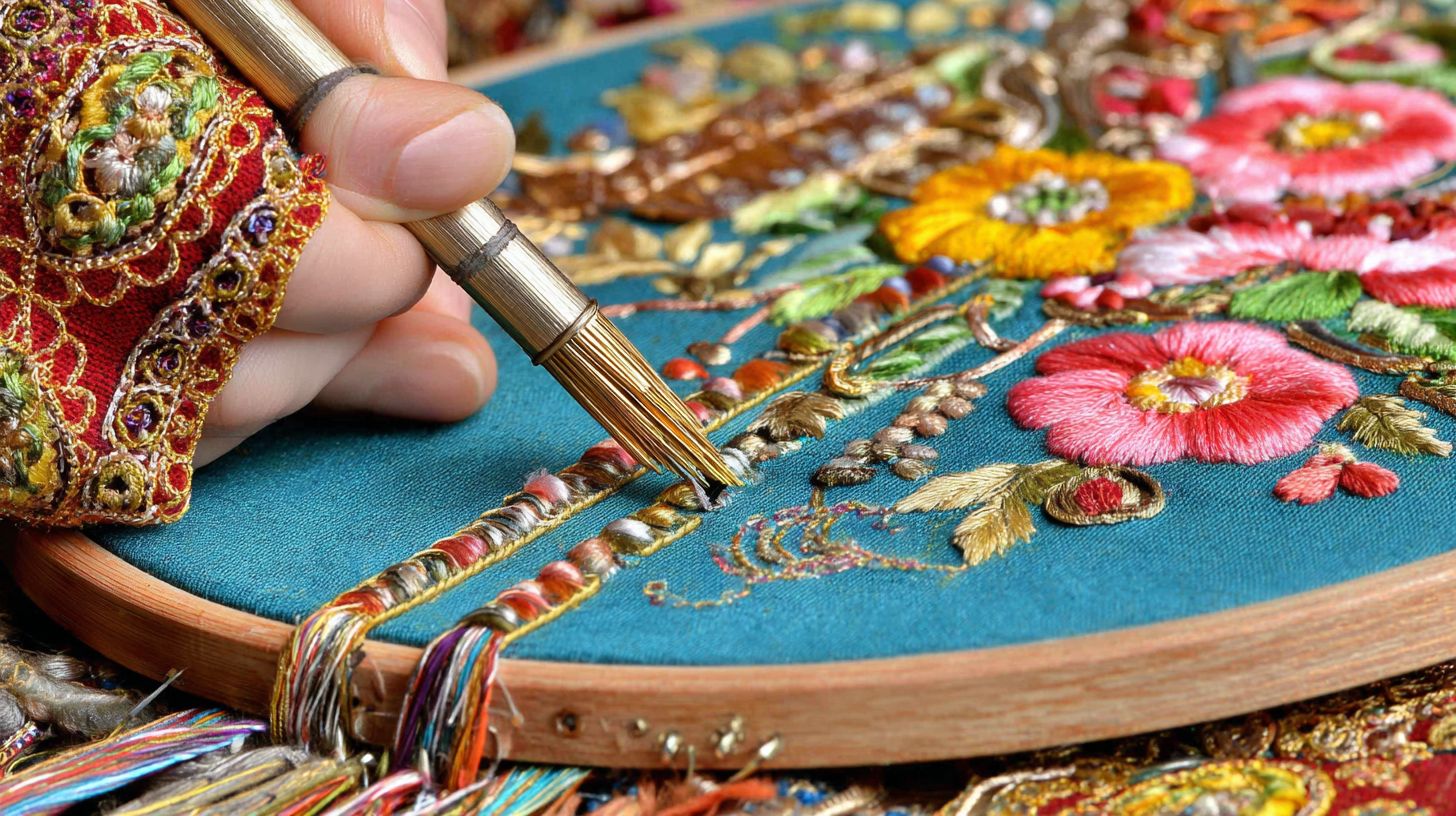
Match Pantone colors using RIP libraries to cut color change time. Import designs into the software for auto-mapping to over 1000 thread colors, such as Madeira Polyneon. This technique ensures accurate reproduction in embroidery digitization.
Optimize stitch order to minimize jump stitches and pulls. Reduce stitch density slightly for bulk fabrics, applying pull compensation as needed. Use fill stitches and satin stitches efficiently for complex patterns.
- Import design to RIP from tools like Brother PE-Design or Embrilliance.
- Auto-map threads and simulate in the sampling room.
- Adjust for hoop burn prevention with proper backing sizes.
- Test on cutaway stabilizer or tearaway stabilizer at the hooping station.
Choose dust-free thread for clean runs on machines like the Brother nq1700e. Run test stitching at the sampling station to check bobbin case tension. This leads to fewer breaks and less wrist fatigue during long sessions.
Step 4: Machine Setup and Hooping
Proper hooping with magnetic embroidery hoops ensures fabric tautness without hoop burn. For machines like the SWF K-Series, start by clearing the work area and positioning the hoop station near your digitizing station. This setup supports smooth transitions in your production workflow.
Align the fabric over the cutaway stabilizer or tearaway stabilizer before securing with magnetic hoops. Check for even tension to avoid puckering during runs on multi-needle machines. Experts recommend a dedicated hooping station to boost efficiency in commercial embroidery.
After hooping, perform a quick test stitching at the sampling station. Adjust thread colors and needle changes based on the design from Wilcom Embroidery or Hatch Software. This prevents issues like jump stitches in high-volume production.
Incorporate weekly maintenance on the bobbin case and tension recovery checks. Use file formats like SVG from Inkscape for precise vector image imports. These steps maintain productivity tips for pros using Brother NQ1700E or similar.
Tension and Stabilizer Selection Guide
Select cutaway stabilizer for knits to prevent shifting; set thread tension to 4-6g. Pair it with tearaway stabilizer for lighter fabrics in your embroidery workflow. Match backing sizes to hoop dimensions like 5×7″ or 8×12″.
Follow these numbered steps for consistent results:
- Hoop fabric tightly with magnetic hoops at the hooping station, avoiding over-tightening that causes wrist fatigue.
- Thread the embroidery machine with 40wt dust-free thread for clean color change operations.
- Install a size 75/11 needle for cotton, checking needle replacement schedules in your home studio or shop.
Set top tension at 100-150 and bobbin at 170-200 for balanced stitch density. Use pull compensation in Brother PE-Design or Embrilliance to refine satin stitches and fill stitches. Test on scraps to verify stitch order from embroidery digitization.
For heavy designs, opt for cutaway stabilizer as a permanent base, especially with embroidery fonts or AI-generated patterns. Tearaway works best for disposable use on wovens. Integrate this into your sampling room routine for flawless stitch types and minimal embroidery legacy issues.
Step 5: Running the Embroidery Test
Test stitching in the sampling room catches issues before production. Always use scrap fabric to run a full test on your commercial embroidery machine. This step verifies embroidery digitization quality and saves time in the production workflow.
Hoop the tearaway stabilizer with scrap fabric at your hooping station. Load the PES or DST file format from software like Wilcom Embroidery or Hatch Software. Watch for color changes, jump stitches, and stitch density problems during the run.
Inspect the test stitching for thread tension issues or hoop burn. Measure tension recovery by stretching the fabric gently. Note any needle changes needed for thread colors or stitch types like fill stitches or satin stitches.
In a home studio or professional setup, keep the work area organized with dust-free thread and tools nearby. This productivity tip ensures smooth transitions to full multi-needle machines like the Brother NQ1700E. Adjust the bobbin case if puckering appears.
Quick Test Stitch-Out Checklist
Run 1:1 scale test on tearaway stabilizer to verify registration. This quick process takes about 10 minutes total in your sampling station. Follow these steps for reliable embroidery software output.
Start by loading the PES/DST file, which takes 2 minutes. Check all color stops and trims on the machine display. Confirm stitch order matches your digitizing station work from Embrilliance or Brother PE-Design.
- Inspect pull compensation and stitch density for even coverage on curves.
- Measure tension recovery by tugging fabric edges after stitching.
- Note needle changes and backing sizes for production scaling.
A common fix is adjusting the bobbin case if puckering occurs with cutaway stabilizer. Test embroidery fonts or vector image paths from Inkscape SVG format here. Regular weekly maintenance and needle replacement prevent issues in your embroidery legacy setup.
Step 6: Production Embroidery Execution
Execute batches on multi-needle machines to handle 100+ units daily. This step scales your commercial embroidery operation from design to high-output reality. Focus on efficient setup to maximize machine uptime.
Load threads across all heads before starting runs. Use multi-needle machines like those with 6-15 heads for simultaneous production. This cuts down on needle changes and color swaps during runs.
Program designs in embroidery software such as Wilcom Embroidery or Hatch Software. Set repeats for unattended operation and monitor thread tension to avoid issues. Integrate production workflow with a dedicated hooping station nearby.
Maintain a clean work area with dust-free thread to prevent hoop burn. Schedule weekly maintenance including needle replacement and bobbin case checks. This ensures consistent quality in your home studio or shop.
Batch Processing for High-Volume Orders
Queue 10 identical designs on Brother nq1700e for unattended runs. This approach streamlines high-volume orders in commercial embroidery. Start with precise embroidery digitization for flawless repeats.
Follow these key steps for smooth execution:
- Load 6-15 heads with thread colors matching your design palette.
- Program repeats in software like Brother PE-Design or Embrilliance.
- Hoop 50 units in sequence at a dedicated hooping station using magnetic hoops.
- Monitor the first 5% for stitch density, pull compensation, and tension recovery.
Pre-cut backing sizes like cutaway stabilizer or tearaway stabilizer to speed hooping. This reduces wrist fatigue and minimizes errors. Test stitching at a sampling station confirms settings before full runs.
Optimize designs from vector image sources in Inkscape, converting to SVG format. Adjust stitch types such as fill stitches, satin stitches, and embroidery fonts. Minimize jump stitches and perfect stitch order for efficiency.
How to Troubleshoot Common Workflow Issues?
Thread breaks often stem from tension mismatch; quick fix via bobbin adjustment. In commercial embroidery, these issues disrupt production workflow and delay orders. Professionals save time by addressing them systematically.
Puckering appears on stretchy fabrics due to improper stabilizer types. Registration errors misalign designs, especially with multi-needle machines like the Brother NQ1700E. Regular weekly maintenance prevents most problems in the work area.
Start troubleshooting at the digitizing station with software like Wilcom Embroidery or Hatch Software. Check stitch density, pull compensation, and file formats before hooping. Test at the sampling station to confirm fixes.
For embroidery machine setups, inspect thread colors, needle changes, and backing sizes. Use a hooping station to avoid wrist fatigue. These steps boost productivity tips in home studios or shops.
Thread Breaks, Puckering, and Registration Fixes
Puckering from wrong stabilizer types? Switch to cutaway stabilizer for better hold on knits. This resolves issues in embroidery digitizing without reworking files from Brother PE-Design or Embrilliance.
For thread breaks, clean tension disks and use a #90 needle for most threads. Adjust the bobbin case for tension recovery during color change. Pair with dust-free thread to minimize breaks in high-volume runs.
- Clean tension disks daily to remove lint buildup.
- Switch to #90 needle for thicker threads like polyester.
- Test thread tension on scrap fabric at the sampling room.
Puckering eases by loosening tension slightly and adding underlay stitches in embroidery software. Use tearaway stabilizer for light fabrics. Run test stitching to verify smooth results.
Fix registration by realigning hoop marks and checking file offsets in SVG format from Inkscape. Optimize stitch order, jump stitches, and stitch types like fill stitches or satin stitches. Warning: Hoop burn from magnetic hoops damages fabric; apply anti-burn sheets for protection.
Scaling Your Workflow for Larger Orders
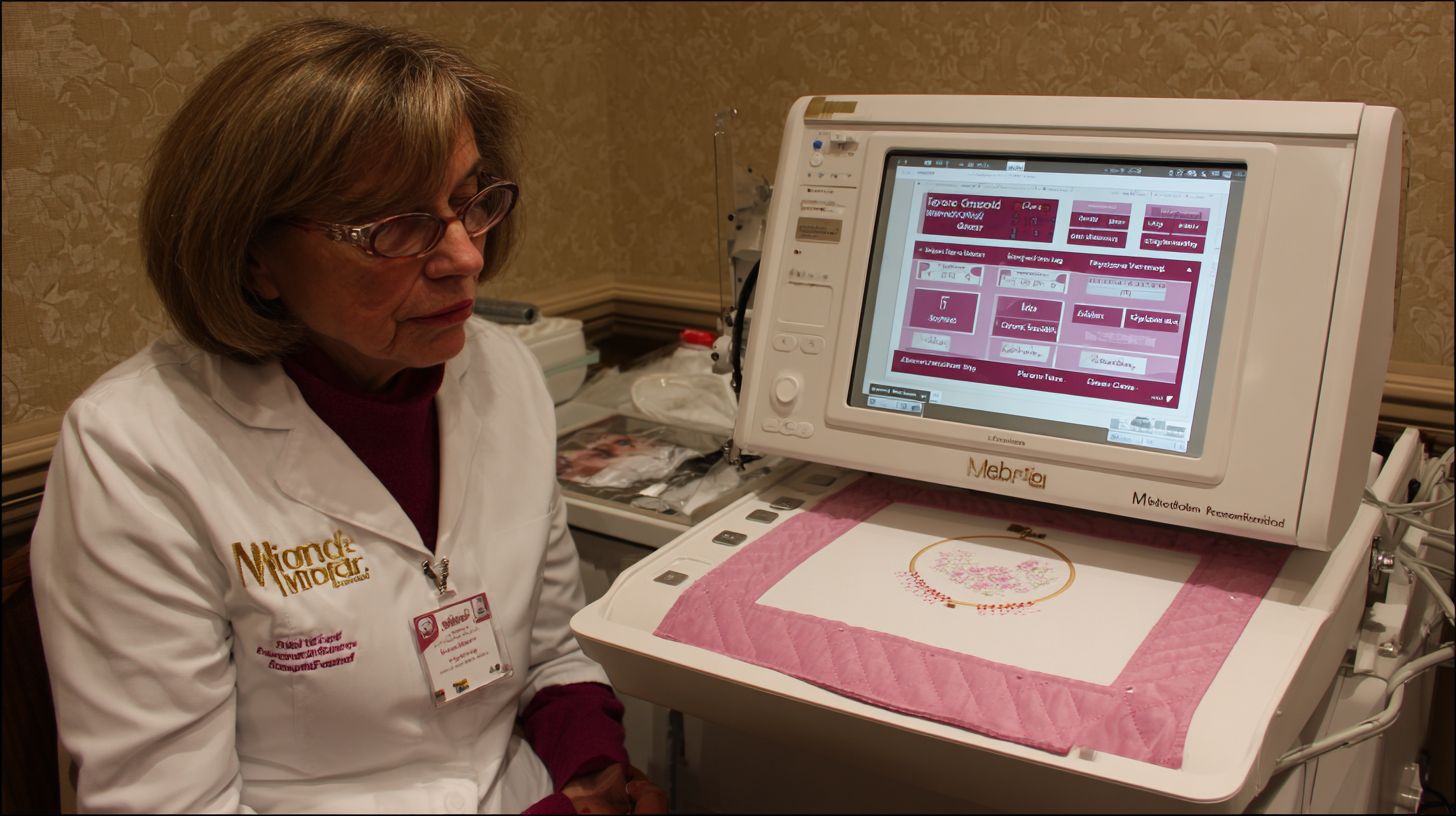
Integrate SWF K-Series for 15-head operation to triple output in your commercial embroidery setup. This multi-needle machine handles high-volume runs efficiently. Professionals use it to meet tight deadlines without extra staff.
Set up a dedicated production workflow with clear zones for digitizing station, hooping, and finishing. Use Wilcom Embroidery or Hatch Software to prepare designs ahead. This keeps the work area organized during large orders.
Focus on weekly maintenance like needle replacement and bobbin case cleaning to avoid downtime. Test thread tension and stitch density on scraps first. Experts recommend a sampling station for quick checks before full runs.
Switch to dust-free thread and magnetic hoops to reduce hoop burn and wrist fatigue. Balance thread colors and needle changes across heads. This approach supports steady output in a home studio or shop.
Multi-Head Machine Integration Tips
Sync SWF E-1501C with RIP software for identical outputs across heads in your multi-needle machines. This ensures consistent stitch types like fill stitches and satin stitches. Start with simple designs to verify sync.
Daisy-chain machines via Ethernet for smooth data flow. Mirror designs in embroidery software such as Brother PE-Design or Embrilliance. Adjust file formats like SVG from Inkscape vector images for best results.
- Daisy-chain via Ethernet to link multiple units without cables everywhere.
- Mirror designs in software to match stitch order and jump stitches perfectly.
- Balance thread tension across units with test stitching on various backing sizes.
Match stabilizer types like cutaway stabilizer or tearaway stabilizer for all heads. Use pull compensation in embroidery digitization to fix distortions. A solo operator can manage larger loads with these productivity tips.
Time-Saving Workflow Automation
Automate repeats in Hatch Software to slash setup by 60%. This approach streamlines commercial embroidery tasks by reducing manual inputs for recurring designs. Professionals gain hours back each week for more orders.
In a busy production workflow, automation handles embroidery digitization repeats effortlessly. Set up templates once, then reuse them across jobs with customer-specific tweaks. This keeps your work area organized and boosts output.
Key benefits include faster thread colors selection and needle changes planning. Integrate tools like Wilcom Embroidery or Brother PE-Design for seamless file handling. Experts recommend starting with simple repeats to build efficiency.
For multi-machine setups, automate batch export DST formats. This ensures consistent stitch density and stitch types like fill stitches or satin stitches. Your home studio or shop runs smoother with less downtime.
Using Professional Software for Repeat Jobs
Save PES/EXP templates in Wilcom Embroidery for one-click repeats. This cuts prep time in embroidery software for high-volume work. Tag designs early to maintain order in your digitizing station.
Follow these steps for efficiency:
- Tag jobs with customer ID in the software library for quick retrieval.
- Auto-load thread charts and stabilizer types like cutaway stabilizer or tearaway stabilizer.
- Batch export DST file formats for multi-needle machines such as the Brother NQ1700E.
This process saves significant time per order, allowing focus on creative embroidery fonts or vector image imports from Inkscape. Adjust stitch order and pull compensation once in the template.
Incorporate sampling station checks for test stitching and thread tension. Use Embrilliance for SVG format tweaks or path effects. Regular weekly maintenance on your hooping station with magnetic hoops prevents issues like hoop burn.
Minimize jump stitches and plan color change sequences ahead. Experts suggest a dedicated sampling room for backing sizes tests. This full production workflow reduces wrist fatigue and ensures needle replacement schedules stay on track with dust-free thread and bobbin case care for tension recovery.
Quality Control in Every Step
Inspect at hooping, post-stitch, and delivery for zero defects. This layered approach catches issues early in the commercial embroidery process. Professionals maintain high standards by building QC into each phase.
At the hooping station, check fabric tension and alignment with magnetic hoops. Use proper stabilizer types like cutaway stabilizer for heavy fabrics or tearaway stabilizer for light ones. This prevents hoop burn and distortion.
Post-stitch review at the sampling station verifies stitch density and thread tension. Look for loose threads, skipped stitches, or color bleed from poor needle changes. Test on scrap fabric matching client specs.
Before delivery, final checks ensure backing sizes fit and edges are clean. Integrate weekly maintenance on the embroidery machine, like needle replacement and bobbin case cleaning, to support consistent quality. This workflow minimizes rework in production.
Final Inspection and Client Approval Process
Check 10 sample stitches per inch for density uniformity. Use a magnifier to spot irregularities in fill stitches or satin stitches. This step confirms embroidery digitization from tools like Wilcom Embroidery or Hatch Software translated perfectly.
Magnify for missed trims and jump stitches around the design. Measure dimensions to within +-1mm using calipers for precision on logos or text with embroidery fonts. Adjust for pull compensation if needed during test stitching.
Send client photo approval via app after inspection. Capture clear images under good lighting, showing front, back, and close-ups. This speeds production workflow and builds trust in your home studio or shop.
Review file formats like SVG from Inkscape or vector images before final runs on machines such as Brother NQ1700E or multi-needle machines. Document issues in a log for tension recovery tweaks. Consistent checks keep output defect-free.
Cost Efficiency in Professional Workflows
Optimize your commercial embroidery workflow to cut thread waste through precise digitizing. Professionals calculate ROI by tracking material costs against job volume. For example, a $5,000 multi-needle machine like the Brother NQ1700E can pay for itself quickly with steady production.
Focus on productivity tips such as minimizing jump stitches and optimizing stitch order in software like Wilcom Embroidery or Hatch Software. This reduces thread consumption and speeds up runs on your embroidery machine. Track expenses in a simple spreadsheet to see real savings over time.
Incorporate weekly maintenance routines to avoid downtime, which erodes profits. Use dust-free thread and proper thread tension settings for consistent output. These steps build a production workflow that maximizes every spool.
Experts recommend auditing your work area for inefficiencies, like excess thread colors on stands. Switch to file formats like SVG from Inkscape for cleaner vector image imports into embroidery software. This approach ensures long-term cost efficiency.
Reducing Waste and Maximizing Output
Resize backings to exact hoop specs saving material in your hooping station. Cut stabilizer types like tearaway stabilizer or cutaway stabilizer precisely for each job. This practice cuts excess scraps in high-volume commercial embroidery.
Adopt key habits for waste reduction with these steps:
- Perform bulk needle replacement every 8 hours to prevent thread breaks and skipped stitches.
- Recycle tearaway scraps into smaller test pieces for your sampling room.
- Schedule needle changes during color change pauses to maintain stitch density.
Integrate embroidery digitization tools like Embrilliance or Brother PE-Design for pull compensation and optimal stitch types, such as fill stitches or satin stitches. Test designs at a sampling station with magnetic hoops to avoid hoop burn. These methods boost output without extra costs.
Maintain a clean digitizing station and home studio to support efficiency. Use embroidery fonts and path effects from vector sources for quick edits. A disciplined routine turns waste into profit in your professional setup.
Integrating RIP Software for Pro Results
RIP integration via Needlic.com unifies design-to-machine flow in commercial embroidery production. This approach processes vector images and SVG formats directly into machine-ready files like DST or PES. Professionals gain control over stitch density, fill stitches, and satin stitches without manual tweaks.
In a busy production workflow, RIP software handles batch processing for multiple designs at once. It automates stitch order and jump stitches to minimize needle changes and color changes. This cuts time spent at the digitizing station and boosts output on machines like the Brother NQ1700E or multi-needle models.
Experts recommend pairing RIP with tools like Wilcom Embroidery or Hatch Software for refined embroidery digitization. Features like pull compensation ensure designs hold up on various fabrics. Regular use improves thread tension consistency and reduces hoop burn issues.
For home studios or sampling rooms, RIP integration streamlines the path from Inkscape paths to embroidery machine execution. It supports embroidery fonts and custom stitch types, making weekly maintenance easier by standardizing outputs. This setup leads to reliable test stitching every time.
Seamless Workflow with Needlic.com
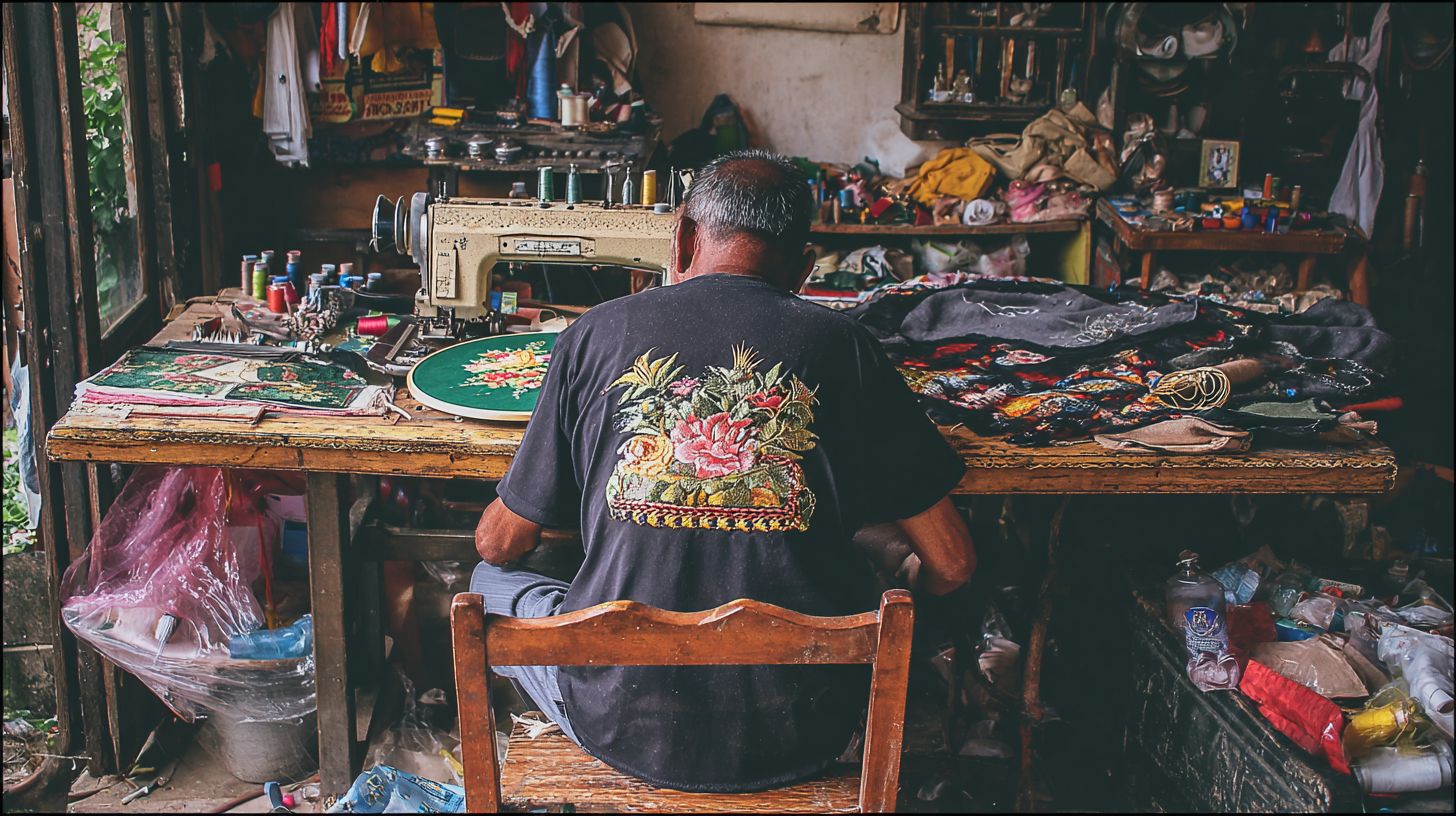
Needlic.com’s RIP software delivers pro results with AI generator for faster digitizing in commercial embroidery. Upgrade from free tools like Ink/Stitch to access premium features that enhance quality. It simplifies the shift from vector image editing to production-ready files.
Key advantages include auto color matching for precise thread colors and batch RIP for DST or PES formats. The software integrates smoothly with Wilcom Embroidery, Hatch Software, and even Brother PE-Design. This setup optimizes work area efficiency at the hooping station with magnetic hoops.
Practical perks cover stabilizer types like cutaway or tearaway by adjusting backing sizes automatically. It manages path effects and embroidery legacy files for consistent stitch density. Use it to reduce wrist fatigue in long sessions and ensure tension recovery on the bobbin case.
Start your free trial today for production-ready workflows. Pair it with Embrilliance for advanced file formats and needle replacement scheduling. This tool elevates productivity tips like dust-free thread handling and sampling station tests.
Maintenance for Consistent Workflow Performance
Daily bobbin checks prevent many thread issues in a busy commercial embroidery setup. Professionals know that a clean bobbin case keeps thread tension steady during long production runs. Skipping this step often leads to jams that halt the entire workflow.
Regular upkeep on your embroidery machine ensures smooth operation across multi-needle machines like the Brother nq1700e. Focus on dust removal and lubrication to avoid breakdowns during high-volume orders. This practice supports productivity tips like consistent stitch density and reliable color changes.
In a home studio or professional shop, integrate maintenance into your production workflow. Pair it with habits like using dust-free thread and proper needle changes. These steps extend machine life and maintain quality in embroidery digitization outputs from tools like Wilcom Embroidery or Hatch Software.
End each day with a quick inspection of the work area, including the hooping station and sampling room. Check for stray threads or lint around magnetic hoops and stabilizer types like cutaway or tearaway. Consistent care keeps your embroidery workflow running without interruptions.
Daily, Weekly, and Monthly Machine Care
Daily: Wipe hook area with brush after 8 hours of use to remove lint buildup. This simple task prevents thread tension problems and ensures clean test stitching. Always check the bobbin case for residue before starting a new batch of thread colors.
Follow a clear schedule for all levels of care. Use this table to track your routine:
| Frequency | Tasks | Focus Areas |
|---|---|---|
| Daily | Dust bobbin case, wipe hook area | Thread path, work area |
| Weekly | Oil Brother nq1700e ports, replace needles | Needle changes, lubrication points |
| Monthly | Tension calibration, full clean | Tension recovery, full disassembly |
Weekly tasks like oiling ports on the Brother nq1700e keep moving parts smooth. Replace needles to avoid hoop burn or skipped stitches in fill stitches and satin stitches. Pair this with needle replacement after every 8 hours of heavy use.
Monthly tension calibration fine-tunes your machine for various backing sizes and stabilizer types. Perform a full clean using compressed air on the digitizing station and sampling station. Opt for dust-free thread to minimize buildup and support stitch order accuracy in software like Brother PE-Design or Embrilliance.
Frequently Asked Questions
What is the best embroidery workflow for professionals?
The best embroidery workflow for professionals starts with high-quality digitizing software, followed by precise machine setup, quality thread selection, and efficient production testing. This streamlined process ensures consistent, high-volume output with minimal errors. Professionals rely on advanced tools like professional embroidery software to automate and optimize each step for superior results.
How do I set up the best embroidery workflow for professionals using RIP software?
To set up the best embroidery workflow for professionals with RIP software, follow these steps: 1) Import your design into RIP-enabled embroidery software. 2) Optimize color sequences and stitch paths. 3) Generate production-ready files. 4) Calibrate your multi-head machine. 5) Run test stitches and adjust. 6) Scale to full production. RIP integration in professional software cuts prep time by 50% compared to free tools.
What are the key steps in the best embroidery workflow for professionals?
The key steps in the best embroidery workflow for professionals include: 1) Design digitizing with pro software. 2) Stitch simulation and error-checking. 3) Hooping and fabric tensioning. 4) Machine calibration and running. 5) Quality inspection and trimming. 6) Packaging for delivery. Using premium embroidery RIP software ensures flawless execution at every stage.
Why is professional software essential for the best embroidery workflow for professionals?
Professional software is essential for the best embroidery workflow for professionals because it offers auto-digitizing, true RIP capabilities, batch processing, and real-time previews-features free tools lack. This leads to faster turnaround, fewer rejects, and sharper designs, solving common pain points like misalignment and color bleeding.
How can I optimize the best embroidery workflow for professionals for high-volume production?
Optimize the best embroidery workflow for professionals for high-volume by: 1) Batch-processing designs in pro software. 2) Using RIP for seamless multi-machine syncing. 3) Standardizing templates and presets. 4) Implementing automated quality checks. 5) Training on efficient hooping. Upgrade to premium tools for 3x faster output without quality loss.
What common mistakes to avoid in the best embroidery workflow for professionals?
Avoid these in the best embroidery workflow for professionals: underestimating stitch density, skipping RIP previews, using low-grade threads, poor hooping, and relying on free software. Switch to professional embroidery software for built-in safeguards and precise control, ensuring pro-level results every time.
Ready to supercharge your embroidery business? Upgrade from free tools to premium professional software for unmatched quality and speed. Discover Needlic today and transform your workflow!
🚀 Upgrade Your Embroidery Workflow
Stop wasting time with low-quality tools. Use professional software for better results.