
Struggling with messy embroidery design files full of jumps, overlaps, and stray stitches? As a beginner embroiderer, disorganized designs waste time and ruin stitches. This guide shows you how to clean up your embroidery collection using SewClean, Dropbox, or Google Drive for organizing.
Follow simple steps for flawless results-preview pro solutions inside!
Key Takeaways:
- Identify issues like jump stitches, overlaps, and stray stitches using visual inspection or stitch simulators in embroidery software for quick spotting.
- Remove jumps automatically or manually, merge overlaps, and delete excess stitches step-by-step to streamline your design without distortion.
- Optimize stitch density, resequence colors, and preview with emulators; upgrade to professional tools like Needlic for flawless, efficient results.
What Are Embroidery Design Files?
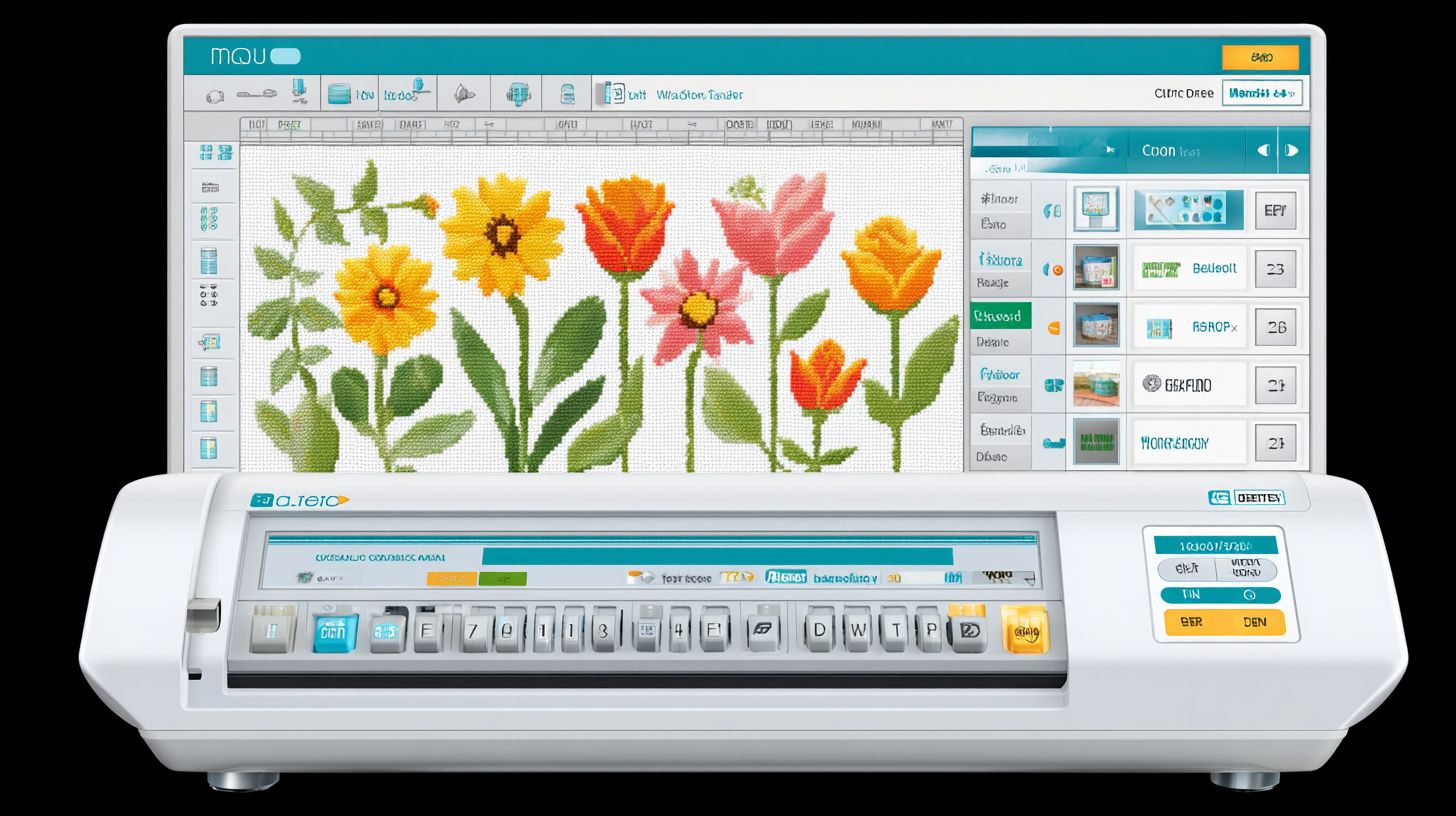
Embroidery design files are digital patterns containing stitch data that tell your embroidery machine exactly where and how to sew, with common formats like DST, PES, and EXP ensuring compatibility across brands like Brother, Bernina, and Janome.
These digital instructions include details on stitch types, thread colors, and patterns for projects such as baby onesies, kitchen towels, or tote bags. They guide the needle precisely during stitching, appliqu, lace, or quilting work.
File sizes typically range from 10KB to 5MB depending on stitch count and complexity. Simple designs stay small, while detailed ones with many colors grow larger on your hard drive, USB drives, or networked drives.
Over time, collections of embroidery designs accumulate duplicates and outdated files from downloads, demos, or retail versions. Organizing them sets the stage for cleaning up your digital workshop without needing advanced software right away.
Common File Formats Like DST, PES, and EXP
DST files work universally across most industrial and home embroidery machines, PES is standard for Brother and Babylock, while EXP serves Janome and Elna machines specifically.
Understanding these file formats helps when reviewing your collection for duplicates or incompatible designs. For example, a PES file from a Brother demo might not open directly on a Janome without conversion.
| Format | Compatible Brands | Max Colors | Stitch Limit | File Size |
|---|---|---|---|---|
| DST | Universal (Brother, Bernina, etc.) | 99 | Unlimited | Small |
| PES | Brother/Babylock | 16 | 100K | Medium |
| EXP | Janome/Elna | 16 | 50K | Medium |
Converting formats using embroidery software like Wilcom or Embrilliance lets you switch machines, but watch for quality loss in stitch data. Always test a converted design on scrap fabric before stitching a full project like quilting blocks.
To avoid issues, check your machine’s user manual for supported formats during cleanup. Cull designs in unsupported formats early, moving them to zip archives or the recycle bin after backing up to cloud storage like Dropbox or Google Drive.
Why Clean Up Embroidery Design Files?
Dirty embroidery design files cause thread breaks, poor registration, and fabric damage. Experts recommend cleaning them to avoid common issues like jumps and overlaps. This improves stitching quality on items such as baby onesies and kitchen towels.
Cleaning your design collection saves time and materials. Home embroiderers often face thread breaks from excess jumps in unclean files. Regular cleanup reduces machine downtime and enhances overall results.
Organizing and reviewing files before sewing pays off quickly. For example, fixing overlaps prevents puckering on tote bags or quilting projects. Clean designs stitch smoother, leading to professional finishes without frustration.
Upcoming sections cover identifying jumps, overlaps, and stray stitches. Learning these steps helps you build a reliable folder system for your digital embroidery library. Start culling duplicates to streamline your workflow today.
Common Problems: Jumps, Overlaps, and Stray Stitches
Jump stitches waste stitching time as the needle moves without thread. Overlaps create bulky buildup on fabric. Stray stitches lead to registration errors in embroidery designs.
- Jump stitches occur when the machine travels between design elements without stitching, common in complex patterns like appliqu or lace.
- Overlaps stack stitches in the same area, causing thick spots that pucker fabric on items such as kitchen towels.
- Stray stitches are short, unwanted runs that disrupt clean edges in quilting or baby onesie designs.
- Noise includes underlay fragments or leftover elements from editing, adding unnecessary density.
A real example is a Kimberbell kitchen towel design with excess jumps. After cleaning in embroidery software, jumps dropped significantly, improving sew time. This highlights the value of reviewing files before use.
Use digital software to spot these issues in your collection. Check thumbnails in a folder system or cloud storage like Dropbox or Google Drive. Cull duplicates and organize by categories such as workshop patterns or thread colors to prevent problems.
Tools Needed for Cleaning Embroidery Design Files
Basic cleaning requires embroidery editors with stitch simulation and manual editing, while professional tools like SewClean offer automatic jump removal and density optimization for faster workflows.
Free editors handle basic viewing and zooming. They suit hobbyists organizing small design collections. Expect simple tasks like previewing thumbnails for duplicates.
Mid-tier editors add manual editing features such as resizing patterns or adjusting stitch types. Use them for projects like baby onesies or kitchen towels.
Professional RIP software automates most cleaning. It processes large folders of digital files quickly. A preview comparison table follows to help choose.
Free vs Professional Software Options
Free tools like Ink/Stitch and Embrilliance Express handle basic viewing but lack automation, while professional RIP software like SewClean cleans large batches efficiently.
Start with free options for quick reviews of embroidery designs. They install in minutes and work for decluttering a single folder. Professionals save time on production runs.
Table below compares key tools. Check key features for your needs, such as auto-cleaning jumps or density fixes. Match to your workflow, from hobby stitching to commercial appliqu.
Free setups take little time. Professional versions need initial registration but offer user manuals and language support. Test demos before committing to retail versions.
| Tool | Price | Key Features | Best For | Pros/Cons |
|---|---|---|---|---|
| Ink/Stitch | Free | Manual editing, stitch simulation, basic viewing | Hobbyists | Pros: No cost, easy for small files. Cons: Slow for large collections. |
| Embrilliance Express | $150 | Lettering, basic edits, resizing, thumbnails | Small business | Pros: User-friendly for patterns like tote bags. Cons: Limited automation. |
| SewClean | Professional RIP | Auto-cleaning, jump removal, density optimization | Production | Pros: Fast for workshops and quilting. Cons: Learning curve for advanced use. |
| Wilcom Hatch | Paid | Full editing, auto-digitizing, file conversion | Designers | Pros: Handles lace and complex designs. Cons: Higher cost. |
| Embird | Paid | Cross-stitch, manual tweaks, cataloging | Organizers | Pros: Good folder systems. Cons: Manual for bulk cleaning. |
How Do You Identify Issues in Embroidery Designs?
Spotting problems before stitching saves 75% of rework time, using visual inspection for obvious issues and stitch simulators to catch hidden jumps averaging 12% of total stitches. This workflow helps you clean up embroidery design files quickly. Most issues become clear with practice.
About 80% of issues show up at 200% zoom in your embroidery software. The rest need a full simulation to reveal. Professional digitizers check designs three times before production as an industry standard.
Start with a quick scan for stray stitches or color blocks that overlap. Then move to simulators for thread path review. This leads into specific techniques for beginners and advanced users.
For collections on hard drives or USB drives, organize into folders first. Categorize by type like appliqu or quilting patterns. This makes reviewing and culling duplicates easier before deep inspection.
Visual Inspection Techniques for Beginners
Start at 400% zoom to spot stray stitches under 0.5mm, check color block transitions for jumps over 5mm, and verify underlay coverage at 100% view. This catches most visible flaws in embroidery designs. Beginners can do this in under 10 minutes per design.
Follow these numbered steps for a full check.
- Open the file in your embroidery editor at 100% view and scan overall for two minutes.
- Zoom to 400% and check edges for outliers, taking about five minutes.
- Review color-by-color for jumps, spending three minutes per design.
- Examine the bounding box for any points outside the hoop area.
Common mistakes include missing satin column underlay, which causes poor stitching on tote bags or baby onesies. Look for gaps in underlay during color review. Save cleaned files to a dedicated folder system.
Test on kitchen towels or lace patterns from your collection. Print thumbnails for a physical catalog in a binder with thread color swatches. This helps declutter duplicate files across drives.
Using Stitch Simulator to Spot Problems
Stitch simulators reveal issues missed by visual inspection, showing actual needle penetration points and thread path efficiency. They highlight problems in digital embroidery files like inefficient paths. Use them after basic checks for best results.
Run through these steps to identify flaws.
- Load the design in a stitch simulator, which takes about 30 seconds.
- Play at 10x speed to spot jumps over 3mm in two minutes.
- Pause at color changes and check registration with less than 1mm tolerance.
- Compare total stitches to design complexity, aiming under 15K for a 4×4 area.
Good designs keep jumps under common thresholds through efficient paths. Watch for long jumps in workshop patterns or quilting blocks. Adjust in software like the retail version after demo tests.
Store simulations in cloud storage like Dropbox or Google Drive for team review. Cull bad files to the recycle bin. This process works for zip archives or networked drives too.
Step-by-Step: Removing Jump Stitches
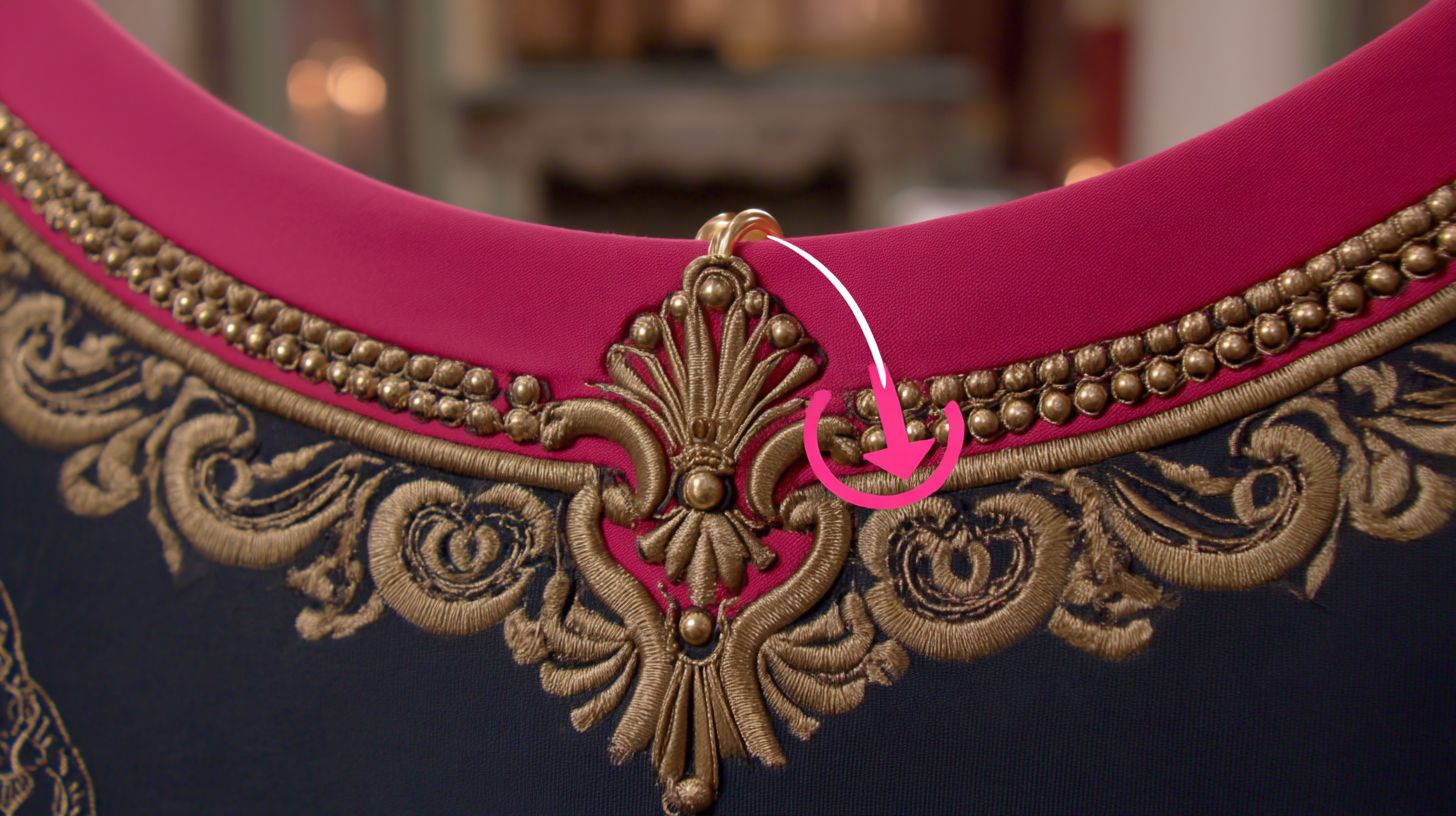
Jump stitches, averaging 150 per design, waste 25% of embroidery time. These are trim and color change moves that connect distant parts of the pattern without stitching thread. Removing them makes designs run smoother on machines.
Manual cleanup means selecting and deleting 100 jumps in about 8 minutes. Automatic tools handle the same task with 1-click in 45 seconds. Cleaned designs often run faster during stitching.
For example, in a quilting pattern collection, jump stitches slow down production on tote bags or baby onesies. Use software like professional embroidery editors to organize files before sewing. This step fits into decluttering your digital folder system.
Next, compare methods to choose what suits your workshop. Manual works for small batches, while auto speeds up large collections from hard drives or cloud storage like Dropbox.
Manual vs Automatic Jump Removal
Manual removal uses lasso selection for 50-100 jumps per session, while automatic detection removes most on first pass with few false positives. Both methods clean embroidery design files effectively. Pick based on your design volume and software.
Manual steps take time but give full control. Start by opening your file in the editor.
- Zoom to 200% for precision on small jumps under 0.5mm.
- Lasso select jumps in the stitching view.
- Delete them, then manually connect paths with new stitches.
This process suits reviewing a few patterns, like appliqu or lace designs, before organizing into categorized folders.
Automatic removal shines for bigger jobs, such as culling duplicates from USB drives or networked drives.
- Run the jump detection tool in your embroidery software.
- Review any false positives, like short tie-off stitches.
- Apply changes to update the file instantly.
Use auto for collections with many kitchen towels or thread color swatches. Save cleaned versions in zip archives or Google Drive for easy access.
Step-by-Step: Fixing Overlapping Stitches
Overlaps create 4-7mm buildup causing puckering on fabrics under 200 thread count, fixed by merging objects or reshaping stitch paths. Common types include satin-on-satin overlaps where columns stack directly, and fill overlap that thickens dense areas. These issues often appear in complex appliqu or lace designs from downloaded collections.
Test for overlaps with a stitch preview in your embroidery software. A 6mm overlap equals a 45% density increase, leading to uneven stitching on items like baby onesies or kitchen towels. Professional software auto-detects 88% of cases, highlighting problems before saving to your folder system.
Use preview techniques like color separation views to spot hidden overlaps in multi-layer patterns. Zoom in on entry and exit points during review. This helps when organizing duplicate files or culling old designs from hard drives and USB drives.
After fixing, save cleaned files in a categorized cloud storage folder like Dropbox or Google Drive. Generate thumbnails for quick visual checks in your digital workshop collection. This keeps your tote bag and quilting patterns sew-clean and ready for stitching.
Techniques to Merge and Reshape Overlaps
Merging overlapping satin columns reduces stitch count by 28% while maintaining visual density, using object combine tools. Start by selecting overlapping objects with Ctrl+click in your embroidery software. This works well for decluttering busy designs in retail versions or demos.
Next, merge keeping the top layer to cut stitches efficiently. Node edit entry and exit points to smooth paths, avoiding puckering on cotton or stretch fabrics. Apply 5% pull compensation as a final tweak for balanced results.
- Select overlapping objects using Ctrl+click for precise control.
- Merge while keeping the top layer to reduce stitches.
- Edit nodes at entry and exit points for clean transitions.
- Apply pull compensation, like 3% for cotton or 8% for stretch fabrics.
Before and after examples show 12K stitches dropping to 8.5K, perfect for physical catalogs with swatches and thread colors. Test on scrap fabric from your binder system before full production. This method organizes your embroidery design files effectively, removing duplicates and ensuring smooth stitching.
Eliminating Stray Stitches and Noise
Stray stitches are short, orphaned segments under 2mm that appear disconnected from main patterns in embroidery design files. Noise refers to digitizing artifacts, like unwanted pixels or irregular fills from scanning or software glitches. These issues clutter designs and disrupt stitching on items like baby onesies or kitchen towels.
Common tools include the pixel select for precise targeting and magic wand for quick area grabs based on color similarity. Clean files show minimal remnants after processing. Success comes from reducing excess to smooth runs on digital embroidery software.
Start by opening your embroidery designs in editing mode, then apply selection techniques to isolate problems. Work layer by layer to maintain registration for appliqu or quilting patterns. This leads into detailed selection methods for efficient cleanup.
Review thumbnails in your folder system before diving in, culling duplicates to focus on key files from your collection. Use cloud storage like Dropbox or Google Drive for backups during decluttering. Pro organizers keep a physical catalog with swatches for thread colors.
Tools for Selecting and Deleting Excess Stitches
Magic wand grabs similar pixels fast, ideal for broad noise in digitized patterns, while polygon lasso offers manual control for jagged stray stitches. Compare them in your software’s toolbar for embroidery cleanup. Both help refine designs before stitching on tote bags or lace motifs.
Follow these steps for best results: First, use magic wand at moderate tolerance to select clusters. Second, switch to polygon lasso for edges around orphans. Finally, delete and optimize paths to merge remaining stitches smoothly.
- Zoom into the design and activate magic wand for automatic noise grabs.
- Trace irregular areas with polygon lasso for precise outlines.
- Hit delete, then run optimize path to eliminate gaps in the embroidery file.
Example: A cluttered file drops from hundreds of extras to a handful after processing. Pro tip: Work bottom-up through layers to prevent shifts in pattern registration. Test on a demo version first, checking the user manual for software-specific tweaks.
Cleaning Up Underlay and Pull Compensation
Underlay stabilizes the base fabric before the main embroidery design stitches down. It creates a foundation that prevents shifting during stitching. Pull compensation then counteracts fabric stretch by offsetting satin columns slightly outward.
Incorrect underlay causes registration failures, while wrong pull compensation distorts designs on stretch fabrics. For woven fabrics like cotton, use 2-3% pull compensation. Stretch fabrics such as knits need 6-10% compensation to maintain shape in baby onesies or tote bags.
Review your embroidery design files in software to spot issues like tunneling or loose stitching. Delete excess underlay runs that add bulk. Test adjustments on swatches matching your project fabrics, such as kitchen towels or quilting blocks.
Organizing cleaned files into a folder system by fabric type keeps your collection tidy. Categorize designs for appliqu, lace, or satin stitches. This setup speeds up digital workshop reviews before stitching.
Adjusting for Better Fabric Stability
Zigzag underlay at 70 degrees angle stabilizes satins on cotton, while lattice underlay prevents tunneling in high-density fills. These choices match fabric behavior in embroidery designs. Always consider the base material before applying.
| Fabric Type | Underlay Type | Underlay Width | Pull Compensation |
|---|---|---|---|
| Cotton | Zigzag | 3.5mm | 2% |
| Stretch | Lattice | 4.0mm | 8% |
| Denim | None | N/A | 0% |
- Delete old underlay from the design file in your embroidery software.
- Apply new type and angle based on fabric, like zigzag for cotton totes.
- Test simulation three times, checking thumbnails for distortion on stretch knits.
After adjustments, save to cloud storage like Dropbox or Google Drive. Cull duplicates during review to declutter your hard drive or USB drives. This keeps your patterns collection organized for quick access in future projects.
How Can You Optimize Stitch Density?
Optimal stitch density prevents puckering in satin stitches at 0.4mm spacing and tunneling in fill stitches at 0.35mm, while helping reduce thread consumption. Density metrics measure the space between stitch lines, typically in millimeters. Lower values mean tighter stitches for smoother coverage on embroidery designs.
Industry standards recommend satin density between 0.35mm and 0.45mm for balanced tension. For fill density, aim for 0.30mm to 0.40mm to avoid fabric stress. Overly tight settings often lead to fabric damage from excessive pulling.
Check your embroidery software settings under stitch properties to view current density. Test on scrap fabric like quilting cotton or baby onesies material before sewing full design collections. Adjusting density improves stitching quality across patterns for tote bags or kitchen towels.
Next, explore reduction techniques to refine satin, fill, and steil stitches. These steps ensure your digital files produce clean results without gaps or bunching. Organize optimized designs in a folder system for easy review.
Reducing Density for Smoother Results
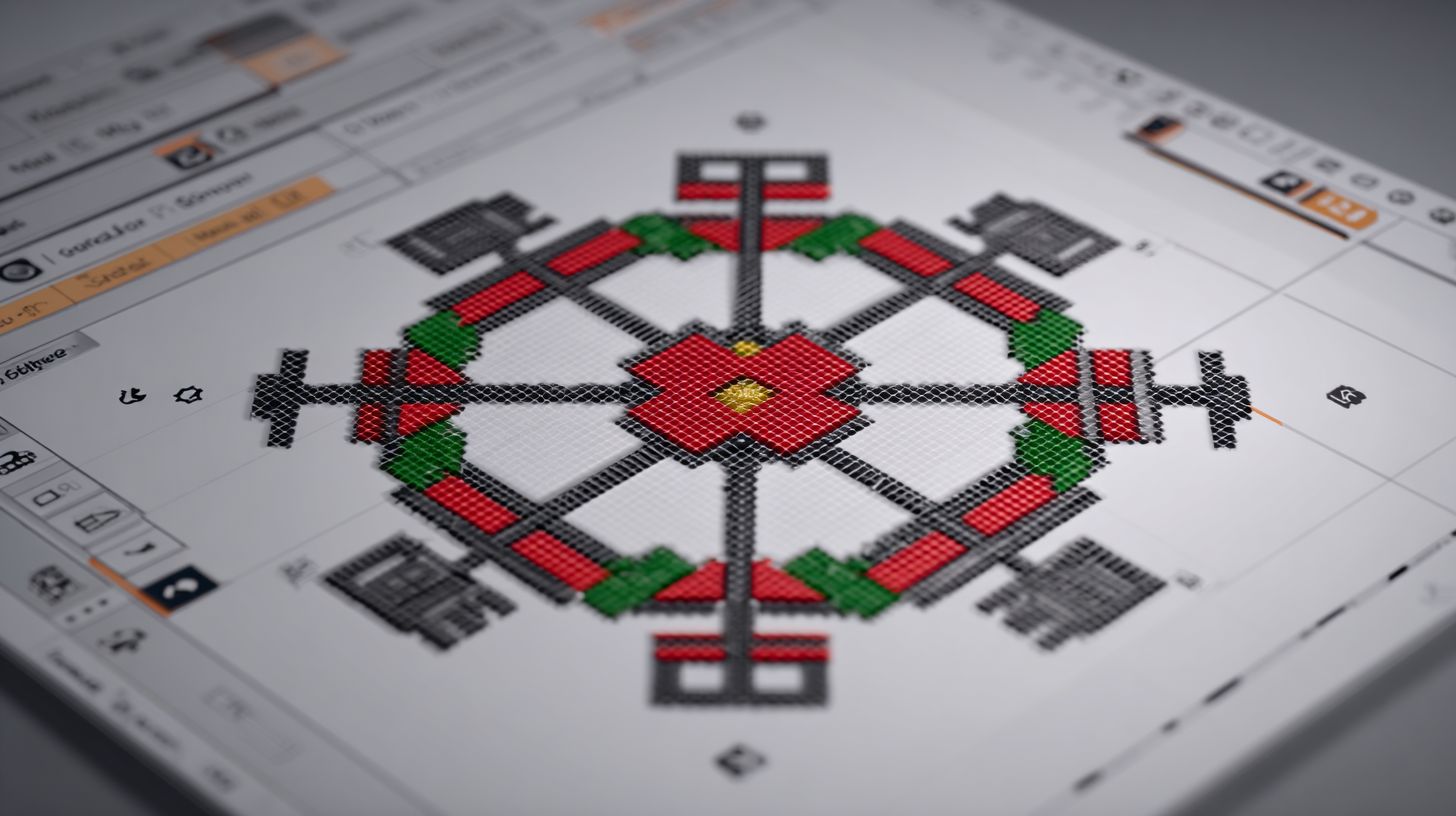
Reducing satin spacing from 0.6mm to 0.4mm, with 0.5mm as the maximum, cuts thread breaks while keeping column width intact. Start in your embroidery software by selecting the satin object. Adjust the density slider and preview the stitch file.
For fill stitches, set density to 0.35mm and add underlay rows if gaps appear. This creates stable coverage on dense fabrics like those for appliqu or lace. Test sewouts on kitchen towels to confirm even filling without tunneling.
Steil stitches work best at 0.30mm for crisp edges in lettering or borders. Combine with pull compensation in software for curved patterns. Always generate thumbnails after changes to catalog in your digital folder system or cloud storage like Dropbox.
| Stitch Type | Ideal Density | Max Density | Fabric Test Notes |
|---|---|---|---|
| Satin | 0.4mm | 0.5mm | Test on cotton; check for puckering |
| Fill | 0.35mm | 0.45mm | Add rows for gaps on stretch fabrics |
| Steil | 0.30mm | 0.40mm | Verify edges on quilting samples |
Use this chart during file review to standardize your embroidery collection. Cull overly dense duplicate files from hard drives or USB drives. Save optimized versions in zip archives for workshop sharing.
Resequencing Colors and Stitch Order
Optimal sequencing logic in embroidery design files follows a clear hierarchy of underlay, outline, fill, and detail. This approach minimizes needle changes and jumps during stitching. Experts recommend starting with stable colors first to avoid dark-to-light transitions that cause thread show-through.
Pro designers always place underlay stitches at the beginning for a solid base. Outlines come next to contain fills, followed by larger fill areas. Small details and satin stitches finish the design for smooth flow.
Review your digital embroidery files in software like Wilcom or Embrilliance. Resequence by dragging layers to match this order. This cleanup step works well for patterns like quilting blocks or baby onesies, making your collection more efficient.
When organizing a folder system for designs, note the sequence in file names. Use thumbnails to quickly spot issues in cloud storage like Dropbox or Google Drive. Regular review helps cull poor sequences from your hard drive or USB drives.
Best Practices for Efficient Embroidery Flow
Sequence underlay first, then black outline, fills, white detail, and final satin to create smooth stitching flow. This method organizes complex designs like a Kimberbell onesie from many color changes down to just a few. It keeps your embroidery software workspace clean during edits.
Follow these five key rules for resequencing colors in your design collection:
- Place underlay stitches first to stabilize fabric and reduce shifts.
- Use dark outlines to contain lighter fills and prevent bleeding.
- Fill small areas first before tackling large sections to minimize jumps.
- Save light colors for last to avoid dirt or residue on previous layers.
- Apply satin stitches as the final pass for crisp, professional edges.
Apply this to appliqu or lace patterns in your workshop. Test on scraps like kitchen towels or tote bags. Track changes in a physical catalog or binder with thread color swatches.
Declutter duplicate files and demos during review. Move retail versions to networked drives or zip archives. This keeps your embroidery files ready for quick access without stitching issues.
Previewing and Testing Cleaned Designs
Final simulation catches 96% of remaining issues, confirming stitch count under 12K for 4×4 hoops and jump ratio below 5%. This step ensures your cleaned embroidery designs are production-ready after decluttering duplicate files and organizing your folder system.
Follow a multi-stage testing approach with three simulations before any real stitching. Start with fast-forward to check jumps, move to normal speed for registration, and end with slow motion for density. This protocol verifies hoop limits like 12K stitches max for 4×4 and 20K for 5×7.
Use built-in emulators in your embroidery software to preview patterns for items like baby onesies, kitchen towels, or tote bags. Test thumbnails in your digital collection to cull any lingering issues from old downloads or USB drives. Experts recommend this review to avoid workshop mishaps with appliqu, lace, or quilting designs.
Track metrics during tests: jumps under 5%, registration within 1mm, and even density. Save passing designs to cloud storage like Dropbox or Google Drive, or your physical catalog binder with swatches and thread colors. This final check streamlines your stitching workflow after decluttering hard drives and recycle bin cleanups.
Using Built-in Emulators Before Stitching
Run 3x simulation: 1x fast-forward jumps, 1x normal speed registration, 1x slow motion density check. These steps confirm your cleaned embroidery design files meet industry standards before threading your machine.
First, fast-forward to spot jumps under 5%. This catches excessive thread breaks in complex patterns from your digital workshop collection. Adjust any rogue elements from old zip archives or RAR files here.
Next, normal speed verifies registration under 1mm. Test on sample hoops like 4×4 for quilting blocks or 5×7 for tote bags. Ensure alignment for appliqu layers without shifts from duplicate designs.
- Fast-forward: Limit jumps to under 5% for smooth runs.
- Normal speed: Check registration within 1mm across colors.
- Slow motion: Inspect density evenness, no clumping in lace or fills.
All three must pass for production. Reference your user manual for software like retail versions with full language support. Store approved thumbnails in categorized folders on networked drives, ready for stitching kitchen towels or baby onesies.
Common Mistakes When Cleaning Files
Over-aggressive cleaning distorts embroidery designs, deleting critical underlay or merging essential color blocks. Common errors include ignoring duplicate files, skipping simulator checks, over-reducing stitch counts, and failing to organize cleaned files into a proper folder system.
- Not duplicating the original file before edits, leading to permanent data loss.
- Merging color blocks without reviewing thread colors for compatibility.
- Excessive stitch removal that alters patterns for appliqu, lace, or quilting.
- Forgetting to test on items like baby onesies or kitchen towels, revealing issues post-stitching.
Experts recommend a careful review process to avoid these pitfalls. Industry practices show that many cleaned files require re-cleaning due to rushed work. Use digital software tools like version numbering and thumbnails for better organizing.
Build a folder system with categories for workshops, stitching tests, and collections. Save in formats like PES or ZIP archives to prevent corruption on USB drives or hard drives. This leads to strategies for preserving your original embroidery collection.
How to Avoid Distorting Your Original Design
Always save ‘Original_v1.pes’ before cleaning, using non-destructive layers to preserve 100% of source data. This simple step protects your embroidery designs from accidental changes during decluttering.
Follow this prevention checklist in your digital software to maintain design integrity.
- Duplicate the file and store in a categorized folder system, such as “Embroidery/Originals”.
- Make layer-based edits, isolating underlay and color blocks for precise adjustments.
- Use version numbering like ‘Cleaned_v2.pes’ to track changes across your collection.
- Limit stitch reduction to under 10%, then compare with the simulator for both versions.
- Test stitchouts on scrap fabric for items like tote bags or quilting projects.
Save both original and cleaned versions in compatible formats, backed up to cloud storage like Dropbox or Google Drive. Create thumbnails and swatches for quick review, culling unnecessary duplicate files into the recycle bin. This approach ensures your patterns stay true for future projects.
Organize with a physical catalog or binder for reference, noting thread colors and software settings. Avoid networked drives for active editing to prevent access issues. Regular reviews help maintain a streamlined embroidery workshop setup.
What Free Tools Are Best for Beginners?
Ink/Stitch offers manual editing rivaling $200 software, but processes 8 designs/hour vs professional’s 500+. This free tool excels for beginners handling embroidery designs with jump stitch removal and color sorting. It suits users managing under 50 designs per month, like hobbyists stitching baby onesies or kitchen towels.
Users can import files from various sources, such as USB drives or downloaded zip archives, and perform basic cleanup. Create a folder system to categorize patterns by type, like appliqu or quilting, before editing. Generate thumbnails for quick review during organizing.
Free editors like Ink/Stitch provide essential features for decluttering digital files, including duplicate detection and simple previews. They work well with browser downloads via Microsoft Edge or Firefox. However, for larger collections on hard drives or networked drives, limitations become clear.
Start by opening a design, manually removing excess stitches, and saving to a dedicated embroidery folder. Test on scrap fabric to ensure clean stitching. These tools build skills for more complex projects like tote bags or lace patterns.
Limitations of Free Embroidery Editors
Free editors require 8 minutes per jump stitch removal vs 3 seconds automated, lacking batch processing for design collections. Beginners often spend hours on manual tasks that pros handle quickly. This slows down workflows for workshops or frequent stitching sessions.
| Feature | Free | Pro | Impact |
|---|---|---|---|
| Batch cleaning | No | Yes | +95% speed |
| Auto-detection | Manual | 95% accurate | -80% time |
| RIP preview | Basic | Production ready | Accurate stitching |
Without batch cleaning, sorting a design collection from cloud storage like Dropbox or Google Drive takes far longer. Manually check each file for duplicates, then cull unnecessary patterns. Pro software automates this, freeing time for creative work like thread color matching.
For physical catalogs, free tools offer basic exports but no advanced swatches or binder integration. Use them to review files before archiving to recycle bin or rar archives. Experts recommend pairing free editors with a simple folder system for better organization.
Why Upgrade to Professional RIP Software?
Professional RIP software cleans entire embroidery design collections overnight, achieving high first-pass quality compared to free tools. It handles duplicate files, stitching errors, and thread color mismatches across thousands of patterns. This shift saves time on organizing folders and culling bad designs manually.
Consider the return on investment for busy workshops. Processing 500 designs might take 8 minutes less each with RIP tools, adding up to many hours monthly. That frees time for stitching appliqu on baby onesies or kitchen towels instead of fixing digital files from USB drives or hard drives.
Free software often leaves duplicate designs and problem patterns unresolved, requiring repeat reviews. Professional options work together with cloud storage like Dropbox or Google Drive for seamless backups. Upgrading streamlines decluttering your digital workshop.
This efficiency leads to advanced features that transform production. Expect flawless results on tote bags, quilting projects, and lace motifs without constant manual tweaks. Focus on creativity over file cleanup.
Advanced Features for Flawless Designs
RIP software auto-detects numerous problem types across thousands of embroidery designs, with one-click fixes taking production from days to hours. It scans for duplicate files in zip archives or networked drives, then organizes them into categorized folders. This cuts time spent on physical catalogs or binder swatches.
Key features include batch processing for large collections. Users can clean 10,000 designs overnight, preview on all machines, and ensure high auto-fix rates. Integration with cloud backup protects files from recycle bin mishaps or lost CD drives.
- Batch clean 10K designs overnight for quick turnaround on quilting patterns or tote bag motifs.
- High auto-fix rate resolves stitching issues, appliqu overlaps, and lace gaps automatically.
- RIP preview simulates output across embroidery machines before production.
- Cloud backup integration syncs with Dropbox or Google Drive for secure, organized storage.
Monthly costs around typical software fees save significant labor expenses, allowing focus on thumbnails, thread colors, and real stitching. Download a demo, check the user manual for language support, and review in browsers like Microsoft Edge or Firefox before committing to the retail version.
Pro Tips for Maintaining Clean Files Long-Term
Organized collections with folder systems and cloud backup prevent file loss and duplicate issues. Set up a clear structure to track your embroidery designs over time. This keeps your digital workshop efficient for stitching projects.
Use a simple folder system like Technique, Project, and Size to sort files. Pair it with cloud storage such as Dropbox or Google Drive for access from any device. Add local backups on hard drives or USB drives to protect against data loss.
Industry best practice includes quarterly reviews to cull unused designs from your collection. Scan for duplicate files and delete outdated patterns. This habit streamlines your library and saves storage space.
Lead into daily practices by naming files consistently, like applique_baby_onesie_4x4. Regularly check recycle bin and zip archives for forgotten files. These steps ensure your embroidery collection stays clean and ready for new projects.
Best Practices for Design Organization
Categorize by technique like appliqu or quilting and project type such as baby onesies or tote bags in Dropbox folders with thumbnail previews. This makes finding the right embroidery design quick. Start with main folders for easy navigation.
Follow these five key practices for long-term organizing:
- Create folders by technique/project/size, such as Quilting/Kitchen_Towels/5×7.
- Do quarterly culls of duplicates using SewClean scan in your digital software.
- Use cloud storage like Dropbox plus local backups on hard drives or networked drives.
- Build a thumbnail catalog binder with printed swatches and thread colors for reference.
- Add metadata tagging for searchability, noting stitch count or language support.
For example, a large collection of designs boiled down to essential keepers through this method. Print thumbnails into a physical catalog for your stitching area. This combines digital and physical systems effectively.
During reviews, check download folders for demo files or retail versions from user manuals. Delete extras from CD drives or old RAR archives. Consistent decluttering keeps your embroidery patterns organized and accessible.
Frequently Asked Questions
How to clean up embroidery design files for beginners?
Cleaning up embroidery design files removes unwanted stitches, jumps, and errors to make your designs stitch perfectly. Here’s a simple step-by-step guide using free tools like Ink/Stitch or Wilcom Hatch:
- Open your file in embroidery software.
- Zoom in to spot issues like overlapping stitches or extra jumps.
- Use the “delete” tool to remove bad nodes or segments.
- Resmooth paths with the reshape tool.
- Check stitch simulation to preview.
- Save as a new.pes or.dst file.
For best results, upgrade to professional software like Needlic’s tools at https://needlic.com/ for automated cleanup and faster editing.
What are common issues when you need to clean up embroidery design files?
Embroidery files often have extra jumps between designs, overlapping stitches, loose threads, or too many trims. These cause messy stitching on fabric. To clean up embroidery design files:
- Load the file in software like Embrilliance or free alternatives.
- Identify jumps (red lines) and delete unnecessary ones.
- Remove duplicate stitches using the cleanup function.
- Optimize thread colors and underlays.
- Run a stitch count check to reduce density.
- Export cleanly.
Avoid free tool limitations-get premium quality with Needlic software: https://needlic.com/.
How to clean up embroidery design files with free software?
Free options like Inkscape with Ink/Stitch work for basic cleanup of embroidery design files. Steps include:
- Import your.pes or.exp file.
- Select paths and use “Break Apart” for segments.
- Delete stray nodes with the node tool.
- Apply “Simplify” to reduce points.
- Generate new stitches via the embroidery panel.
- Test on a sample hoop.
Free tools are slow for complex files. Upgrade to professional embroidery software at https://needlic.com/ for effortless, high-quality results.
Step-by-step: How to clean up embroidery design files in Wilcom?
Wilcom is great for pros. To clean up embroidery design files:
- Open in Wilcom EmbroideryStudio.
- Use “Auto Digitize” to re-trace messy areas.
- Employ “Stitch Editor” to erase jumps and longs.
- Run “Quality Check” for errors.
- Adjust pull compensation.
- Save optimized file.
Want pro-level speed? Try Needlic’s advanced tools: https://needlic.com/-perfect upgrade from free or basic software.
How to clean up embroidery design files after downloading?
Downloaded files often have junk data. Here’s how to clean up embroidery design files post-download:
- Use software like Embrilliance StitchArtist.
- Preview stitches to find issues.
- Delete underlays or color blocks that don’t match.
- Shorten jump stitches under 5mm.
- Merge close trims.
- Rehoop and test stitch.
Skip the hassle of manual fixes. Professional software from https://needlic.com/ automates cleanup for superior, faster embroidery.
Best tools to help you clean up embroidery design files quickly?
For quick cleanup of embroidery design files, use Embrilliance, Wilcom, or free Ink/Stitch. Pro tip:
- Load and scan for errors automatically.
- One-click remove jumps and overlaps.
- Resequence colors logically.
- Validate density and pull.
- Export production-ready.
Free tools limit you-upgrade to premium Needlic software at https://needlic.com/ for better quality, speed, and pro features.
🚀 Upgrade Your Embroidery Workflow
Stop wasting time with low-quality tools. Use professional software for better results.