Transitioning from embroidery to DTF printing? As a beginner in 2026, you’re likely frustrated by setup hurdles with your new DTF printer like the Epson L1800. This step-by-step beginner guide solves real problems: from white ink calibration and adhesive powder application to flawless heat press transfers. Master DTF printing basics and print design pro files effortlessly.
Key Takeaways:
What is DTF Printing?
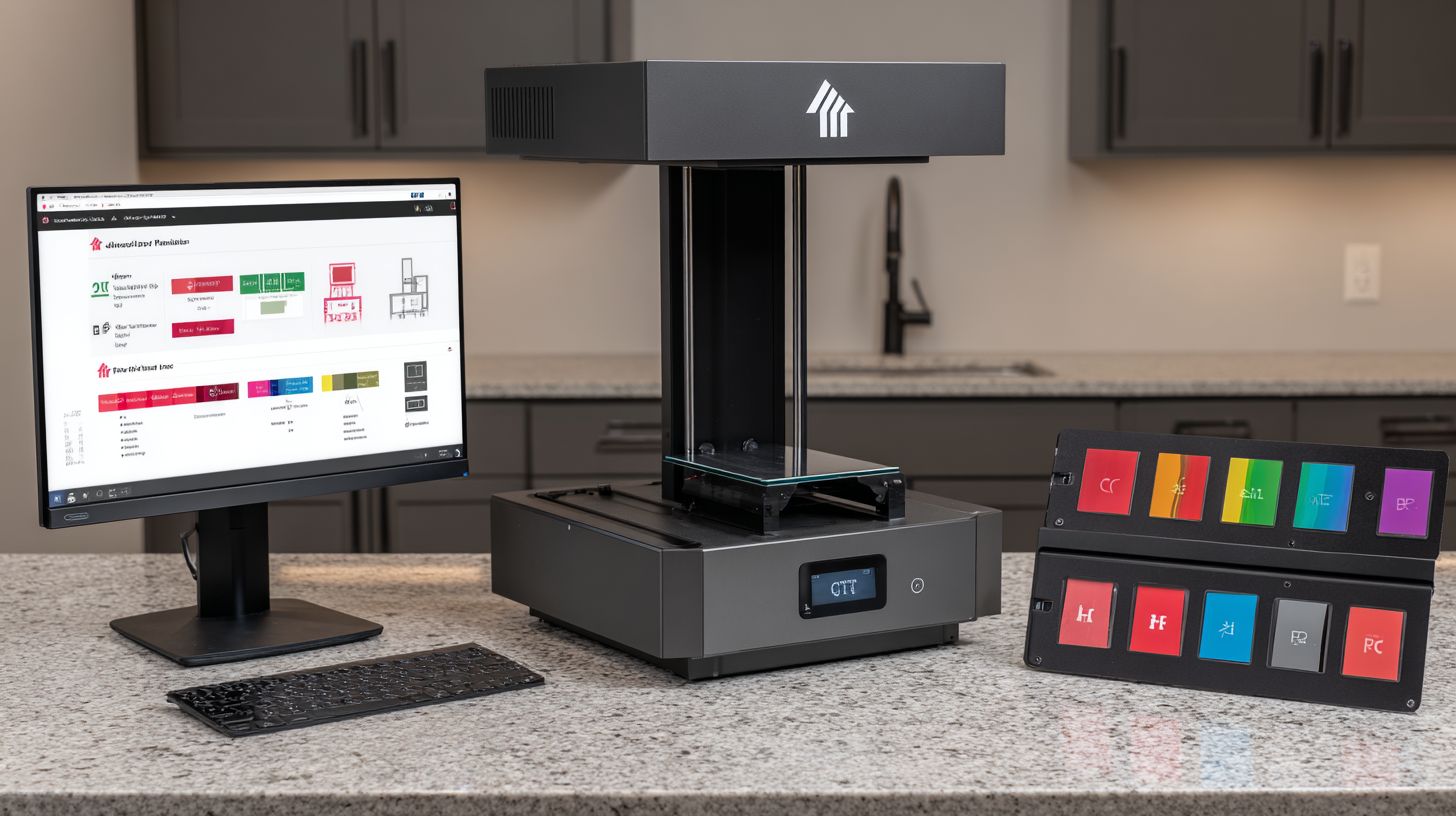
DTF Printing, or Direct to Film Printing, is a versatile garment decoration method that prints designs onto PET film using white ink and CMYK ink, applies adhesive powder, cures it, and heat transfers to fabrics like Gildan 5000 or Bella+Canvas 3001 without pretreatment.
This beginner-friendly alternative excels for custom t-shirts on dark garments. It skips the pretreatment step common in other methods, making it ideal for home setups or small businesses.
Key advantages include startup costs around $1,500-$3,000 for a DTF printer, powder shaker, and heat press. Beginners appreciate the flexibility for small orders or bulk production without wasting materials.
Start with a converted Epson printer for your print workflow. Use RIP software to handle design mirroring and colour profiles, ensuring vibrant prints on transfer film every time.
DTF vs DTG and Screen Printing
DTF Printing outperforms DTG and screen printing for dark garments by requiring no pretreatment, offering vibrant prints on versatile printing fabrics with lower startup costs around $1,500-$3,000 compared to DTG’s $10,000+ machines.
Choose DTF for its edge in hybrid use cases, like mixing small custom runs with batch production. It works on cotton, polyester, or blends without special prep, unlike DTG’s cotton focus.
| Method | Startup Costs | Best For | Pros | Cons |
|---|---|---|---|---|
| DTF | $1,500-3,000 | Small orders/bulk | No pretreatment, versatile printing | Ink circulation needed, printhead maintenance |
| DTG | $10k+ | Cotton only | Soft feel, high print quality | Pretreatment required, white ink clogs |
| Screen | $5k+ | Bulk production | Durable, low per-unit cost | High setup time, screens per colour |
Beginners gain from DTF’s fast setup with tools like a swing-away press and lint roller for clean transfers. Test prints on scrap fabric help avoid adhesion problems, building confidence over time.
What Equipment Do Beginners Need for DTF Printing in 2026?
Beginners need a core DTF printing setup including a converted Epson printer, heat press like Hotronix FUSION, PET Film, adhesive powder, and inks, with total startup costs under $2,500 for UK prices. This production scale setup handles small orders and grows to batch production. Focus on essentials for reliable t-shirt printing without complex additions.
The equipment list starts with a DTF printer, heat press, powder shaker, and lint roller. Add PET film, CMYK Ink, and White Ink for versatile printing on dark garments. These tools support print workflow from design mirroring to curing powder.
For production scale, begin with small orders on Gildan 5000 or Bella Canvas shirts. Use gang sheeting on transfer film for efficiency. This setup ensures print quality and good profit margins in garment decoration.
Common items like scrap fabric for test prints and nozzle check tools aid printhead maintenance. Experts recommend low sediment white circulation. Total setup fits budgets and scales to bulk production for custom t-shirts.
Printer Requirements and Recommendations
For beginners, choose wide-format inkjet printers like converted Epson L1800 or Prestige A4 with low sediment white ink circulation and printhead maintenance features for reliable t-shirt printing. These support DTF printer conversions with minimal tweaks. They handle colour profiles and RIP software for sharp designs.
| Tool | Price (UK) | Key Features | Best For | Pros/Cons |
|---|---|---|---|---|
| Epson L1800 | $800 | 6-color, white ink | Small orders | Affordable/Easy clogging |
| XP-15000 | $1,200 | 13″ width | Versatile | High res/Complex |
| ET-8550 | $900 | Pigment inks | Dark garments | Reliable/Firmware tweaks |
| Prestige A4 | $1,500 | RIP integrated | Batch | Pro quality/Pricey |
Converted Epson models offer a low learning curve for beginners. Run nozzle check s daily to prevent clogs. Pair with film sheets for hot melt transfers.
Prestige A4 suits batch production with built-in software. Test on dark garments for no pretreatment needs. This keeps your beginner guide simple yet effective.
Heat Press and Accessories
A swing-away press like Hotronix FUSION paired with powder shaker and lint roller ensures even pressure for perfect DTF transfers on Gildan 5000 t-shirts. Setup takes about 15 mins. Avoid the common mistake of uneven pressure causing wrinkles.
- Hotronix FUSION: 15×15 $1,200, even heat for consistent print quality.
- Powder shaker: $200, uniform adhesive powder application prevents adhesion problems.
- Lint roller: Removes fibers before pressing on Bella Canvas shirts.
- Scrap fabric: Use for test prints to check curing powder.
- Timer accessory: Ensures precise dwell time for white circulation layers.
Preheat the press to standard settings for custom t-shirts. Shake excess curing powder after printing. This print workflow boosts production scale.
Full accessories support versatile printing from small runs to bulk. Lint rollers fix garment decoration issues fast. Integrate into your print design process for smooth operation.
How to Choose the Best DTF Printer for Beginners?
Select DTF printers with reliable white circulation, nozzle check features, and compatibility with Acrorip for beginners targeting custom t-shirts with high print quality. Prioritize models using low sediment inks to reduce clogs during print workflow. Look for 2026 updates like the Prestige series, which offer ease for new users.
Keep startup costs under GBP2,000 by avoiding high-end machines suited for production scale. Focus on printers with gang sheeting for batch production on PET film. Test compatibility with your heat press and powder shaker setup for smooth t-shirt printing.
Check for printhead maintenance tools like auto nozzle checks to handle CMYK ink and white layers without issues. Ensure the printer supports design mirroring and colour profiles for dark garments. Beginners benefit from versatile printing on fabrics like Gildan 5000 or Bella Canvas with no pretreatment needed.
Use a simple decision framework: match print width to order size, verify rip software integration, and review user feedback on adhesive powder adhesion. Practice on scrap fabric with test prints to confirm quality before full runs. This approach minimizes adhesion problems and supports efficient garment decoration.
Top Budget Models for 2026
Prestige A4 at GBP1,200 stands out for 2026 beginners with built-in white ink stirring and gang sheeting for efficient batch production. Its A4 size fits small orders of custom t-shirts using transfer film. Pair it with a swing-away press and lint roller for clean results on versatile printing.
The Prestige R2 Pro at GBP1,800 offers 13-inch width with auto nozzle check for reliable white circulation. It handles bulk production better than narrower models, reducing downtime in your print workflow. Ideal for scaling from small orders to more dark garments with hot melt powder.
| Model | UK Price | Print Width | Key Features | Best For |
|---|---|---|---|---|
| Prestige A4 | GBP1,200 | A4 | Low sediment inks, white ink stirring | Small orders |
| R2 Pro | GBP1,800 | 13″ | Auto nozzle check, RIP compatibility | Bulk production |
| L2 | GBP2,200 | 24″ | Colour profiles, film sheets handling | Pro scale |
| XL2 | GBP3,000 | 24″ | High speed, curing powder support | Production scale |
Compare Prestige A4 and R2 Pro for profit margins: the R2 Pro delivers faster ROI through higher volume on converted Epson bases. Both excel in print quality with low maintenance, but choose based on your equipment list like Hotronix Fusion press. Test prints on Bella Canvas tees ensure strong adhesion after powder shaker use.
Essential DTF Inks and Films Explained
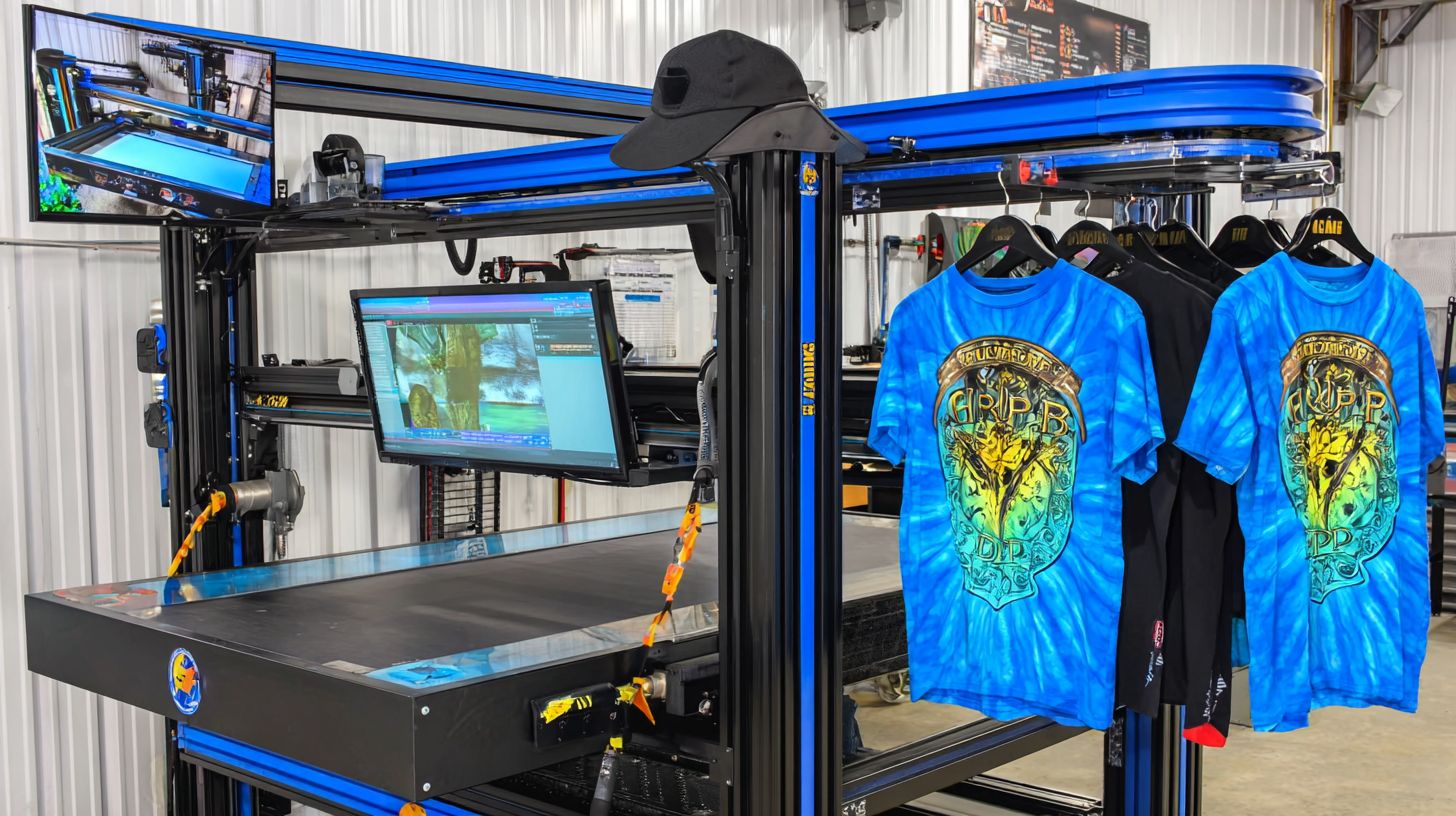
DTF Printing relies on low sediment White Ink for dark garments, CMYK Ink for vibrant colors, and PET Film sheets treated with Adhesive Powder. This ink-film stack enables no pretreatment printing on fabrics like Gildan 5000 or Bella+Canvas 3001. Suppliers such as All American Print Supply offer quality options for strong adhesion in t-shirt printing.
The white ink provides opacity on dark garments, while CMYK builds sharp print designs. PET film acts as the transfer film, coated with adhesive powder for heat press application. This setup supports versatile printing for small orders or bulk production.
For best results, choose low sediment inks to prevent clogs in your converted Epson L1800 DTF Printer. Apply hot melt powder evenly using a powder shaker after printing. Cure the powder in a swing-away press for durable garment decoration.
Experts recommend testing inks on scrap fabric with a lint roller for cleanup. This ensures high print quality without adhesion problems. Proper selection keeps startup costs low for beginners scaling to batch production.
White Ink and CMYK Setup
Install White Ink first in DTF Printer Epson L1800 channels for opacity on Bella+Canvas 3001, followed by CMYK ink with custom colour profiles for accurate print design. This step prepares your DTF printer for reliable print workflow. Total time takes about 30 minutes.
Follow these numbered steps for smooth setup:
- Flush lines for 10 minutes using cleaning fluid to remove old residue and prevent clogs.
- Fill white ink after stirring for 5 minutes to maintain low sediment flow.
- Load CMYK ink matching supplier profiles in RIP software for precise colors.
- Run a nozzle check and test prints to verify printhead maintenance.
A common mistake is skipping white circulation, which causes clogs and downtime. Always circulate white ink daily in your DTF printing setup. Use gang sheeting for efficient production scale.
For custom t-shirts, mirror designs in RIP software before printing on film sheets. Test on Prestige A4 or Hotronix Fusion presses with scrap fabric. This avoids adhesion issues and boosts profit margins in your beginner guide workflow.
Step-by-Step DTF Printer Setup Guide
Setting up a DTF printer like Prestige A4 takes 1-2 hours, covering drivers, firmware, and calibration for optimal white ink flow. This guide walks beginners through the full DTF printing setup process, from unboxing to first test prints on PET film. Follow these steps for reliable t-shirt printing and garment decoration.
Start with driver installation to ensure stable connections for your converted Epson setup. Move to firmware flashing for RIP software compatibility. Calibration follows to perfect CMYK ink and white circulation, avoiding common adhesion problems on dark garments.
Prepare tools like a lint roller, scrap fabric, and powder shaker nearby. Test on film sheets before committing to production scale. Detailed steps below cover each phase, helping you achieve print quality for custom t-shirts with no pretreatment.
Once set up, connect with a Heat Press Hotronix FUSION or swing-away press for curing adhesive powder. This workflow supports small orders or bulk production, boosting profit margins in versatile printing. See subsections for precise instructions.
Installing Drivers and Firmware
Download Epson drivers and Acrorip firmware for Prestige A4 converted L1800 from manufacturer site, ensuring USB connectivity for stable print workflow. This step prevents recognition issues in RIP software. Plan for 20 minutes total.
Begin by uninstalling old drivers to avoid conflicts. Restart your PC after removal. This clears remnants from prior installs, setting a clean base for DTF printing.
- Uninstall old drivers using device manager, then restart PC for full refresh.
- Install Epson ICC profiles and colour profiles matched to your inks.
- Flash Acrorip firmware, a quick 10-minute process via USB.
- Test connection by printing a test page on transfer film.
A common mistake is using the wrong USB port, causing recognition fails. Stick to the recommended port on your Prestige A4. Verify with gang sheeting tests for printhead maintenance readiness.
Initial Printer Calibration
Calibrate using nozzle check and test prints on Prestige A4 PET Film to verify white circulation and CMYK alignment before production. This ensures low sediment and even hot melt layers. Allow 15 minutes for best results.
Run checks daily to maintain print quality. Use RIP software to adjust profiles. Avoid over-inking, which clogs heads and ruins film sheets.
- Perform nozzle check pattern to spot gaps early.
- Print colour profile test, tweaking via RIP software for accurate hues.
- Align print head to 0.1mm precision using built-in tools.
- Confirm metrics show strong nozzle pass rates on scrap fabric.
Test designs with design mirroring for proper transfer to Gildan 5000 or Bella Canvas. Shake off excess curing powder with a lint roller. This setup fixes adhesion problems on dark garments, prepping for batch production or small orders.
How to Design Your First DTF Print File?
Create mirrored designs in Acrorip RIP software with Prestige R2 Pro gang sheeting for efficient A4 film use on custom t-shirts. Beginners should focus on layering for white underbase to ensure vibrant colors on dark garments. This setup works well with Gildan 5000 blanks and no pretreatment needs.
Start by importing your print design into the software. Set the white ink layer at 100% opacity beneath CMYK inks for opaque results. Use pet film sheets like Prestige A4 for consistent transfer film output.
Test your design on scrap fabric before full production. Apply adhesive powder evenly after printing, then cure in a heat press. This DTF printing workflow minimizes adhesion problems and boosts print quality.
For small orders, gang up to eight designs per sheet. Mirror horizontally to match the heat press transfer process. Experts recommend color profiles for accurate reproduction on versatile printing surfaces.
Free vs Professional RIP Software Options
Free tools like GIMP lack precise white channeling, while Acrorip offers design mirroring but professional RIP like Needlic boosts speed and efficiency. Choose based on your production scale and startup costs. Beginners often start free before upgrading for better print workflow.
| Software | Price | Features | Best For | Pros/Cons |
|---|---|---|---|---|
| GIMP | $0 | Basic editing | Testing | Pros: Free. Cons: No RIP, limited white ink support. |
| Acorip | $100 | Mirroring, basic RIP | Beginners | Pros: Affordable. Cons: Occasional bugs in gang sheeting. |
| Needlic | $299/yr | Gang sheeting, auto-color | Pro users | Pros: Fast setup, easy batch production. Cons: Yearly fee. |
Recommend upgrading to professional options for XP-15000 and ET-8550 converted Epson printers and consistent CMYK ink output. Free software suits initial tests, but pros handle powder shaker integration better. This improves profit margins on custom t-shirts.
Pair RIP software with printhead maintenance routines like nozzle checks. Professional tools reduce low sediment issues in white ink circulation. Start with Acrorip for your first DTF printer setup.
Layering and Color Management Tips
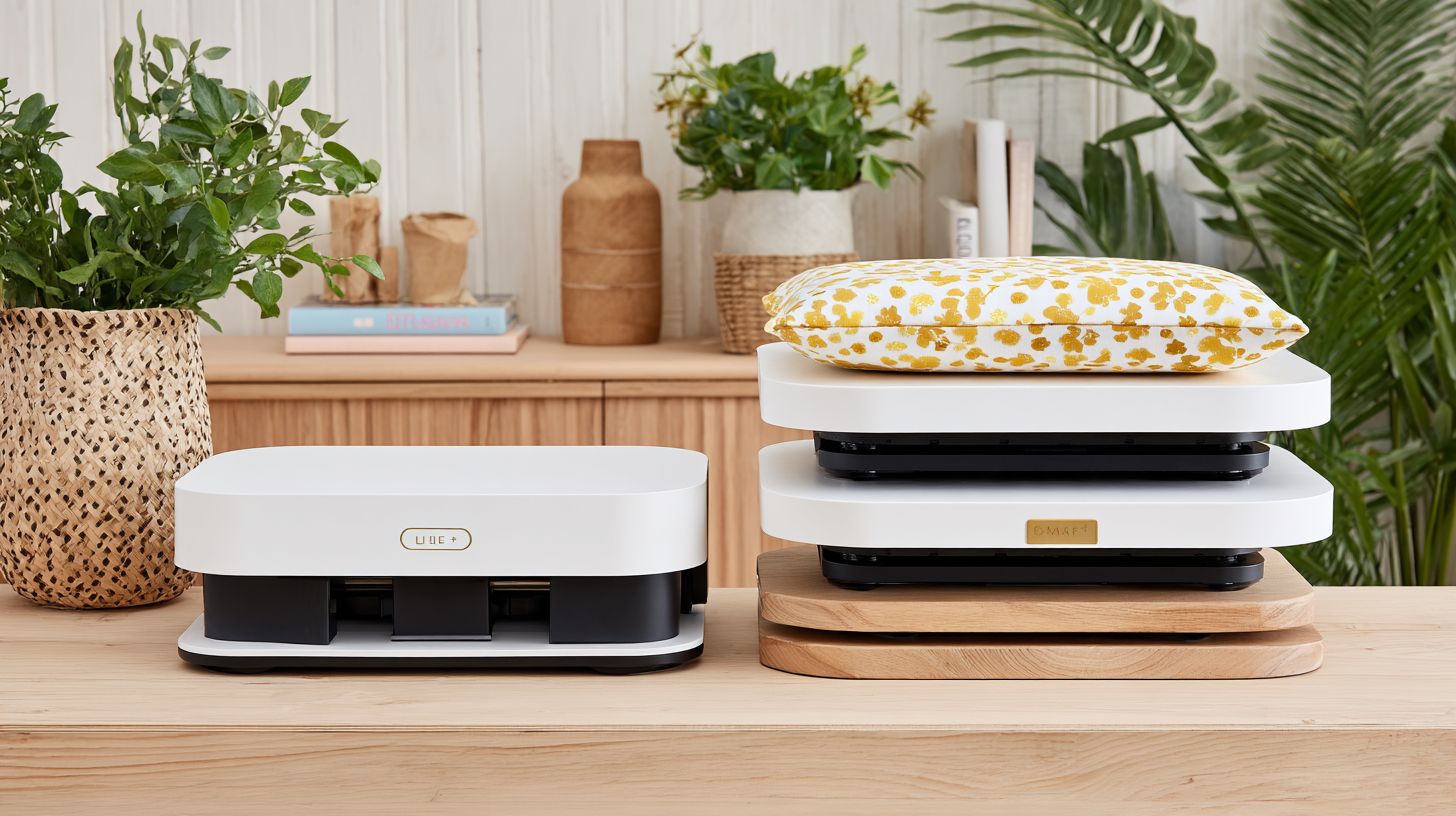
Layer white ink under CMYK in RIP, mirror design, and apply ICC colour profiles for accurate prints on Smartex Apparel 402. This ensures vibrant results on dark garments without pretreatment. Focus on 300 DPI resolution for sharp t-shirt printing.
Follow these five best practices for reliable garment decoration:
- Use white 100% opacity underbase for opaque coverage on fabrics like Bella Canvas.
- Mirror horizontally in software to align with heat press transfer.
- Set prints to 300 DPI for high print quality on transfer film.
- Gang 8 designs per sheet for efficient film sheets and bulk production.
- Always test on scrap fabric to check adhesion before full runs.
After printing, apply hot melt adhesive powder and cure with a swing-away press like Hotronix Fusion. Use a lint roller for clean PET film. These steps prevent common issues in beginner DTF setups.
For production scale, run test prints daily to maintain color accuracy. White underbase layering shines on Gildan 5000 for custom t-shirts. Adjust profiles for your equipment list to optimize results.
Mastering the DTF Printing Process
Print onto PET film, apply adhesive powder evenly, cure at 150 degreesC, and shake excess for flawless transfers. This DTF printing workflow suits batch production and ensures strong adhesion on dark garments or custom t-shirts. Beginners using a converted Epson DTF printer can process multiple film sheets efficiently.
For batch production, start with gang sheeting in RIP software to maximize print design output per sheet. Use CMYK ink and white ink for vibrant colors without pretreatment. This method supports small orders to bulk production, ideal for t-shirt printing on brands like Gildan 5000 or Bella Canvas.
Key steps include DTF Printing, powdering, curing in a Heat Press like Hotronix FUSION, and shaking. Maintain printhead maintenance with nozzle checks and white circulation for consistent print quality. Test prints on scrap fabric help dial in colour profiles before full runs.
Experts recommend a structured print workflow to avoid adhesion problems. Mirror designs in software for proper transfer orientation. This process keeps startup costs low while boosting profit margins in garment decoration.
Applying Adhesive Powder Correctly
Use powder shaker to apply hot melt adhesive powder immediately after printing wet ink for uniform coverage. This step binds the print design to fabric during transfer. Aim for a thin layer to prevent clumping on transfer film.
Follow these numbered steps for each film sheet:
- Print design with DTF Printer using low sediment White Ink.
- Shake 5-10g powder for 30 seconds over the wet print.
- Tap excess powder off gently into a bin.
- Inspect for gaps or uneven spots under light.
This takes about 1 min per sheet, perfect for production scale. Use Prestige A4 films for UK prices and versatile printing. Thin application ensures no clumping on dark garments.
Practice on test prints to master coverage. Avoid over-powdering, which causes weak transfers. Consistent technique improves overall DTF printing results for custom t-shirts.
Curing and Shaking Techniques
Cure adhesive powder at 150 degreesC for 90 seconds in heat press, then cool and shake over bin for clean film. Use a swing-away press for even pressure on batches. This solidifies the hot melt layer before transfer.
Best practices for optimal results include:
- 150 degreesC for 90 seconds to fully cure powder.
- Cool sheets for 2 minutes on a flat surface.
- Shake vertically over a collection bin.
- Use lint roller to remove residue.
- Process in batch of 10 sheets for efficiency.
These steps enhance adhesion without pretreatment. Monitor curing powder for even melting. This refines your beginner guide to professional garment decoration.
For equipment list, pair with Acrorip software for design mirroring. Regular nozzle check prevents print issues during high-volume runs. Clean shakes yield high-quality transfers ready for t-shirt printing.
Perfect Heat Transfer Application
Apply DTF film (PET Film) to garment at 160 degreesC for 12 seconds with medium pressure using swing-away press for durable results. This setting works well for cotton t-shirts like Gildan 5000 in your DTF printing workflow. Always preheat the garment to remove moisture and ensure even adhesion.
Position the PET Film face down on the garment after curing the Adhesive Powder properly with your powder shaker. Use a lint roller on the fabric first to avoid lint affecting print quality. Medium pressure prevents scorching while promoting strong bonding.
After pressing, peel the PET film hot for best results on dark garments. Test on scrap fabric to check peel strength and avoid adhesion problems. This step matches user expectations for vibrant, long-lasting t-shirt printing.
For beginner guide users with a converted Epson setup, practice with small orders before batch production. Adjust based on your Hotronix Fusion press for consistent garment decoration. Proper application boosts profit margins in custom t-shirts.
Temperature, Time, and Pressure Settings
Set Hotronix Fusion to 160 degreesC, 12 seconds, 8 psi for cotton like Gildan 5000; 150 degreesC/10s for poly blends. These settings optimize heat transfer in your DTF printer process. Always run a nozzle check on white ink before printing to maintain low sediment.
Use this table for quick reference on common fabrics in DTF printing. Tailor settings to your heat press and film sheets for versatile printing. Peel hot and test for durability.
| Fabric | Temperature | Time | Pressure |
|---|---|---|---|
| Gildan 5000 (cotton) | 160 degreesC | 12s | 8 psi |
| Bella+Canvas 3001 (cotton poly) | 155 degreesC | 10s | 7 psi |
| Poly blends | 150 degreesC | 10s | 6-7 psi |
| Nylon | 145 degreesC | 8s | 6 psi |
Avoid scorching by monitoring your printhead maintenance and using correct colour profiles in RIP software. Preheat garments and cure hot melt powder evenly. For gang sheeting, test prints ensure no white circulation issues.
Design mirroring is key in your print workflow. Start with Prestige A4 sheets for small orders or scale to bulk with no pretreatment needed. This setup supports production scale from startup costs onward.
Common DTF Beginner Mistakes and Fixes
Beginners face CMYK Ink clogs from poor circulation and adhesion issues from uneven powder, fixable with routine maintenance. These problems disrupt dtf printing workflows and affect print quality on t-shirts. Simple habits like regular white ink circulation and precise powder shaker use prevent most setbacks.
Other frequent errors include film wrinkles during curing and ghosting from dirty printheads on converted Epson printers. Overheating the heat press or skipping nozzle checks leads to peeling transfers on dark garments. Addressing these early boosts t-shirt printing success.
Experts recommend starting with test prints on scrap fabric to spot issues. Proper rip software settings for colour profiles and design mirroring also help. Consistent printhead maintenance keeps your dtf printer running smoothly for custom t-shirts.
Troubleshooting Ink Clogs and Ghosting
Ink clogs occur from white ink settling; run nozzle check and flush with solution every 4 hours. This keeps low sediment ink flowing in your dtf printer. Poor circulation causes CMYK ink buildup too.
For clogs, circulate White Ink for 10 minutes at startup. Use cleaning solution in the white circulation line on a converted Epson like the L1800. One user fixed severe clogs in 20 minutes this way.
- Circulate white ink for 10 minutes daily to prevent settling.
- Clean the printhead with a soft brush and solution for ghosting.
- Check filters and replace if low flow persists during print workflow.
Ghosting shows as faint images on pet film. Run multiple nozzle checks and align heads via rip software. This restores sharp gang sheeting for batch production.
Film Wrinkles and Adhesion Issues
Wrinkles from overheat; use lint roller pre-press and cure powder precisely at 150 degreesC. This ensures smooth transfer film on your dtf printing setup. Uneven adhesive powder causes poor adhesion.
To fix wrinkles, reduce press time by 2 seconds on a swing-away press. Apply even 5g per sheet with a powder shaker for better stick on Gildan 5000 or Bella Canvas. Hot peel immediately after curing.
- Shorten dwell time by 2 seconds to avoid film wrinkles.
- Spread adhesive powder evenly at 5g per film sheets for strong bond.
- Use hot peel method to prevent peeling on dark garments.
Warning: Test on scrap fabric first to dial in settings. Overcured hot melt powder leads to brittle transfers. Proper curing powder steps improve garment decoration results every time.
DTF Maintenance for Longevity in 2026
Daily routines like nozzle checks extend DTF printer life to 5+ years with minimal downtime. For 2026 models, focus on white ink circulation and printhead maintenance to handle low sediment inks in dtf printing. These steps keep your setup reliable for t-shirt printing and garment decoration.
Regular cleaning prevents clogs in CMYK ink and white ink systems, especially on converted Epson printers. Experts recommend short daily tasks over long repairs. This approach supports production scale from small orders to bulk production.
Combine daily habits with weekly flushes using rip software cleaning cycles. Monitor colour profiles through test prints on pet film. Proper care boosts print quality and adhesion on dark garments without pretreatment.
Incorporate tools like a lint roller for quick wipe-downs around the powder shaker and curing powder areas. These practices minimize startup costs by avoiding frequent part replacements. Your dtf printer stays ready for custom t-shirts with consistent results.
Daily Cleaning Routines
Wipe printheads with lint roller and run cleaning cycle daily to prevent low sediment ink buildup. This simple step protects your dtf printer during print workflow. It ensures sharp designs on transfer film for heat press application.
Follow these five key practices to maintain peak performance:
- Perform nozzle check in the morning and evening using rip software test prints.
- Circulate white ink for 15 minutes if the printer idles, avoiding separation in the tank.
- Clean the capping station with a damp cloth to remove adhesive powder residue.
- Cover the printer fully when powered off to block dust from pet film and film sheets.
- Run a full system flush weekly with cleaning solution for thorough white circulation.
These routines reduce clogs and support versatile printing on items like Gildan 5000 or Bella Canvas. Use scrap fabric for test prints to verify nozzle check results before gang sheeting.
For 2026 models like Prestige A4, pair daily care with hot melt powder checks in the powder shaker. This keeps printhead maintenance straightforward, fixing adhesion problems early. Swing-away press users benefit from clean transfers every batch production run.
Scaling Up: From Beginner to Pro DTF Setup
Optimize for bulk production with gang sheeting and Acrorip automation, boosting profit margins. Start by grouping multiple print designs on one transfer film sheet to cut waste and speed up your DTF Printing workflow. This shift from small orders to production scale helps beginners handle custom t-shirts efficiently.
Invest in a converted Epson L1800 DTF Printer with reliable White Ink circulation and low sediment CMYK Ink. Pair it with a powder shaker and swing-away press like the Hotronix FUSION for consistent garment decoration. Track startup costs to ensure quick returns on PET Film and Adhesive Powder supplies.
Move to batch production by stocking PET Film inventory and using rip software for automated colour profiles. Test with nozzle check and test prints on scrap fabric to maintain print quality. This setup supports dark garments without pretreatment, ideal for Gildan 5000 or Bella+Canvas 3001 blanks.
Experts recommend regular printhead maintenance and lint roller use to avoid adhesion problems. Scale to pro levels with multi-station Heat Press like the Prestige R2 Pro for versatile t-shirt printing. Focus on hot melt curing for durable transfers in high-volume runs.
Workflow Optimization Tips
Gang 20 designs per sheet and automate RIP software for 50 shirts/hour in pro setups. This gang sheeting technique maximizes film sheets, reducing UK prices per print on a Prestige A4 dtf printer. It streamlines your print workflow from beginner guide to advanced production scale.
Follow these five key tips to elevate your dtf printing operation:
- Use gang sheeting for 8-20 designs per transfer film, saving on PET film and boosting efficiency for custom t-shirts.
- Batch cure up to 50 films at once with proper curing powder settings to handle bulk production without delays.
- Employ a multi-press system, like adding a second heat press, to press multiple garments simultaneously.
- Maintain inventory of PET Film, Adhesive Powder, and inks to avoid downtime in your equipment list.
- Track profit margins closely on bulk runs, aiming for strong returns through cost monitoring on white circulation and supplies.
Expect ROI in about three months with consistent print design mirroring and hotronix fusion presses. Run nozzle check daily and use scrap fabric for testing to ensure top print quality. These steps prevent adhesion problems and support scalable t-shirt printing.
Why Upgrade to Professional RIP Software?
Professional RIP like Needlic.com cuts design time with auto color management over free tools. Beginners in DTF printing often start with basic software, but it leads to manual tweaks that slow down your print workflow. Upgrading brings sharper colour profiles and less trial-and-error on converted Epson printers.
Free tools lack white ink optimization, causing issues with dark garments like Gildan 5000 tees. Professional RIP software handles CMYK Ink and white circulation automatically, reducing printhead maintenance needs. You get consistent results for t-shirt printing without constant nozzle checks.
Speed improves through gang sheeting and batch production, ideal for scaling from small orders to bulk. This means faster curing with your powder shaker and heat press, like a Hotronix Fusion. Overall, it boosts print quality and profit margins for garment decoration.
Experts recommend professional options for DTF Printer setups like the XP-15000 or ET-8550 to avoid adhesion problems from poor test prints. Pair it with PET Film and Adhesive Powder for reliable transfers. Your production scale grows without extra startup costs in time.
needlic.com for Superior Quality and Speed
Upgrade to needlic.com for advanced gang sheeting, precise colour profiles, and faster workflows than free RIP alternatives. Ditch free tools and their manual layering limits that waste hours on design mirroring. This software shines for DTF printing beginners using Prestige A4 printers.
Key wins include auto-mirroring for flawless transfer film prep, saving time before hot melt application. Batch processing handles multiple film sheets at once, perfect for custom t-shirts on Bella Canvas blanks. No more fiddling with lint roller fixes from poor layouts.
- White ink optimization ensures low sediment and strong adhesion on no pretreatment fabrics.
- Batch processing speeds up versatile printing for small orders or bulk production.
- Auto-mirroring prevents errors in print design for swing-away press transfers.
- Expert support guides curing powder settings and scrap fabric tests.
Enjoy better print quality on dark garments with optimized White Ink layers. It streamlines your equipment list integration, from powder shaker to final Heat Press. For UK prices and beginner guide tips, this tool elevates your setup.
🚀 Upgrade Your Embroidery Workflow
Stop wasting time with low-quality tools. Use professional software for faster and better results.