Learning how to digitize a logo for embroidery is an essential skill for beginners and professionals. In this guide, you will discover step-by-step methods to convert any design into an embroidery-ready file.
Got a logo you want to turn into a cool embroidery design but aren’t sure how to digitize it? This step-by-step guide walks beginners through the process, from picking software to assigning the right stitch types. You’ll end up with a file ready for your embroidery machine, no guesswork needed.
Key Takeaways:
- Start by importing a clean, simplified logo into beginner-friendly software like Wilcom Hatch, then auto-trace outlines for accurate vector conversion.
- Assign appropriate stitch types-fill for large areas, satin for edges-while setting density and pull compensation to prevent distortion.
- Optimize with underlay stitches, test on fabric, refine pathing, and export in your machine’s format for flawless embroidery results.
Choosing Beginner-Friendly Software
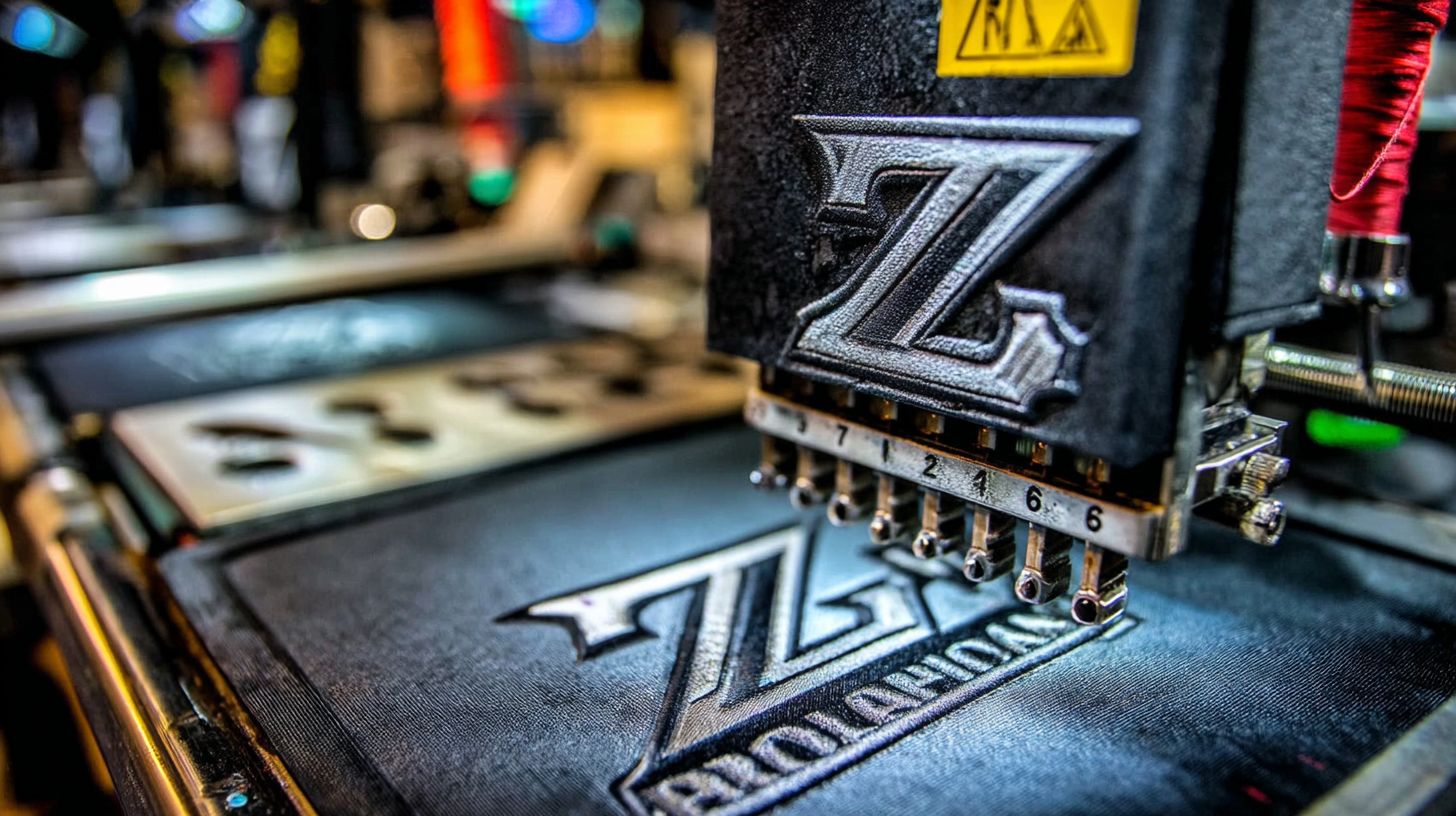
Hobbyists and small business owners benefit from intuitive software that balances powerful features with easy learning curves. Embrilliance Essentials stands out for beginners due to its simple interface and built-in monogram tools. It lets you create lettering and resize designs without complex steps.
StitchArtist modules offer a modular path for progression. Start with auto-digitizing in the basic version, then add levels for manual control over fill, satin, and running stitches. This setup grows with your skills in embroidery digitizing.
Look for key criteria when selecting software. Essential features include support for common file formats like PES, JEF, and DST, plus lettering options and resize capabilities that maintain stitch quality. Test compatibility with your embroidery machine brand to avoid issues.
- Check if it handles PES for Brother machines or DST for multi-brand use.
- Ensure lettering tools allow custom fonts for logos.
- Verify resize functions prevent thread breaks or puckering in stitch-outs.
A common beginner pitfall is picking software incompatible with their machine. This leads to file format errors and failed designs on fabric. Always confirm format support first, such as EXP for Bernina users.
Image Cleanup and Simplification
Start with high-contrast, simplified artwork to ensure accurate auto-tracing and smooth stitch conversion. Complex images with gradients or fine details often lead to poor embroidery digitizing results on the machine. Clean up your raster logo first to create a strong foundation for vector conversion.
Convert your image from raster to vector using tools like Adobe Illustrator or the free Inkscape, a process that takes just 2-5 minutes. This step makes the design scalable without losing quality, essential for embroidery software like Wilcom or Hatch. Use the auto-trace feature on a black-and-white version for best results.
Follow this 5-step cleanup process to prepare your logo:
- Convert raster to vector using Illustrator or Inkscape.
- Remove gradients and shadows to flatten the design.
- Simplify curves with 3-5 anchor points max per element.
- Ensure minimum 0.25-inch width for text or columns.
- Convert to single-color layers for easy stitch mapping.
Avoid common mistakes like digitizing photographic images or keeping tiny details under 1/8 inch, which cause thread breaks and poor registration. For example, simplify a detailed leaf to basic shapes for better stitch-out on fabric. Tools such as Inkscape work well for hobbyists on a budget.
After cleanup, test your vector in embroidery software like Embrilliance or StitchArtist. This ensures smooth pathing and reduces issues like puckering or birds nesting during embroidery. Simplified designs translate better to fill, satin, or running stitches.
Fill vs. Satin Stitches
Fill stitches build solid coverage while satin creates smooth, shiny column effects. Choose based on element size and fabric. This decision affects how your logo looks on the embroidered design.
Fill stitches work best for large areas over one inch wide. They give a matte finish and need heavy stabilizer to prevent puckering. Use them for backgrounds or broad shapes in your corporate logo badge.
Satin stitches suit narrow columns under half an inch wide. They offer a glossy look with lighter stabilizer needs. Apply them to borders or thin lines for sharp definition.
| Stitch Type | Best For | Finish | Stabilizer |
|---|---|---|---|
| Fill | Large areas >1″ | Matte | Heavy |
| Satin | Narrow columns <0.5″ | Glossy | Lighter |
For organic shapes, select tatami fill in software like Wilcom or Hatch. It follows curves smoothly with even density. Pair it with steil satin for lettering to keep edges crisp during stitch-out.
In a corporate logo badge, use fill for centers and satin for borders. This combo handles pull compensation well on fabric. Test with underlay stitches to improve registration and avoid thread breaks.
Hobbyists often start with auto-digitizing tools in Embrilliance or Chroma. Switch to manual pathing for complex logos in formats like PES or DST. Always consider hoop size and thread tension for clean results.
Essential Tools and Software
Selecting the right embroidery digitizing software sets the foundation for creating professional-quality designs that stitch flawlessly. Beginners need tools that handle logo artwork from vector or raster files and convert them into stitch files like PES, DST, JEF, or EXP. These formats ensure compatibility with machines from Brother, Baby Lock, and Janome.
Software categories fit different users, from hobbyists to businesses. Free or basic options offer auto-digitizing for quick logo conversions, while advanced programs provide manual controls for fill, satin, and running stitches. Professionals often choose tools with features like underlay, density adjustments, pathing, pull compensation, and registration to avoid issues such as puckering or thread breaks.
For Brother, Baby Lock, and Janome users, prioritize software with native file format support and hoop templates. Hobbyists might start with simpler interfaces, but businesses benefit from automation for monograms and lettering. Check bsewinn.com for Lisa Shaw’s training resources and tutorials on these tools.
- Embrilliance: User-friendly for beginners, handles editing and basic digitizing with good machine compatibility.
- Hatch or StitchArtist: Offers manual and auto tools for precise control over stitch types and pathing.
- Wilcom or Chroma: Advanced for pros, with AI-assisted features for complex logos and fabric simulations.
Beyond software, gather hardware like a quality hoop, stabilizer, and threads to test your stitch-out. Practice on scrap fabric to refine designs and prevent birds nesting.
Software for Hobbyists and Beginners
Hobbyists benefit from beginner-friendly software with intuitive interfaces for digitizing simple logos. Programs like Embrilliance allow easy import of vector artwork and automatic conversion to stitches. They support common formats for Brother and Janome machines without a steep learning curve.
Focus on tools with auto-digitizing to apply basic fill or satin stitches quickly. Adjust density and add underlay to stabilize designs on fabric. These features help avoid common problems like poor registration during embroidery.
Lisa Shaw’s resources at bsewinn.com provide tutorials tailored for new users. Start with free trials to test compatibility with your Baby Lock or other machines. Practice manual tweaks for better pathing and pull compensation.
Advanced Options for Businesses
Businesses require professional software like Wilcom or Hatch for high-volume logo digitizing. These handle complex stitch types, including running for outlines and satin for lettering. They excel in pathing optimization to minimize thread breaks and ensure smooth stitching.
Key features include compensation for fabric stretch and detailed previews of stitch-outs. Support for PES, JEF, EXP, and DST files makes them ideal for Brother, Baby Lock, and Janome embroidery machines. Automation aids in creating monograms efficiently.
Explore bsewinn.com for Lisa Shaw’s advanced training on these tools. Use simulation modes to predict puckering or birds nesting before production. Invest time in mastering density and underlay for flawless results on various fabrics.
Preparing Your Logo File
Clean, simplified logo files produce superior embroidery results by eliminating stitching complications from complex graphics. Preparation sets the foundation for smooth digitizing in software like Wilcom, Hatch, or Embrilliance. Without it, issues like thread breaks or puckering can ruin your stitch-out.
Start by converting your artwork to a vector format such as SVG or AI whenever possible. Vectors use scalable paths, making them ideal for embroidery machines that read formats like PES, DST, or JEF. Raster images like JPEGs often lead to fuzzy edges during auto-digitizing.
Simplify details in your design before importing into digitizing software. Remove tiny elements or gradients that won’t translate to stitches like fill, satin, or running. This step prepares you for cleanup techniques that ensure precise pathing and registration on fabric.
Hobbyists and professionals alike benefit from this process. A well-prepped file reduces pull compensation needs and minimizes birds nesting. Next, explore specific cleanup methods to refine your logo further.
Converting to Vector Formats
Transform raster logos into vector formats using tools like Adobe Illustrator or free alternatives. This creates clean lines perfect for manual digitizing or auto-digitizing in Chroma or StitchArtist. Vectors maintain quality at any size, crucial for hoop scaling.
Open your PNG or JPG file and use the Image Trace feature to generate paths. Adjust settings to simplify curves and eliminate noise. Save as SVG for compatibility with most embroidery software.
Test the vector by zooming in, ensuring no jagged edges remain. This prevents stitching gaps on fabric with stabilizer. Professionals recommend vectors for business logos to avoid density issues.
Simplifying Complex Graphics
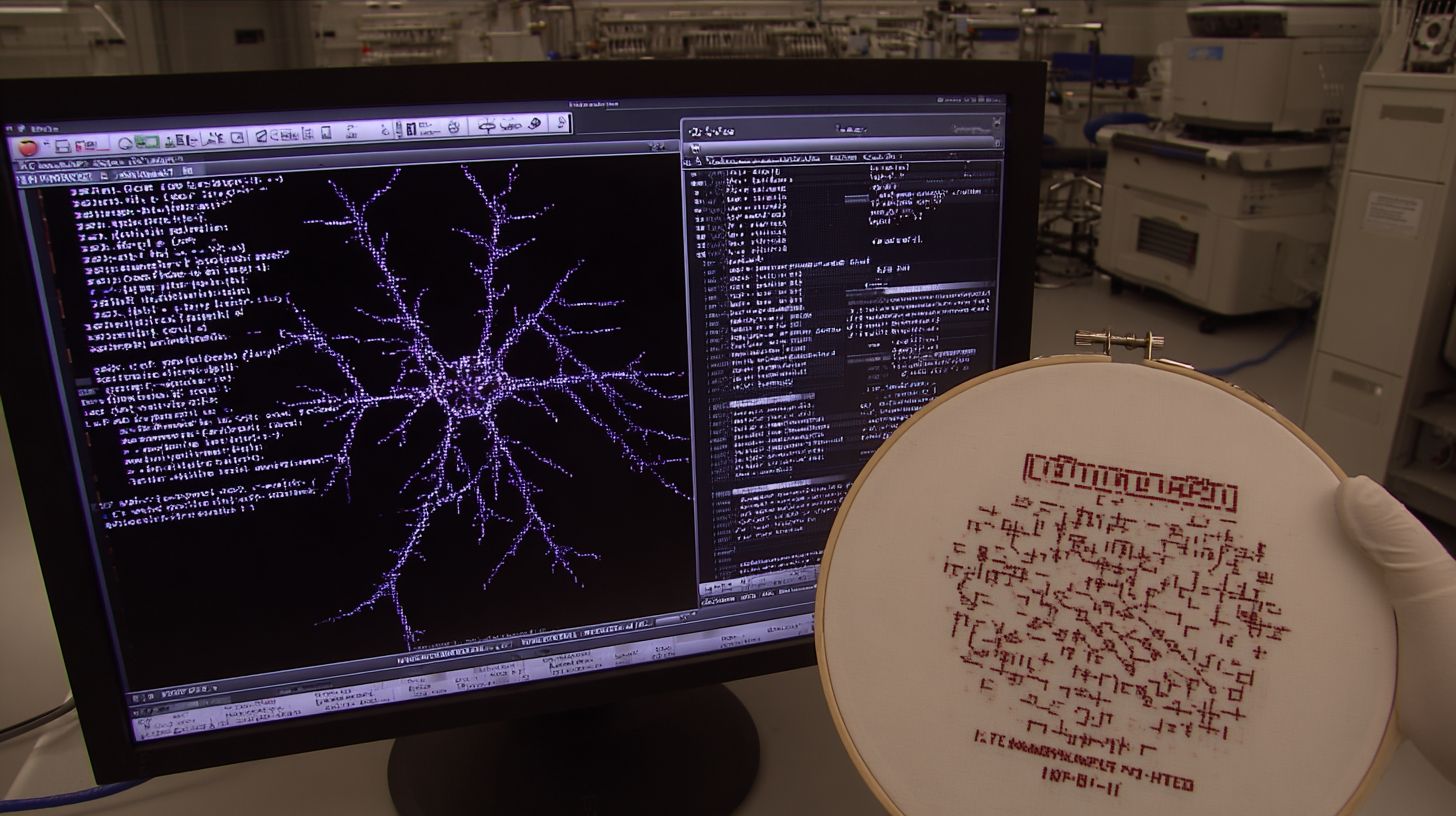
Identify and remove elements too small for thread reproduction, like fine text under 4mm. Merge overlapping shapes to streamline stitch paths. Simplified artwork leads to better underlay and reduced thread breaks.
Use software pathfinder tools to combine fills and outlines. Convert gradients to solid colors suited for satin or fill stitches. This makes your design embroidery-ready for machines.
Preview the simplified version printed at actual size. Check for legibility on dark or light fabrics. Hobbyists find this step cuts digitizing time in half during tutorials.
Cleaning Up the Artwork
Scan for artifacts like stray pixels or uneven lines in your logo file. Erase them manually or with cleanup filters in vector editors. Clean files ensure accurate registration and minimal puckering.
Standardize colors to a palette of 5-7 for multi-needle embroidery machines. Outline thin areas with running stitches in mind. This preparation avoids compensation adjustments later.
Save multiple versions: one for reference and one optimized for EXP or JEF output. Test a small stitch-out sample. Resources like training videos reinforce these techniques for beginners.
Understanding Stitch Types
Mastering stitch types allows you to match embroidery techniques to design elements for professional appearance and durability. Each type serves a specific purpose in digitizing logos for the embroidery machine. Choose wisely to avoid issues like puckering or thread breaks.
Running stitch creates simple lines and outlines. Use it for text edges or fine details in logos. It works well on any fabric since it uses minimal thread.
Satin stitch forms smooth, shiny columns. Apply it to borders or column text in your design. This type adds a polished look but needs compensation for pull on stretch fabrics.
Fill stitch covers large areas solidly. Ideal for logo shapes or backgrounds. Adjust density and underlay to suit cotton or stretch materials during digitizing in software like Wilcom or Hatch.
| Stitch Type | Best Uses | Cotton Fabric | Stretch Fabric |
|---|---|---|---|
| Running | Outlines, text paths | Light density, no underlay | Short stitches, minimal tension |
| Satin | Column text, borders | Standard width, compensation | Narrow columns, extra underlay |
| Fill | Large areas, logos | Medium density, tatami fill | Low density, segmented pathing |
Refer to this table for quick decisions in your digitizing software. Test stitch-outs on scrap fabric to check registration and avoid birds nesting. Proper pathing ensures smooth machine runs with formats like PES or DST.
Step 1: Import and Trace the Logo
Begin digitizing by importing your prepared logo and creating initial vector objects through tracing. This step sets the foundation for your embroidery design in software like Hatch, Wilcom, or Embrilliance. Work at 1:1 scale to match the final stitch-out size on fabric.
Start by importing SVG, AI, or PDF files, which takes about 30 seconds. These vector formats preserve sharp edges for clean logo digitizing. Place the file on a new canvas and lock it as a template layer.
For raster images like JPEG or PNG, use auto-trace tools and adjust tolerance to 5-10%. This generates paths in 1-2 minutes for simple artwork. Review the results and delete extra nodes to refine the shape.
- Import the logo file via drag-and-drop or File > Import.
- Activate auto-digitizing for raster artwork, tweaking settings for edge detection.
- Manual trace complex areas with bezier tools, curving lines for smooth satin or fill stitches.
- Close all paths properly to avoid gaps in stitch pathing during embroidery.
In Hatch, try the Auto-Digitizing wizard for quick vectors from photos. Wilcom Magic Tools excel at intelligent tracing with pull compensation previews. Save as PES, DST, or JEF formats early to test on your embroidery machine.
Step 2: Assign Stitch Types to Elements
Strategic stitch assignment creates visual hierarchy and stitch efficiency in your embroidery design. Different parts of your logo need specific stitch types to match their role and the final look on fabric. This step comes after preparing your artwork in digitizing software like Wilcom, Hatch, or Embrilliance.
Start by identifying logo elements such as outlines, fills, and text. Outlines often use running or satin stitches for crisp edges, while large areas benefit from fill stitches to add texture and coverage. Consider the fabric type and thread to avoid issues like puckering or poor registration.
Before choosing between fill and satin, set up underlay stitches for stability. Underlay helps with stitch pathing and prevents thread breaks on stretchy fabrics. Manual assignment beats auto-digitizing for beginners to build control over the design.
Test your choices with a small stitch-out sample. Adjust density and compensation for pull on the hoop. This ensures the embroidered logo matches your vector or raster artwork in formats like PES or DST.
Understanding Fill vs Satin Stitches
Fill stitches cover large areas with rows of straight stitches, ideal for bold logo shapes. They create a textured, padded look that works well on thick fabrics with heavier threads. Use fill for backgrounds or icons to achieve even coverage without gaps.
Satin stitches form smooth, zigzag columns for narrow elements up to half an inch wide. They give a shiny, professional finish perfect for lettering or borders in monograms. Avoid satin on wide areas to prevent gaps from thread stretch.
Compare them in your software preview. Fill suits complex fills in business logos, while satin shines for clean lines in hobbyist designs. Experts recommend fill for durability and satin for elegance in embroidery machines.
Assigning Stitches to Outlines and Details
For logo outlines, select running stitches first to define paths efficiently. They use minimal thread and reduce birds nesting issues during stitching. Switch to satin for bolder edges that stand out on stabilizer-backed fabric.
Details like small icons need low density running or tapered satin to avoid bulk. Pathing matters here, so sequence stitches from small to large elements. This prevents registration problems in multi-color designs.
In tools like Chroma or StitchArtist, trace vector paths manually for precision. Add pull compensation to counteract fabric distortion under hoop tension. Practice on scrap fabric to refine these for flawless results.
Tips for Text and Lettering
Treat lettering as satin by default for readable, glossy text in logos. For thick fonts, break into segments or use fill with satin columns. Software like Hatch offers auto options, but manual tweaks ensure clean edges.
Set underlay at 90 degrees to the satin for stability on knits. Adjust density to match thread type and prevent puckering in professional outputs. Column stitches work best for cursive monograms.
- Use running for thin serifs to save stitches.
- Apply compensation for curved letters prone to pull.
- Preview in 3D view to check depth on various fabrics.
Step 3: Set Stitch Density and Pull Compensation
Proper density and compensation settings prevent puckering on fabric while maintaining design sharpness. In embroidery digitizing, stitch density controls how closely threads pack together. Getting this right ensures your logo looks crisp without fabric distortion.
Start with fill density at 0.35-0.50mm for light fabrics like t-shirts, or 0.40-0.60mm for heavy ones like denim. Use satin density at around 0.40mm as a standard starting point. Test on scrap fabric to match your machine and thread type.
- Set base density by running a small stitch-out test on your target fabric.
- Add pull compensation of 0.2-0.4mm rightward for satin stitches, adjusting left for curved areas.
- Preview the stitch count in your software like Wilcom or Hatch to avoid excess.
A common error is overly tight density, which causes thread breaks and birds nesting. Loosen settings if puckering appears during tests. Always use stabilizer and proper hooping to support these adjustments in your digitizing software.
Step 4: Add Underlay and Optimize Pathing
Underlay stabilizes fabric while optimized pathing reduces thread breaks and improves registration. These steps ensure your digitized logo stitches smoothly on the embroidery machine. Beginners often skip them, leading to puckering or birds nesting.
Start with a 4-step process to refine your design. Apply underlay first, then sequence stitches, add ties, and adjust paths manually. This creates a professional stitch-out every time.
Underlay is a base layer of stitches that holds fabric taut. Use zigzag or lattice types for fills wider than 2 inches. It prevents shifting during dense stitching.
Test your optimized design on scrap fabric with the same stabilizer and hoop size. This catches issues before committing to final fabric. Expect fewer thread breaks and better results.
1. Apply Zigzag or Lattice Underlay for Fills Over 2 Inches
For large fill stitches in your logo design, add underlay right away. Select zigzag underlay for stretchy fabrics or lattice for firm ones in software like Wilcom or Hatch. Set it to run before the main fill at low density.
This base layer grips the stabilizer, reducing puckering on knits or cottons. Skip it for small elements under 2 inches to save time. Always match underlay angle to the fill direction.
In Embrilliance or Chroma, access underlay via the fill properties panel. Preview the stitch-out to confirm it lies flat. This step is key for hobbyist and professional digitizers alike.
2. Sequence Elements Center-Outward
Arrange your stitch order from the logo’s center outward. This minimizes jumps and improves registration across colors. Software auto-digitizing often gets this wrong, so check manually.
Start with small details like lettering, then move to fills and borders. In StitchArtist, drag elements in the object list to reorder. Center-out pathing reduces fabric pull and distortion.
For complex vector artwork, group similar thread colors together. This cuts machine stops. Test the sequence in simulation mode before saving as PES or DST.
3. Add Tie-In and Tie-Out Stitches
Insert tie-in stitches at the start of each thread color to secure the first pass. Use 3-5 running stitches under the design. Tie-out stitches trim cleanly at the end.
In Hatch or Wilcom, enable auto ties or place them manually. Position them in low-visibility areas like inside curves. This prevents loose threads and birds nesting.
For running stitches or satins, shorten ties to 1/8 inch. Preview in 3D view to ensure they hide well. Consistent ties make your embroidery look polished.
4. Manual Pathing for Complex Logos
For intricate raster or vector logos, override auto-pathing with manual adjustments. Trace paths to follow natural curves, avoiding sharp turns. This optimizes stitch direction and density.
Add pull compensation by shifting satin edges outward 1/16 inch. Reduce density on curves to prevent gaps. Tools in Chroma or Embrilliance let you reshape paths easily.
Focus on long, smooth runs for satin columns. Break fills into columns for better coverage. Save in JEF or EXP format for your machine, then stitch a sample.
Testing and Refining the Design
Always stitch out test samples to identify issues before production runs. This step ensures your digitized logo performs well on the embroidery machine. Testing reveals problems like puckering or thread breaks early.
Use a 3-test protocol for reliable results. First, stitch on white twill scrap to check basic stitch quality. Then, test on production fabric and a stretch garment to mimic real conditions.
Common issues include puckering, poor registration, thread breaks, and birds nesting. Adjust density, underlay, hoop tension, or stabilizer based on test outcomes. Refine in software like Wilcom or Hatch for better pathing and pull compensation.
After each test, note distortions in the logo design. Update fill stitches, satin columns, or running stitches manually. This iterative process perfects the file for formats like PES or DST.
Troubleshooting Puckering
Puckering happens when fabric bunches under dense stitches. Reduce stitch density or add underlay stitches to stabilize the area. Test on scrap fabric first to confirm fixes.
For thick fill areas in your logo, switch to lighter running stitch patterns. Experts recommend proper stabilizer layers under the hoop. This keeps the embroidery flat during the stitch-out.
Fixing Registration Issues
Poor registration causes design elements to shift between colors. Check hoop tension and re-hoop the fabric firmly. Ensure your digitizing software aligns layers precisely.
Use alignment stitches at color changes in tools like Embrilliance or Chroma. Test on production fabric to verify. Adjust pathing if pull compensation distorts the logo.
Handling Thread Breaks
Thread breaks often stem from bad pathing or dull needles. Optimize stitch paths in professional software to minimize jumps. Replace the needle and test a full run.
Review trims and jumps in the design file. Shorten long satin runs if needed. Hobbyists find manual tweaks reduce breaks during high-speed embroidery.
Preventing Birds Nesting
Birds nesting creates thread nests under the fabric from tension issues. Balance upper and bobbin tension on the machine. Always use quality stabilizer and correct threading.
Check your digitized file for excessive underlay density. Stitch tests on stretch garments reveal this quickly. Refine in StitchArtist for smoother results on various fabrics.
Saving and Exporting the File
Export your design in machine-compatible formats to ensure seamless transfer to your embroidery equipment. This step finalizes your digitized logo after refining stitches, paths, and colors in software like Wilcom, Hatch, or Embrilliance. Proper saving prevents issues during stitch-out.
Always save a native file first, such as .EMB for Wilcom or .VP3 for Hatch. These formats retain all digitizing details like underlay, density, and compensation. Use them for future edits in your embroidery software.
Next, export to brand-specific formats with a color sequence sheet. Verify the stitch count stays under 15k for hats or small areas to avoid thread breaks. Create a PDF with instructions for hooping, stabilizer, and thread colors.
For Pantone thread color matching, note exact matches like Pantone 186C to Isacord 1123. Test on scrap fabric to check for pull compensation and puckering. This ensures professional results on your logo embroidery.
| Brand | Recommended Format | Notes |
|---|---|---|
| Brother | PES | Works with most home machines; supports multi-color designs. |
| Baby Lock/Janome | JEF or EXP | JEF for newer models; EXP for expanded features like lettering. |
| Multi-brand | DST | Universal for commercial machines; no color info, so pair with sequence sheet. |
Follow these best practices to protect your vector artwork conversion. Hobbyists and businesses alike benefit from organized files. Store natives safely for manual digitizing tweaks.
If you are looking for a complete embroidery software solution with all features unlocked, you can check this option here.
Frequently Asked Questions
How do I start digitizing a logo for embroidery as a beginner?
The first step in How to Digitize a Logo for Embroidery (Step-by-Step Guide for Beginners) is to choose embroidery digitizing software like Wilcom Hatch, Embrilliance, or free options such as Ink/Stitch. Import your logo image (preferably a vector file like SVG or a high-resolution PNG), then trace or convert it into stitch patterns by defining outlines, fills, and satin stitches suitable for embroidery machines.
What software is best for beginners learning how to digitize a logo for embroidery?
For How to Digitize a Logo for Embroidery (Step-by-Step Guide for Beginners), beginners should opt for user-friendly software like Embrilliance StitchArtist or Ink/Stitch (free with Inkscape). These tools offer intuitive interfaces with auto-digitizing features, tutorials, and compatibility with most embroidery machines, making the process accessible without a steep learning curve.
How do I prepare my logo image before digitizing for embroidery?
In the How to Digitize a Logo for Embroidery (Step-by-Step Guide for Beginners), prepare your logo by simplifying it-remove fine details, gradients, and small text under 4mm that won’t embroider well. Convert to vector format using tools like Adobe Illustrator or Inkscape, ensure high contrast, and resize to your final embroidery dimensions (e.g., 3-4 inches wide) to avoid distortion.
What are the key stitch types used when digitizing a logo for embroidery?
Key stitch types in How to Digitize a Logo for Embroidery (Step-by-Step Guide for Beginners) include running stitches for outlines, fill stitches (tatami or motif) for solid areas, satin stitches for letters and borders, and underlay stitches for stability. Assign these strategically based on shape-use fill for large areas and satin for narrow elements to ensure professional results on fabric.
How can I test my digitized logo before embroidering it?
To test in How to Digitize a Logo for Embroidery (Step-by-Step Guide for Beginners), generate a stitch file (e.g.,.PES or.DST), then use your software’s preview to simulate stitching. Sew a sample on scrap fabric matching your final material, check for puckering or gaps, and adjust pull compensation or density as needed before full production.
What common mistakes should beginners avoid when digitizing a logo for embroidery?
Beginners following How to Digitize a Logo for Embroidery (Step-by-Step Guide for Beginners) should avoid over-digitizing tiny details, ignoring fabric type (adjust density for stretchy fabrics), forgetting pull compensation (stitches pull inward), and skipping color sequence optimization, which can lead to excessive jumps and trims-always preview and test to refine.