New to embroidery machines? This guide covers embroidery software basics. It includes top options like Hatch and Wilcom. You’ll find pros, cons, prices, and tips to pick the right one for you.
Key Takeaways:
- Hatch Embroidery stands out for beginners with its intuitive interface, auto-digitizing tools, and extensive tutorials, making design creation simple without steep learning curves.
- Embrilliance offers affordable, easy editing features like lettering and resizing, ideal for hobbyists starting with basic monogramming and custom projects.
- Choose software based on your budget, machine compatibility, and needs-prioritize user-friendly tools, free trials, and system requirements for seamless 2026 embroidery adventures.
Which Software Tops the List for Beginners?
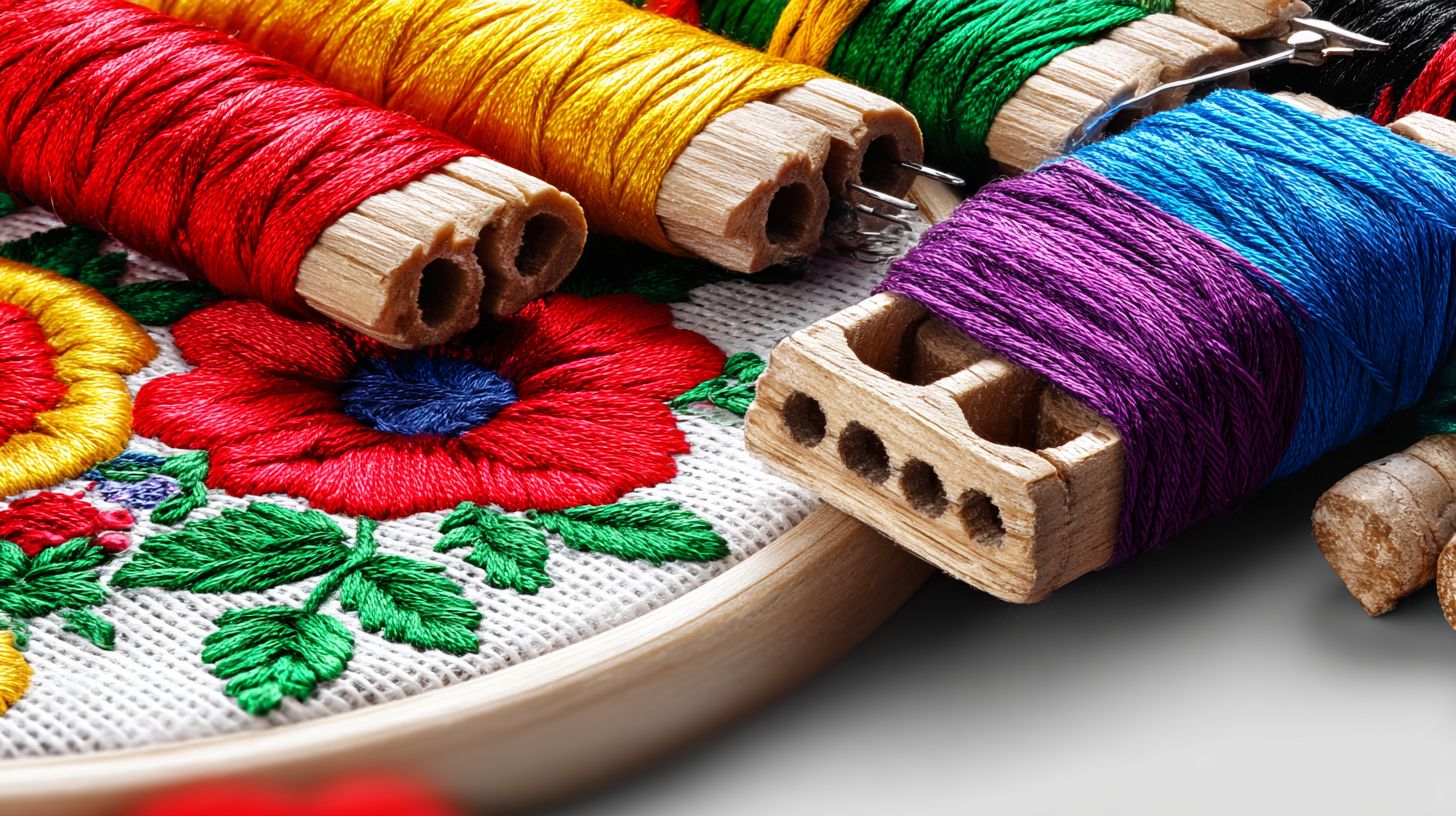
Among beginner options, one consistently rises above due to its balanced simplicity and power. Hatch Embroidery offers an easy start. It has tools that pros use too. This makes it a good choice for beginners. It offers preset libraries that speed up design creation without a steep learning curve.
Experts suggest Hatch for beginners. It has modules you can add later. Tip: Drag SVG files into the workspace to import them. Use the auto-digitizing tool for simple shapes. Another tip: use the auto-digitizing tool on simple shapes like stars or hearts for instant embroidery files.
For a third tip, explore the lettering presets to add text without manual adjustments. This software suits hobbyists turning personal monograms into custom gifts. Beginners appreciate how it handles common formats like PES and DST right away.
Position Hatch as your go-to for beginner edge in embroidery. It combines ease with tools pros rely on, making it the best for starting strong.
What Makes Hatch Embroidery Beginner-Friendly?
Hatch Embroidery suits beginners well. It has a modular design. Its beginner modules focus on essentials like letterings and monogramming. Users avoid overwhelm by starting small and unlocking advanced options later.
Key features include auto-digitizing, which converts vector images to stitches quickly. Stitch types like satin for smooth lines and fill for bold areas make designs pop. The interface, shown in screenshots of the clean workspace, guides users step-by-step.
Monogramming tools let beginners create interlocking initials with preset fonts. Technical perks include true-type font conversion and resize options without distortion. This setup prevents common errors in stitch density.
Walk through the interface: load a design, select stitch simulator to preview, then export. Hatch’s approach ensures beginner-friendly results from day one.
How Does Wilcom Simplify Designs for New Users?
Ever wondered why pros trust Wilcom while beginners can still jump in? Wilcom offers a customizable workspace. Entry-level versions offer tools tailored for newcomers.
The true stitch simulator shows real-time previews, helping users spot issues early. One-click edits like color swaps or resize make adjustments simple. This busts complexity myths by focusing on intuitive controls.
Beginner-specific tools include auto-digitizing wizards for shapes and text. Unlike manual methods, it handles gradients and blends effortlessly. Users edit existing designs without starting from scratch.
For new users, Wilcom offers workspace customization, hiding advanced menus until needed. This makes it suitable for growing from basic logos to detailed patterns.
Why Choose Embrilliance for Easy Editing?
Grab Embrilliance when editing existing designs is your main goal. It excels in font handling and applique tools for precise tweaks. Avoid common mistakes like poor font scaling that ruin projects.
Embrilliance prevents errors with precise controls for letter spacing and sizing. Users import designs, adjust applique edges, and merge elements seamlessly. This saves time over free alternatives with limited options.
Strengths include multi-format support, reading files from various machines. Warn against overlooking its resize wizard, which maintains stitch quality. Hobbyists fix distorted monograms in minutes.
For editing focus, Embrilliance offers tools without bloat. It positions as ideal for refining purchased designs into personal favorites.
What Sets Floriani Total Control U Apart?
Floriani stands out for hobbyists craving creative effects without steep learning. Its photo-stitch wizard turns photos into embroidery effortlessly. Consider a scenario: convert a family portrait into a stitched keepsake.
In a monogram project success story, users start with the wizard to select photo edges, choose fill patterns, and auto-generate stitches. This contrasts with manual digitizing, which takes hours. Results show vibrant, professional outputs.
Floriani’s tools include applique positioning and gradient fills for depth. Walkthrough: import image, apply wizard settings, preview in simulator, then stitch out. It handles complex effects like 3D puffs simply.
This software proves suitable for photo-to-embroidery projects. Beginners achieve pro results, making it a top pick for creative hobbies.
How Do You Pick the Right One?
Choosing feels overwhelming, until you apply this streamlined checklist. Start by listing your needs, like simple digitizing or basic editing. Test options with free trials to match your skill level.
Experts recommend checking user forums for real advice from beginners. Communities share tips on software quirks and workarounds. This helps you avoid common pitfalls early.
Frame your search as a test drive with these resources. Many programs offer free versions or tutorials for hands-on practice. User forums like embroidery enthusiast groups provide demo insights without sales pressure.
Compile a shortlist from source-recommended trials. Look for starter editions that fit best for beginners. This approach ensures you pick software that grows with your projects.
What Key Features Matter Most for Beginners?
Focus here first: features that prevent frustration from day one. Prioritize preview tools to see designs before stitching. These let you spot issues like thread breaks quickly.
Essential items include resize without distortion and auto-digitizing. Use this yes/no checklist to evaluate:
- Does it support multi-hoop projects for larger designs?
- Are there built-in lettering tools for custom text?
- Can you preview on virtual fabric?
Beginners benefit from intuitive interfaces with drag-and-drop editing. Avoid complex tools until you gain confidence. Test these in free demos for the best performance.
How Does Pricing Influence Your Decision?
Budget meets value: software pricing ranges from modular buys to full suites. Starter editions often suit beginners with core tools at lower costs. Compare one-time purchases against subscriptions for long-term fit.
Modular options let you add features as needed, like design libraries. Full suites appeal for advanced users but overwhelm new stitchers. Focus on starter editions that deliver essentials without excess.
Consider your project volume when deciding. Occasional hobbyists save with affordable one-offs. Frequent creators may prefer subscriptions for updates. This balances cost with creative freedom.
Pricing models vary, so trial versions reveal true value. Look for bundles that include best sellers like basic fonts and patterns. Match spending to your embroidery goals.
What System Requirements Should You Check?
Don’t download blindly, mismatched specs lead to crashes. Verify Windows 10+ compatibility and at least 8GB RAM for smooth operation. Mac users face limitations with some embroidery programs.
Common mistakes include ignoring graphics card needs for preview rendering. Check processor speed and storage space upfront. This prevents wasted time on failed installs.
Steps to avoid issues: review official spec lists before purchase. Test demos on your setup if possible. Update drivers for best performance during design work.
For shared machines, confirm multi-user support. Beginners often overlook these details, leading to frustration. A quick spec match ensures reliable stitching sessions.
1. Understanding Embroidery Software
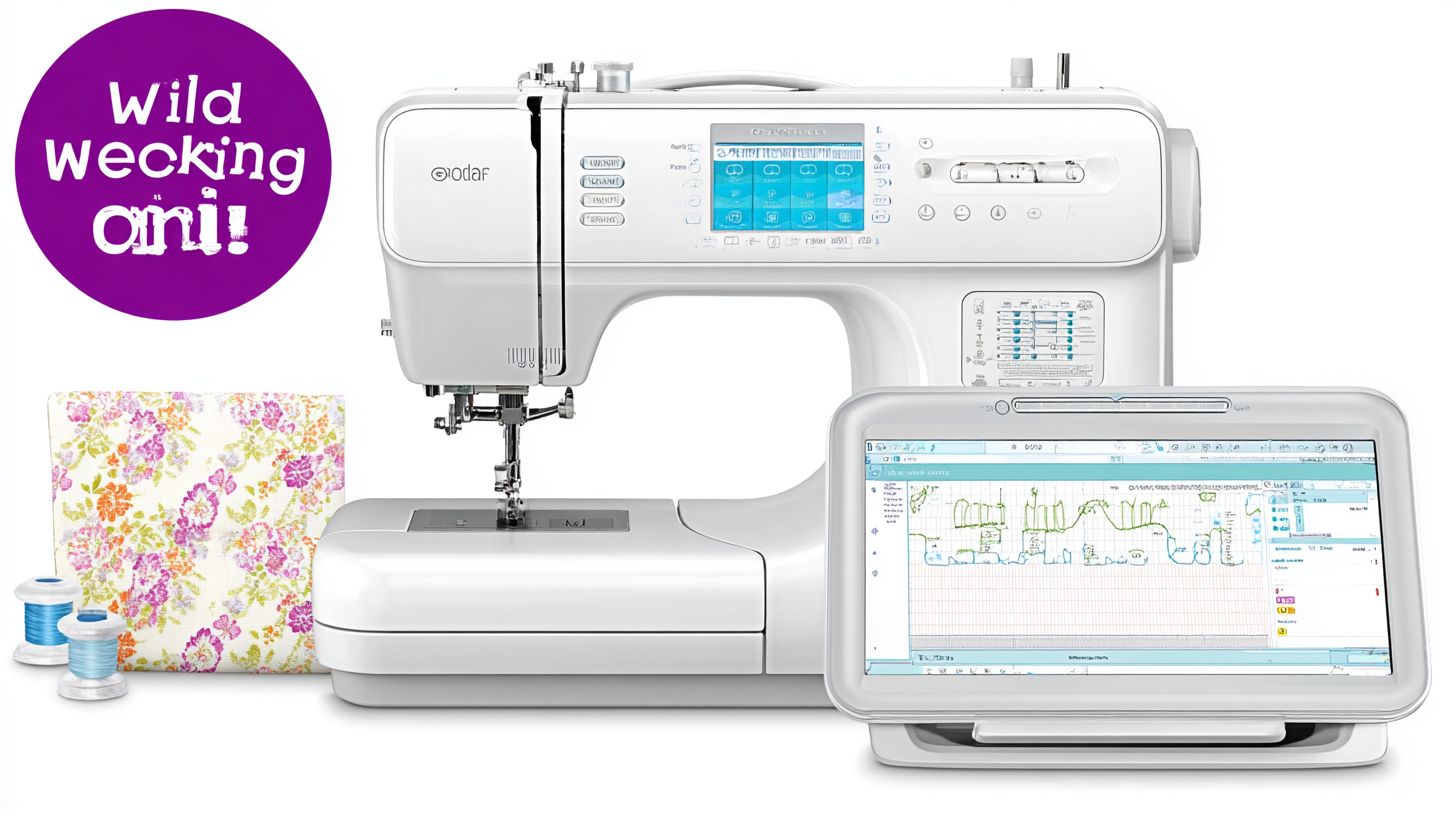
Imagine transforming a simple sketch into a machine-ready embroidery design without stitching a single thread by hand. Embroidery software makes this possible by handling the digitizing process. It converts images or artwork into stitch patterns your machine can read.
The core function starts with digitizing, where you import a photo or drawing. The software analyzes colors and shapes to generate stitches. Beginners often use auto-digitizing tools, like those in Hatch, to simplify this step without manual adjustments.
Once digitized, basic editing options let you resize designs or tweak stitch types. You can adjust density for better fabric coverage. Finally, export to machine formats ensures compatibility with your equipment.
Common formats include PES for Brother machines and DST for multi-brand use. A typical workflow diagram shows import, edit, preview, then export. This visual guide helps beginners grasp the process quickly.
Step-by-Step Digitizing Process
Begin by opening your image in the software. Select auto-digitizing for quick results, as seen in Hatch’s beginner tools. The program outlines shapes and assigns thread colors automatically.
Review the stitch preview to check for gaps or overlaps. Manually edit problem areas by adding underlay stitches for stability. This prevents puckering on dense fabrics like towels.
Resize the design to fit your hoop size, keeping stitch count in mind. Test on scrap fabric before final use. Export as PES or DST for seamless machine transfer.
Basic Functions for Beginners
Editing tools allow color changes and object removal with simple clicks. Resize without distortion using aspect ratio locks. Merge designs for custom combinations.
Preview simulates the final look on virtual fabric. Adjust speed and density for optimal results. These features build confidence for new users.
Export options match popular machines. Save in multiple formats for flexibility. Practice with free trials to master these basics.
Visual Workflow Diagram Suggestion
Start with image import at the top of your diagram. Arrow down to auto-digitizing and editing stages. End with export and machine loading.
Include icons for each step, like a photo for import and stitches for preview. This flowchart clarifies the sequence. Print it for reference during projects.
Tools like Hatch offer built-in previews mimicking this flow. Beginners find it helps troubleshoot issues fast. Adapt the diagram to your software’s interface.
Why Beginners Need Embroidery Software
Picture this: you’ve just bought your first embroidery machine, but the included designs feel generic and limiting. You want to create something personal, like a monogrammed towel for a family gift, yet the files won’t load properly due to incompatible formats. Common beginner struggles include mismatched designs and no way to tweak colors or sizes without advanced skills.
Without software, novices waste hours on manual adjustments, resizing images in basic editors that distort stitches. Imagine Sarah, a new hobbyist excited for her first project, spending an entire evening redrawing a simple flower motif by hand because her machine rejected the file. This frustration kills the joy of crafting and leads to abandoned machines gathering dust.
Embroidery software solves these issues with user-friendly editing tools. Drag-and-drop interfaces let you resize designs, change thread colors, and add text in minutes. Sarah discovered that importing a photo, auto-digitizing it, and previewing stitches took seconds, turning her vision into a perfect stitch-out.
These programs boost creativity for novices by offering templates and libraries of ready motifs. Time-saving features like automatic basting lines and density adjustments prevent puckering on fabrics. Beginners quickly move from generic patterns to custom pieces, like personalized baby blankets, building confidence with each project.
3. Top 7 Embroidery Software for Beginners
What if finding the perfect starter software came down to matching your skill level with intuitive interfaces? Beginners often feel overwhelmed by complex tools, but these top picks prioritize ease-of-use from user mentions across forums and reviews. Each offers a standout feature to get you stitching quickly.
Ranked by beginner-friendly rankings, this list highlights one key perk per software. Match your needs, like simple editing or built-in guides, to start creating designs right away. Think of scenarios such as personalizing t-shirts for family events or custom patches.
These options suit various budgets and machines, focusing on immediate value. Users praise drag-and-drop tools and tutorials that cut the learning curve. Pick one that fits your setup for the best performance in early projects.
- Hatch Embroidery: Drag-and-drop interface makes placing designs easy. Great for quick custom labels on hats.
- Wilcom EmbroideryStudio: Video tutorials guide each tool step by step. Good for beginners digitizing simple logos for bags.
- Embird: Add-ons start basic and grow with your skills. Good for hobbyists on a budget who stitch monograms on towels.
- Brother PE-Design: Auto-digitizing quickly turns photos into stitches. Good for Brother machine owners making pet portraits.
- Janome Artistic Digitizer: One-click resizing keeps proportions right. Good for quilters adding motifs to blankets.
- PES-PowerStitch: Free trial offers unlimited undo for tests. Good for trying ideas on scrap fabric first.
- SewArt: Simple tool converts photos to stitches for non-designers. Good for family photos as embroidered keepsakes.
4. Comparing Hatch vs. Wilcom
Hatch and Wilcom both work well. But their strengths differ for beginners. Hatch uses add-ons for specific needs. Wilcom offers pro tools in one package. This affects how fast you start making designs.
Interface usability differs for new users. Hatch has a clean layout with drag-and-drop tools. It helps you try simple patterns like floral motifs. Wilcom is powerful but its menus may overwhelm beginners.
Beginners like Hatch’s digitizing speed for quick projects. It turns scanned sketches into stitches fast without much tech knowledge. Wilcom offers precision for complex work. But it needs more practice.
Both offer high output quality. But there are trade-offs. Hatch works well on home machines for personalized gifts. Wilcom gives better detail on industrial machines for pro work.
Side-by-Side Feature Comparison
| Feature | Hatch | Wilcom |
|---|---|---|
| Interface | Beginner-friendly, modular modules | Professional, dense toolset |
| Digitizing Speed | Fast for simple designs | Slower to learn, but precise control |
| Output Quality | Great for home use | Excellent for commercial machines |
| Pricing Model | Add-on purchases | Full suite upfront |
| Best For | Precise custom work | Fast creative effects |
Use this table to pick based on your setup. For a single home embroidery machine, Hatch lets you start small. Wilcom fits if you plan to increase production.
Real-World Trade-Offs for Beginners
Pick Hatch for quick wins on daily projects like monogramming towels. Add modules as needed to avoid overload. This saves money while you learn.
Choose Wilcom for precision, like intricate logos on uniforms. It has a steeper learning curve. But it gives better stitch control after tutorials.
Both support common formats for most machines. Try free trials to test the digitizing flow before buying.
Comparing Embrilliance vs. Floriani
Embrilliance and Floriani take different paths. Embrilliance offers clear editing depth for precise changes. Floriani has an effects wizard for fast creative effects. Beginners pick based on need for simple tools or fun designs.
Embrilliance fits users who want a gentle learning curve. Start with basics like resizing and lettering. Floriani suits those who like auto effects such as gradient fills or texture appliques. Match it to your projects, like towels or pillows.
Cost structure is key. Embrilliance has cheap one-time buys for core modules. It fits tight budgets. Floriani bundles suites with more effects. But updates may cost extra.
| Feature | Embrilliance | Floriani |
|---|---|---|
| Editing Depth | Advanced manual tools for nodes, paths | Basic edits with auto-optimizations |
| Effects Wizard | Limited creative presets | Rich library of fills, blends |
| Learning Curve | Low, modular add-ons | Medium, wizard-guided |
| Cost for Beginners | Lower entry, expandable | Higher initial suite price |
| Best For | Precise custom work | Fast creative effects |
Editing Depth: Embrilliance Leads
Embrilliance offers editing depth. Beginners can tweak stitch types and properties. For example, reshape petals in a floral motif without restarting. This builds skills.
Floriani has good editing with wizards for speed. It helps with quick fixes like smoothing name badge edges. Pick Embrilliance for detailed control.
Start with Embrilliance for precise edits that build confidence. Users master complex patterns like lace borders faster.
Effects Wizard: Floriani’s Strength
Floriani’s effects wizard makes creativity simple. Apply motifs or shadows with clicks. Beginners make pro looks like metallic threads on ornaments. It saves time on repeat tasks.
Embrilliance needs manual setup for effects. It fits patient learners. Floriani gives quick results like vibrant quilt blocks. Test demos to find your fit.
Floriani gives fast eye-catching results for themed embroidery. Users like it for events with messages on gifts.
Beginner Scoring: Cost and Learning
Embrilliance scores high for low learning curve and low cost. Essentials fit starter budgets. Add features as needed for slow growth. It avoids overwhelm.
Floriani is good for creative output. But it is less simple for total beginners. The wizard helps entry. Full suites cost more upfront. Choose by your goals.
Try Embrilliance to build sewing skills step by step. Floriani fits those who want great designs with little effort.
6. Hatch Embroidery Pros and Cons
Hatch is flexible but has some issues. It stands out for beginners. Expandable modules let you add features as skills grow. Users like how it fits projects without overwhelming you.
The intuitive icon-based interface helps beginners learn tools like resizing and lettering fast. Users spend less time learning and more creating designs for hats or bags. It works for basic monograms.
The modular system lets you pick what you need, like digitizing for advanced patterns. This saves money over time for hobbyists. But some say setup needs planning to skip extras.
- Pro: Expandable modules let you start small and add tools.
- Pro: Intuitive icons make navigation easy.
- Pro: Strong lettering options with fonts that resize smoothly.
- Pro: Reliable file compatibility across machines.
- Pro: Active user community offers tutorials.
Initial cost feels high for beginners wanting the full suite. Buying extra modules adds up if you get every upgrade.
- Con: Steep learning curve for advanced modules.
- Con: Limited free version pushes upgrades fast.
7. Wilcom Pros and Cons
Wilcom offers industry-standard power that beginners can use. Start with simple designs like monogrammed towels. Advance to complex ones. Practice builds confidence.
Precise control helps skills grow. Beginners like tools to adjust stitches and underlays. Turn basic ideas into pro embroidery.
Overwhelming menus challenge new users at first. Tutorials help. Many get it after a few hours.
- Pro: Vector editing makes sharp designs for any fabric.
- Pro: Auto-digitizing turns images to stitches easily.
- Con: Steep learning curve needs practice time.
- Con: High cost fits serious hobbyists.
8. Embrilliance Pros and Cons
Embrilliance is affordable. Beginners like the low price for tasks like resizing and lettering. It helps build skills without big costs.
Font merging is a key strength. Mix custom and built-in fonts for unique monograms on towels or shirts.
See the pros and cons below to check if it fits beginners.
-
- Pro: Budget-friendly pricing suits new hobbyists on tight budgets.
- Pro: Easy font merging lets you mix text styles effortlessly.
- Pro: Simple interface with drag-and-drop for quick design tweaks.
- Pro: Works on both Mac and Windows without steep learning curves.
- Con: Basic digitizing tools limit complex custom artwork creation.
- Con: Lacks advanced auto-digitizing for intricate photos or patterns.
- Con: Expansion packs needed for premium fonts and effects.
If you are looking for a complete embroidery software solution with all features unlocked and easy setup, you can explore this option here:
Explore embroidery software solution
Pair it with free trials to test uses like monogramming baby blankets.
9. Floriani Pros and Cons
Floriani’s wizards spark ideas. The look is dated. Tools guide beginners on stitch types and pattern creation. They turn sketches into designs fast.
Floriani beats Embrilliance in photo conversion. It keeps more detail in family photos for projects like pillows.
The dated UI lags behind Wilcom. Navigation feels clunky. Beginners need time to adjust.
- Pros: Advanced auto-digitizing for complex images. Wizards simplify lettering. Good multi-hoop support.
- Cons: Dated interface. Higher cost. Fewer mobile tools than Hatch.
Key Pros in Detail
Floriani leads in photo stitching. It beats Embrilliance on portraits and gradients. Try it for towels with pet photos.
The lettering wizard has more fonts. Customize text for hats or bags easily.
Multi-format support imports designs easily. It saves time with files from online libraries.
Key Cons and Workarounds
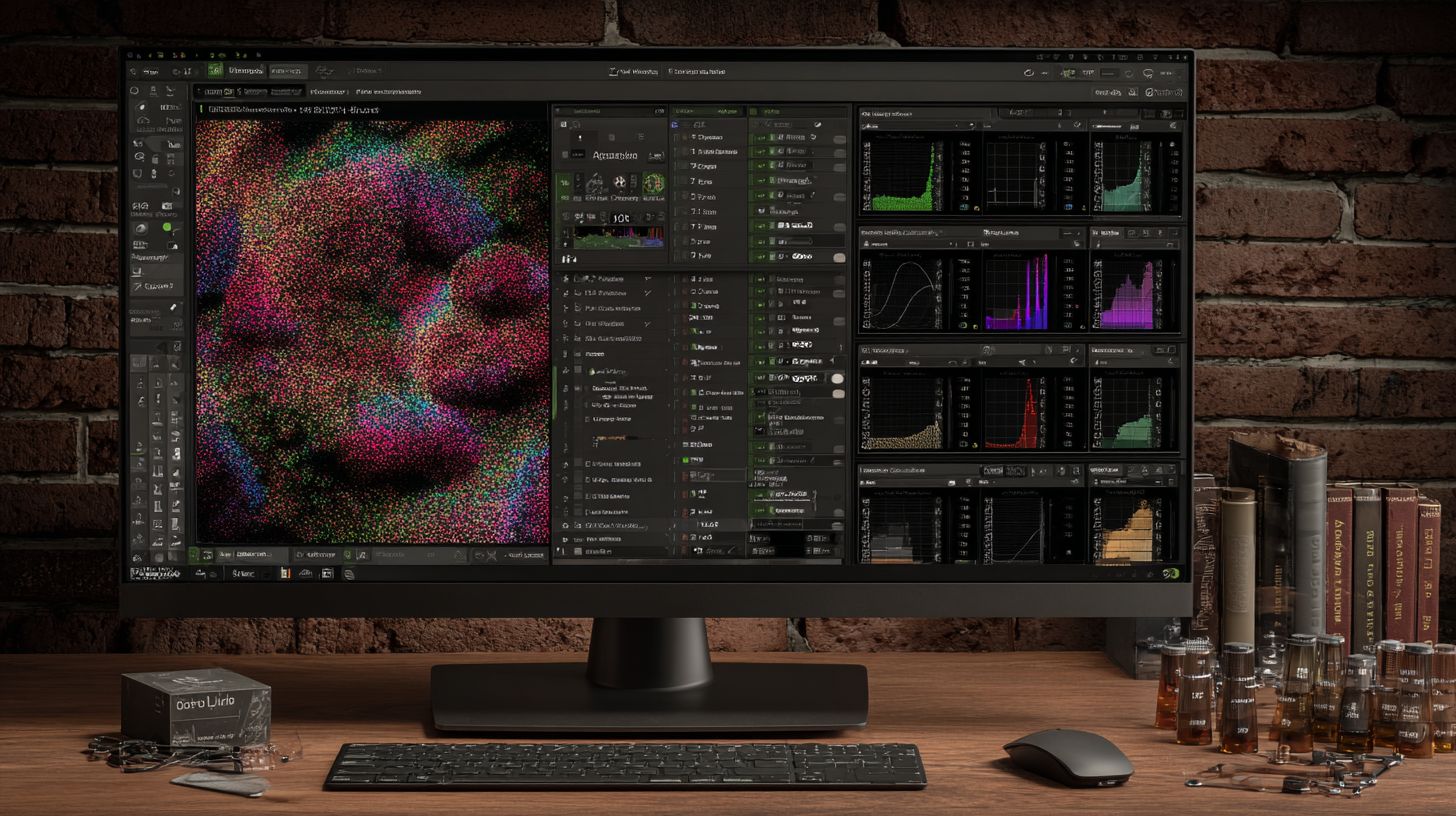
The outdated UI differs from apps like Ink/Stitch. Menus hide tools and slow work. Use keyboard shortcuts to go faster.
Pricing is high for beginners compared to free trials. Test the demo first. Use external editors for modern features.
No cloud integration means manual file transfers. Save locally and back up often to keep projects safe.
Basic Pricing Overview for Top Software
Hatch Organizer costs $149. Full suites cost around $1,000 or more. Wilcom starts higher for pros. Beginners often choose entry-level options with one-time fees instead of subscriptions. These tools work well for basic digitizing with no ongoing costs.
Embrilliance has a core package for about $150. You can add modules like Alpha Tricks separately. This lets you build skills step by step. Full bundles cost more for advanced needs.
Floriani suites start near $500. They include lettering and editing tools in one package. Pros like it for professional embroidery projects.
Wilcom is for experts. It starts above $1,000. One-time buys include pro features like true-type fonts. Compare bundles to fit your beginner budget.
| Software | Entry Price Range | Notes |
|---|---|---|
| Hatch Organizer | $149 | Basic organizer with one-time fee |
| Embrilliance | $150 core | Modules sold separately |
| Floriani | $500+ | Full suite bundles |
| Wilcom | $1,000+ | Pro-level, one-time |
10 Tips for Choosing Embroidery Software
First, match software to your machine’s format support. Common formats include .pes for Brother machines and .jef for Janome. They help files transfer smoothly. This avoids frustration from incompatible designs.
Beginners often miss this. It leads to wasted time resizing or converting files. Check your machine manual for supported formats first. Then pick software that handles them natively.
Next, look for user-friendly interfaces. Complex tools can overwhelm new users. Seek intuitive drag-and-drop features and clear tutorials. They speed up learning and make designs fun.
Also think about long-term needs like hoop sizes and updates. Good software grows with your skills, from simple monograms to complex patterns. These tips help your projects perform well.
- Test free trials of several programs to find what fits your workflow.
- Check compatibility with your machine model and its formats.
- Choose software with built-in tutorials and beginner templates for fast starts.
- Check hoop size support that matches your machine, like 4×4 or 5×7 inches.
- Does it have auto-digitizing tools to turn images into stitches easily?
- Look for affordable pricing, like one-time purchases that fit your budget.
- Ensure regular updates and active customer support.
- Avoid old, unmaintained software without security patches or new features.
- Check export options for multiple formats to protect your designs long-term.
- Read reviews from users and hobbyists for real insights on ease of use.
These steps help you pick software that saves time and sparks creativity. For example, trials show if resizing tools handle Ray-Ban logo patterns well. Choose wisely for beginners in 2026.
Frequently Asked Questions
What is the Best Embroidery Software for Beginners (Complete Guide 2026)?
Hatch Embroidery by Wilcom is the top pick for beginners. It has an intuitive interface, many tutorials, and easy tools like auto-digitizing and lettering. It balances simple and powerful features well.
What Are the Top Embroidery Software Options for Beginners in 2026?
Top choices are Hatch Embroidery, Embrilliance StitchArtist, and Wilcom e4. They have user-friendly designs, font and pattern libraries, and step-by-step guides for new users.
How Does Hatch Compare to Wilcom in the Best Embroidery Software for Beginners (Complete Guide 2026)?
Hatch costs less and fits beginners with simple workflows. Wilcom, like e4, offers advanced pro tools at higher prices. Hatch works for hobbyists. Wilcom suits those who want to grow.
What Are the Pros and Cons of Popular Embroidery Software for Beginners?
Hatch is easy to use with many tutorials but costs $200+. Embrilliance starts at $150+ and is modular but lacks advanced effects. Wilcom offers pro precision but has a steep learning curve and costs $1,000+.
What is the Basic Pricing for the Best Embroidery Software for Beginners (Complete Guide 2026)?
Hatch starts at $200 for basics, with upgrades extra. Embrilliance essentials cost $149, add-ons $50-$200. Wilcom e4 ranges from $1,000 to $5,000 by edition. No promotions included.
What Tips Help Choose the Best Embroidery Software for Beginners (Complete Guide 2026)?
First, check your skill level and machine compatibility. Test free trials. Pick intuitive interfaces with tutorials. Consider budgets under $300 for starters. Look for community support.