Struggling to get clean stitches on your embroidery machine as a beginner? Mastering embroidery digitizing settings in digitizing software like Hatch Embroidery Software, Wilcom Embroidery Studio, or Brother PE-Design is key to professional results without frustration.
This guide shares the best embroidery digitizing settings for beginners-including stitch types, density, underlay, and auto-digitizing tips-delivering step-by-step solutions for flawless designs on any fabric.
Key Takeaways:
What Are Embroidery Digitizing Settings?
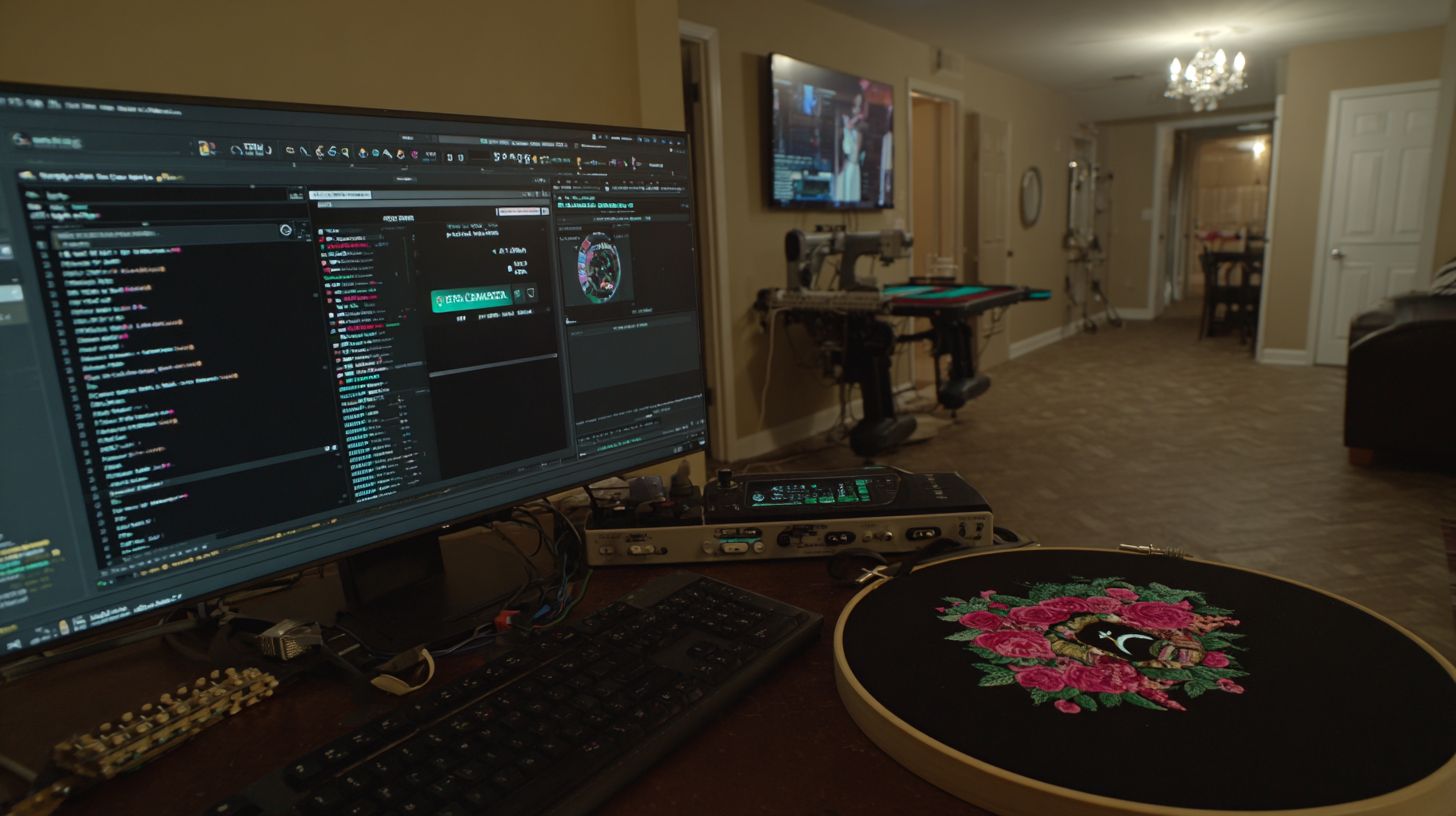
Embroidery digitizing settings control stitch types, density, underlay, and pull compensation to convert artwork into flawless .pes or.dst embroidery files using software like Hatch Embroidery or Wilcom Studio.
These settings act as machine instructions for your embroidery machine. They guide how needles form designs on fabric, from running stitches to satin fills.
Proper configurations prevent common issues like puckering, gapping, and poor registration. Beginners often face challenges with auto-digitizing in tools like Brother PE-Design or Embrilliance Essentials, as noted in embroidery forums.
Start with stitch simulation and test stitch-outs to check pathing, travel stitches, and jump stitches. This ensures smooth image conversion from SVG files or vector tracing into embroidery designs.
Why Settings Matter for Beginners
Incorrect digitizing settings cause many beginner stitch-outs to fail with puckering, gapping, or thread breaks, as shared in embroidery forums and YouTube tutorials.
One real problem is distorted designs from wrong stitch density. Too high density on stretchy fabrics leads to puckering, while low density causes gaps in fills.
Another issue comes from unstable fills without underlay stitches. Fabrics shift during stitching, creating uneven satin fills or lettering that pulls apart.
Poor pathing often results in needle breaks or loose travel stitches. Experts recommend practicing with free software like Ink/Stitch to master push-pull compensation and machine compatibility before tackling monograms or BX fonts.
Correct settings save hours on design rework. Focus on test stitch-outs to build skill level within your budget using beginner-friendly editing software.
Essential Software for Digitizing Beginners
Beginner digitizing software ranges from free tools like Ink/Stitch to professional options like Hatch Embroidery, each handling image conversion, vector tracing, and stitch simulation differently.
Free options suit tight budgets and basic embroidery designs, such as simple logos with running stitches. Paid tools add auto-digitizing and machine compatibility for formats like.pes file or.dst file.
Choose based on your skill level and embroidery machine. For instance, start with free software for practice on SVG files, then upgrade for lettering and monograms.
Experts recommend testing thumbnail software features through YouTube tutorials. This helps match tools to needs like stitch density control or thread colors preview.
| Tool Name | Price | Key Features | Best For | Pros/Cons |
|---|---|---|---|---|
| Ink/Stitch | Free | Auto-digitizing, SVG import | Linux users | Pros: Open-source; Cons: Steep learning curve |
| SewArt | $75 | Image conversion | One-time designs | Pros: Simple interface; Cons: Limited editing |
| Embrilliance Essentials | $150 | Lettering, BX fonts | Monograms | Pros: Beginner-friendly; Cons: No auto-digitizing |
| Hatch Embroidery | $200+ | Full editing, simulation | All skill levels | Pros: Machine compatibility; Cons: Higher cost |
| Wilcom Studio | $1500+ | Advanced pathing | Professionals | Pros: Precise control; Cons: Expensive |
| Brother PE-Design | $1300 | Integrated with machines | Brother owners | Pros: Seamless integration; Cons: Machine-specific |
Free vs. Professional Tools Overview
Free tools like Ink/Stitch offer basic image conversion but lack precise stitch simulation, while professional software like Hatch Embroidery provides auto-digitizing and test stitch previews for cleaner results.
Free software focuses on manual pathing for travel stitches and jump stitches. It works well for simple satin fill on text logos, but requires more hands-on adjustments.
Professional tools include underlay stitches and push pull compensation to fix fabric distortion. They speed up creating embroidery files with features like knockdown stitch for backgrounds.
Setup complexity differs: Ink/Stitch needs 20+ hours of practice via YouTube tutorials and embroidery forums. Hatch Embroidery offers beginner-friendly interfaces with guided vector tracing for quicker starts.
Best Stitch Types for Beginner Designs
Beginner designs succeed with 3 core stitch types-running, satin, and fill-that control coverage, flexibility, and machine speed in .dst files. Select stitches based on design size and fabric type to avoid puckering or gaps. Brother PE-Design guides stress checking machine compatibility before digitizing.
Small designs under 1 inch work best with running stitches for outlines. Larger shapes need fill stitches for even coverage on fabrics like cotton or denim. Always run a stitch simulation in software like Hatch Embroidery or Embrilliance Essentials.
Match stitch types to your embroidery machine’s capabilities, such as Brother models supporting .pes files. Practice with auto-digitizing tools in free software like Ink/Stitch for quick results. Test on scrap fabric to refine pathing and travel stitches.
Beginners benefit from digitizing software tutorials on YouTube, focusing on stitch density and underlay stitches. This approach ensures smooth embroidery designs without jumps or pulls.
Choosing Running vs. Satin Stitches
Running stitches (3-5 mm spacing) create outlines and lettering edges, while satin stitches (4-6 mm wide) add glossy fills but risk puckering on curves over 10 mm. Use running stitches for fine details in monograms and BX fonts. Satin suits straight lines under 10 mm for a polished look.
| Type | Width/Spacing | Best Use | Speed (stitches/sec) |
|---|---|---|---|
| Running | 0.3-0.5mm | Outlines, monograms | 800 |
| Satin | 4-7mm | Lettering fills | 600 |
For lettering in Wilcom Studio or SewArt, choose running for curved edges to maintain flexibility on stretchy fabrics. Satin shines in vector tracing from SVG files for bold text. Add jump stitches sparingly to connect elements without visible threads.
Test both in stitch simulation mode on Embird Basic. Running stitches speed up embroidery file production for beginners, while satin adds professional sheen to thread colors in straight segments. Practice on hoop samples to master the balance.
When to Use Fill Stitches
Fill stitches cover large areas over 1 square inch, using tatami or satin patterns to prevent gaps in embroidery designs. Reserve them for shapes larger than 25 mm to ensure density without overload. Pair with a running outline for crisp edges.
Hatch tutorials recommend 0.4 mm spacing for logos, blending well with knockdown stitches on towel fabrics. Avoid fill on curves steeper than 15 degrees to prevent pulling. Use underlay stitches first for stability in professional software like Brother PE-Design.
In digitizing software such as Embrilliance Essentials, set fill for backgrounds in image conversion projects. Combine with push pull compensation for even coverage on knits. Run a test stitch to check stitch density and adjust for your machine’s file formats.
Free tools like Ink/Stitch offer beginner-friendly fill options for budget setups. Join embroidery forums to share.dst files and refine techniques from skill level advice.
Optimal Stitch Density Settings
Stitch density (stitches per mm) determines fabric coverage in embroidery designs. Too tight causes puckering, too loose leaves gaps in .pes files. Beginners using Wilcom Studio or Hatch Embroidery should start with 0.3-0.6mm ranges.
Adjust density based on thread colors and needle size. Thicker threads need looser settings like 0.5-0.6mm to avoid bulk. Fine needles pair best with tighter 0.3-0.4mm for sharp satin fill edges.
In digitizing software like Embrilliance Essentials, test these on scrap fabric. Use stitch simulation to preview running stitches and fills. This prevents issues on your embroidery machine.
For auto-digitizing from SVG files, set default to 0.4mm. Vary by stitch types: looser for knockdown stitch, tighter for lettering. Practice with test stitch charts builds confidence.
Recommended Density by Fabric Type
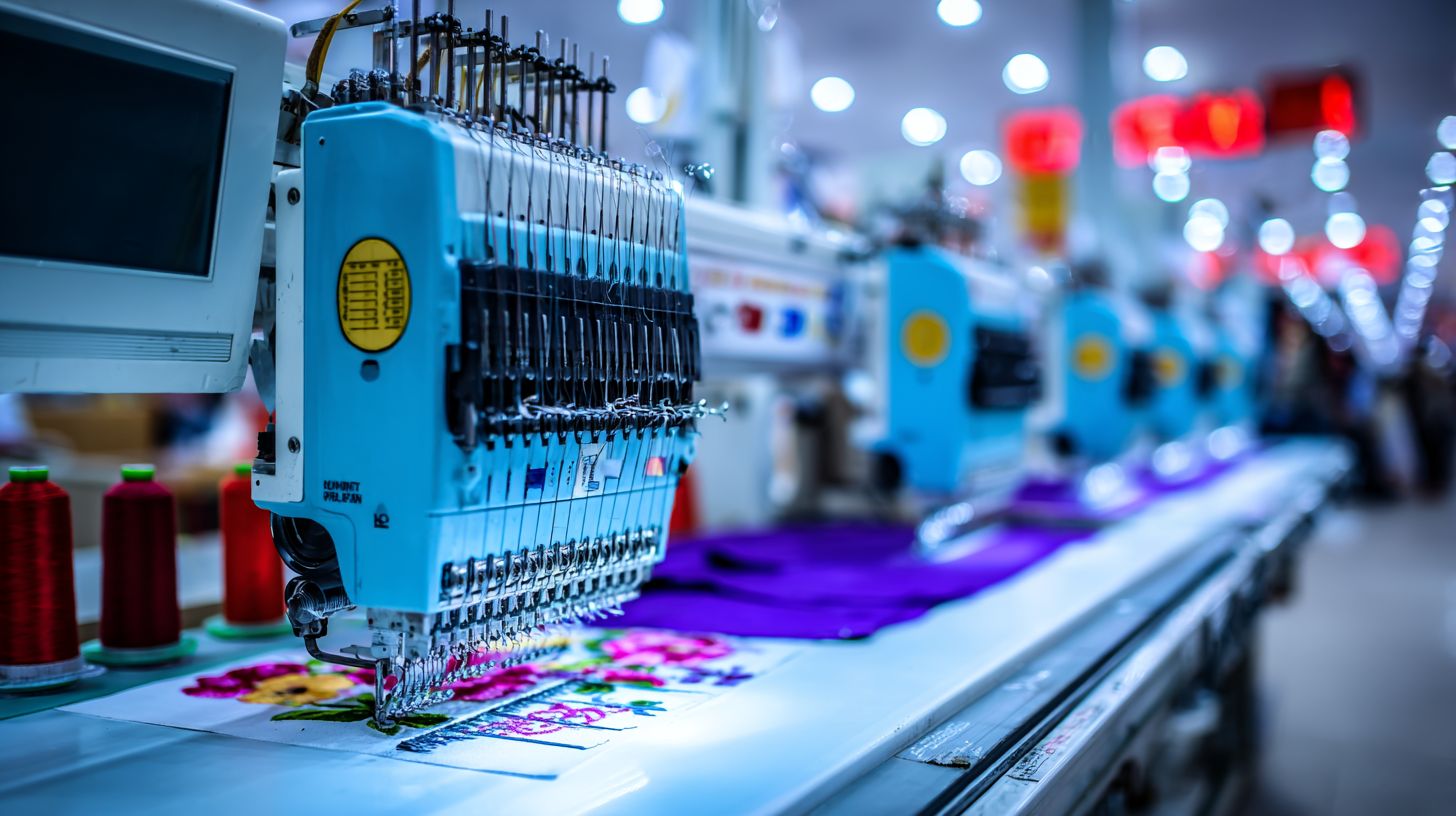
Set density to 0.35-0.45mm for cotton, 0.4-0.5mm for denim, and 0.3-0.4mm for knits to match fabric weave. These come from Embrilliance Essentials fabric guides. They ensure smooth results in embroidery file formats like .dst file.
| Fabric | Density (mm) | Example |
|---|---|---|
| Cotton | 0.35-0.45 | T-shirts, polos |
| Denim | 0.4-0.5 | Jackets, jeans patches |
| Knits | 0.3-0.4 | Jersey with zigzag underlay |
| Linen | 0.35-0.45 | Shirts, bags |
| Silk | 0.3-0.4 | Scarves, blouses |
Match underlay stitches to these densities for stability. On knits, add zigzag underlay to prevent push pull. Test in Brother PE-Design or Ink/Stitch free software.
For monograms or BX fonts, lighten density on stretchy fabrics. Use pathing tools to minimize jump stitches. This keeps designs beginner-friendly.
Avoiding Common Density Mistakes
Over-dense settings (under 0.3mm) cause puckering on stretch fabrics, per embroidery forums. Beginners often overlook fabric type in image conversion. Always create a test chart first.
- Ignoring fabric type: Fix by making a test stitchout grid in SewArt or Embird Basic. Sew samples on your actual material like jersey or denim.
- Uniform density everywhere: Fix by varying by area, such as 0.3mm for small satin columns and 0.5mm for large fills. Use vector tracing in Hatch Embroidery for precision.
- No stitch simulation: Fix with preview tools in professional software like Wilcom Studio. Check travel stitches and density before sending to machine.
Watch YouTube tutorials on density for your skill level. Practice with budget-friendly thumbnail software or editing software. Ensure machine compatibility across file formats.
Common pitfalls lead to wasted thread and time. Start loose and tighten gradually. This approach works for lettering, fills, and complex embroidery designs.
Perfect Underlay Stitch Configurations
Underlay stitches stabilize fabric tension before main fills. They prove essential for knits and help prevent shifts. Beginners benefit from these in digitizing software like Ink/Stitch.
Common types include zigzag underlay for stretch fabrics and lattice underlay for heavy knits. Ink/Stitch defaults offer solid starting points for embroidery designs. Adjust based on your embroidery machine and fabric tests.
For stretchy materials, use zigzag to anchor stitches and minimize pull. Lattice works well on thick fabrics to create a stable base. Always run a stitch simulation before sewing.
Practice with test stitches on scraps. This builds confidence in underlay configurations. Integrate them into your auto-digitizing workflow for better results.
Underlay for Stability on Stretch Fabrics
Use 2.5-3.5mm zigzag underlay at a 45 degrees angle for lycra and knits. It anchors stitches and reduces distortion. This setup suits beginners in embroidery digitizing.
- Set the underlay angle between 30-60 degrees to match fabric stretch.
- Choose a density of 3mm for even coverage without bulk.
- Aim for 100% coverage to fully stabilize the area.
Jeanne’s YouTube tutorials show this on spandex logos. Test on your embroidery machine with.pes files or.dst files. Adjust in software like Hatch Embroidery or Ink/Stitch.
Combine with running stitches for pathing. This prevents push-pull issues on stretch. Run a stitch simulation to preview results before production.
Ideal Pull Compensation Values
Pull compensation offsets satin columns by 0.2-0.5mm to counteract thread stretch during embroidery. In Brother PE-Design, this push-pull effect happens because embroidery thread expands under tension, pulling stitches inward and narrowing columns. Tie adjustments to stitch width for balanced embroidery designs.
Beginners often see gaps in satin fill on test stitches. Use 0.3mm compensation for columns under 6mm wide to maintain density. This works well in digitizing software like Hatch Embroidery or Wilcom Studio.
For wider satin, increase to 0.4-0.5mm per side. Always check stitch simulation before sending to your embroidery machine. Practice on scrap fabric reveals the right value for your thread colors and fabrics.
Experts recommend starting low and testing. Combine with underlay stitches for stability in lettering or monograms. This beginner-friendly tweak improves.pes file quality without complex pathing.
How to Measure and Adjust Compensation
Measure pull by stitching a 5mm satin sample: add 0.3mm compensation if gap greater than 0.2mm appears. Create a simple test stitch in your digitizing software, like a 5x20mm satin column. This takes about 10 minutes total.
- Design and stitch a 5x20mm satin block on scrap fabric using your embroidery machine.
- Measure the gap between columns with a ruler or caliper for accuracy.
- In software like Hatch Embroidery, adjust pull compensation by +0.1-0.4mm on the right side of satin.
- Run stitch simulation and re-stitch to verify.
Focus on stitch types like satin for lettering in Brother PE-Design. If using free software like Ink/Stitch, apply similar offsets manually. This method suits all skill levels and machine compatibility.
Repeat for different stitch density and fabrics. Integrate with running stitches for outlines. Share results on embroidery forums or follow YouTube tutorials for visual guides.
Best Settings for Thread and Needle
Match 40wt rayon thread with #75 needles and 600-800 SPM speeds for clean beginner stitch-outs. These settings work well in digitizing software like SewArt for smooth running stitches and satin fill. Start with tension at 4-5 to avoid puckering on cotton fabrics.
Popular thread brands include Isacord, Madeira Polyneon, Sulky Rayon, Robison-Anton, and Floriani. Pair them with appropriate needle sizes based on fabric: #75/11 for light cottons and silks, #80/12 for mid-weight linens, #90/14 for denim or knits. Test in stitch simulation to check pathing and travel stitches.
For embroidery machine compatibility, use these in thumbnail software previews. Adjust stitch density slightly for auto-digitizing results from tools like Embrilliance Essentials or Ink/Stitch. Beginners benefit from underlay stitches to stabilize designs on stretchy fabrics.
SewArt guides recommend practicing with jump stitches minimized for efficiency. Choose threads matching your file formats like.pes or.dst. This setup ensures beginner-friendly results across stitch types.
Matching Settings to Your Machine
Brother machines use.pes files at 650 SPM with #90 needles; adjust density +10% for high-speed models. This prevents thread breaks in embroidery designs during test stitch runs. Use Brother PE-Design for editing lettering and monograms.
Always verify settings with your machine compatibility. Popular options include:
| Machine | Needle | Max SPM | File |
|---|---|---|---|
| Brother | 75/11 | 800 | .pes |
| Janome | 80/12 | 1000 | .jef |
| Babylock | 75/11 | 850 | .pes |
| Pfaff | 80/12 | 900 | .vp3 |
Test via thumbnail software to preview stitch simulation. Import from Hatch Embroidery or Wilcom Studio, then tweak push pull compensation. This matches skill level for budgets using free software like Embird Basic.
For vector tracing or image conversion, ensure embroidery file outputs align. Practice on scraps with BX fonts or SVG files. Check embroidery forums and YouTube tutorials for machine-specific tips on knockdown stitch or Schiffli looms inspiration.
Step-by-Step: Setting Up Your First Design
Create your first design in 15 minutes using Embrilliance: import PNG/JPG, apply settings, and test stitch-out. This beginner-friendly process uses digitizing software like Embrilliance Essentials or free options such as Ink/Stitch. A pen tablet is optional for precise edits.
Gather your tools: a computer with embroidery digitizing software, artwork files under 5MB, and scrap fabric for testing. Expect 5 minutes for importing and scaling, plus 10 minutes for simulation and stitch-out. This setup ensures machine compatibility with formats like.pes or.dst.
Start with simple shapes or lettering to build confidence. Adjust stitch types like running stitches for outlines and satin fill for areas. Practice on your embroidery machine at slow speeds to check pathing and jumps.
Common tools include Hatch Embroidery for simulation or Wilcom Studio for pros. Free software like Ink/Stitch works well for auto-digitizing. Save time by previewing in thumbnail software before full edits.
Importing and Scaling Artwork
1) Import PNG/JPG/BMP (under 5MB) via File > Import in Ink/Stitch, 2) Vector trace (auto-detect edges), 3) Scale to 3-5 inches max, 4) Set resolution 300 DPI. This prevents distortion in image conversion. Avoid BMP if possible due to quality loss.
Begin with clean artwork like a simple logo or monogram. Use vector tracing in SewArt or Embird Basic for sharp edges. Scaling over 10% after tracing often causes puckering, a frequent beginner mistake.
Take about 5 minutes for this step. Check SVG files for best results in professional software like Brother PE-Design. Resize proportionally to fit hoops and maintain stitch density.
Test imports with black-and-white icons first. Adjust nodes post-trace for smooth paths. This sets up solid embroidery designs ready for stitch simulation.
Testing Settings with a Sample Stitch-Out
1) Run stitch simulation in Hatch (check pathing/jumps), 2) Save.pes/.dst, 3) Hoop scrap fabric, 4) Stitch at 50% speed, inspect for gaps. Aim for fewer than 5 jump stitches to minimize trims. Skipping simulation leads to rework.
This 10-minute process verifies travel stitches and underlay stitches. Use test stitch on stabilizer to spot push-pull issues. Adjust thread colors and density in Embrilliance before saving.
Inspect for even satin fill and running stitches. Simulate in Wilcom or Ink/Stitch to optimize pathing. Hoop tightly to avoid gaps in your embroidery file.
Practice with simple text using BX fonts or knockdown stitches. Check forums or YouTube tutorials for machine-specific tips. Refine based on your skill level and budget software.
How Do Fabric Types Change Your Settings?
Adjust density, underlay, and compensation per fabric weave. Cotton needs tighter fills than denim. These changes draw from Schiffli loom principles, where precise adjustments ensure designs hold on varied threads without puckering or gaps.
Schiffli looms used mechanical controls for stitch density and support layers. Modern digitizing software like Hatch Embroidery or Wilcom Studio adapts these for embroidery machines. Beginners preview adaptations by testing stitch simulation first.
For knits, lighten density to avoid stretching. Denim handles heavier satin fill well. Start with test stitch on scraps to match your machine compatibility.
Explore embroidery forums or YouTube tutorials for fabric-specific tips. Pair settings with thread colors and underlay stitches for clean embroidery designs. Practice builds confidence in auto-digitizing tools.
Settings for Cotton, Denim, and Knits
Cotton: 0.4mm density, lattice underlay; denim: 0.45mm, no underlay; knits: 0.35mm, zigzag underlay. These tweaks prevent push pull issues in digitizing software. Facebook groups share real examples from Brother PE-Design users.
| Fabric | Density | Underlay | Compensation |
|---|---|---|---|
| Cotton | 0.4mm | Lattice | 0.2mm |
| Denim | 0.45mm | None | 0.3mm |
| Knits | 0.35mm | Zigzag | 0.1mm |
One Facebook post showed a monogram on cotton puckering until lattice underlay stabilized it. For denim bags, skip underlay to save travel stitches. Knits benefit from zigzag to follow stretch, as seen in Embrilliance Essentials shares.
Test these in stitch simulation before saving as.pes file or.dst file. Adjust pathing and jump stitches for smooth runs. Beginners using Ink/Stitch free software find quick wins here.
Common Beginner Digitizing Pitfalls
Top pitfalls include poor pathing and ignored underlay, causing many forum-reported failures in embroidery digitizing. Beginners often overlook these in digitizing software like Embird Basic.
In Embird Basic, poor pathing leads to excessive jump stitches and inefficient travel stitches. Users report designs that stitch out of order, wasting thread and time on the embroidery machine.
- Ignored underlay: Skipped underlay stitches cause fabric to shift, common in auto-digitizing attempts with free software.
- Overly dense satin fill: Embird Basic defaults push stitch density too high, puckering thin fabrics during stitch simulation.
- No compensation: Gaps appear in lettering and monograms without push-pull adjustments for BX fonts.
- Wrong stitch types: Mixing running stitches with satin fill without testing creates bulky embroidery designs.
Avoid these by running a test stitch on scrap fabric. Check embroidery forums for Embird Basic tips to improve your skill level.
Fixing Puckering and Gapping Issues
Puckering fixes: reduce stitch density by 0.1mm and add underlay; gapping: increase compensation by 0.15mm and tighten satin width. These tweaks in digitizing software like Embird Basic save beginners from common embroidery machine frustrations.
For puckering, low stitch density on satin fill lets fabric breathe, especially with stretchy materials. Add underlay stitches as a base layer to stabilize. In Embird Basic, select running stitches for underlay at a 45-degree angle.
Gapping happens when stitches pull apart on curves in lettering or monograms. Boost compensation to offset push-pull effects, and narrow satin width for tight areas. Test with a.pes file or.dst file in thumbnail software.
A YouTube tutorial case showed a floral embroidery design puckering until density dropped and underlay added. After a stitch simulation, the gapping fixed with compensation. Practice these in beginner-friendly tools like Ink/Stitch for smooth results.
Pro Tips for Faster, Cleaner Results
Pros cut design time using auto-digitizing and optimized pathing in Wilcom Studio. These methods help beginners create embroidery designs quickly with less cleanup. Follow five key practices to see results in days.
First, enable auto underlay stitches for all fills. This stabilizes fabric and reduces puckering on your embroidery machine. Practice on simple shapes daily for one week.
Second, limit jump stitches under five per design. Use travel stitches to connect elements smoothly. Test this in stitch simulation within two sessions.
Third, run a test stitch on scrap fabric before full production. Adjust stitch density for running stitches and satin fill. Master this habit in three tries.
Fourth, match thread colors early using thumbnail software. Convert images with vector tracing for clean image conversion. Build speed over a month.
Fifth, simulate paths in digitizing software like Hatch Embroidery. Optimize for machine compatibility with.pes or.dst files. Refine weekly for pro-level output.
Auto-Digitizing Shortcuts in Software
Hatch’s auto-digitizing converts SVG files quickly: enable ‘optimize pathing’ and ‘auto underlay’ for ready-to-stitch files. Beginners love this for beginner-friendly embroidery designs. It saves hours on setup in tools like Brother PE-Design or Embrilliance Essentials.
Here are five essential shortcuts for faster embroidery digitizing.
- Vector trace PNG with Inkscape integration or Ink/Stitch free software. Import artwork, trace to SVG, then auto-digitize for sharp edges on logos.
- Auto satin/fill selection in SewArt or Embird Basic. Pick stitch types automatically based on shape, like running stitches for outlines and satin fill for letters.
- Minimize jumps under three per design using pathing tools. Connect elements with hidden travel stitches to avoid trims, as in a 2-minute logo test.
- Apply knockdown stitch auto-layers for textured fills. This flattens backgrounds before satin, ideal for monograms with BX fonts.
- Preview with stitch simulation in Wilcom Studio or professional software. Spot issues like push-pull before sending to your embroidery machine.
Practice these in lettering and simple patches. Watch YouTube tutorials or check embroidery forums for tips matching your skill level and budget. Export to correct file formats like.pes for seamless runs.
Why Upgrade from Free Digitizing Tools?
Free tools limit to basic.dst exports without simulation. Premium options like Hatch Embroidery save time with precise controls. Beginners quickly see the value in better embroidery designs.
Upgrading offers a strong return on investment through fewer errors and less rework. Professional software handles complex stitch types like satin fill and running stitches effortlessly. This cuts learning curves and boosts output quality for your embroidery machine.
Free software such as Ink/Stitch or SewArt struggles with machine compatibility and file formats like.pes. Paid tools ensure smooth image conversion and vector tracing. You gain speed in creating custom lettering and monograms.
Invest in digitizing software for reliable pathing and travel stitches. Avoid jump stitches that waste thread. Upgrade for better quality, faster results, and machine compatibility beyond Ink/Stitch or SewArt.
Premium Features for Better Quality
Professional software offers true-type lettering, BX font editing, knockdown stitch, and 3D simulation unavailable in free tools. These features elevate your embroidery digitizing from basic to pro level. Beginners benefit from intuitive interfaces in tools like Wilcom Studio or Brother PE-Design.
Auto pathing optimizes stitch order to reduce jumps and travel stitches. This saves thread and time on your embroidery machine. For example, it smoothly handles complex shapes in SVG files converted to embroidery designs.
Fabric-specific presets adjust stitch density and underlay stitches for materials like denim or silk. Test these with a test stitch to perfect results. Free tools lack this precision, leading to puckering or gaps.
- Use batch processing to handle multiple files quickly.
- Edit stitch simulation for realistic previews.
- Apply knockdown stitch under applique for bold effects.
Explore options like Embrilliance Essentials or Embird Basic for editing. Visit needlic.com to upgrade from free tools for pro results. Practice with YouTube tutorials to build skills on a budget.
Frequently Asked Questions
What are the best embroidery digitizing settings for beginners?
The best embroidery digitizing settings for beginners focus on simplicity and reliability to avoid common issues like thread breaks or puckering. Start with a stitch density of 0.4-0.5 mm for most fabrics, underlay stitch density at 0.35 mm, and a pull compensation of 0.2-0.3 mm. Use satin stitches for text and fill stitches for large areas. These settings work well in free software like Ink/Stitch, but for precise control, upgrade to professional software like Needlic’s tools.
How do I choose the right stitch type in the best embroidery digitizing settings for beginners?
For the best embroidery digitizing settings for beginners, pick running stitches for outlines (length 2-3 mm), satin for letters and borders (width under 10 mm), and tatami or fill for backgrounds. Avoid complex fills initially. Step-by-step: 1) Select your shape, 2) Choose stitch type from the menu, 3) Adjust angle to 45 degrees for even coverage, 4) Test on scrap fabric. Professional software like Needlic automates optimal choices for flawless results.
What pull compensation should beginners use in the best embroidery digitizing settings for beginners?
In the best embroidery digitizing settings for beginners, set pull compensation to 0.2 mm for light fabrics and 0.3 mm for stretchy ones-this offsets fabric pull from dense stitches. Step-by-step: 1) Digitize your design, 2) Apply compensation in settings panel, 3) Preview shrinkage, 4) Stitch out a sample. Free tools often lack fine-tuning, so consider premium software like Needlic for automatic adjustments and superior embroidery quality.
What’s the ideal stitch density for the best embroidery digitizing settings for beginners?
The best embroidery digitizing settings for beginners recommend 0.4-0.5 mm stitch density to balance coverage and machine strain-too tight causes breaks. For underlay, use 0.35 mm. Step-by-step guide: 1) Open your software, 2) Select fill area, 3) Set density slider, 4) Run a test sewout. Start simple with free software, but upgrade to Needlic professional software for faster, error-free digitizing and pro-level outputs.
How to set up underlay stitches in the best embroidery digitizing settings for beginners?
Underlay is key in the best embroidery digitizing settings for beginners: use zigzag underlay at 0.35 mm density and 90-degree angle for stability. Step-by-step: 1) Draw your shape, 2) Enable underlay in stitch properties, 3) Set low density to tack down fabric, 4) Stitch test. This prevents shifting. Free tools work for basics, but Needlic’s professional software offers advanced underlay options for perfect results every time.
Why upgrade from free software when using the best embroidery digitizing settings for beginners?
While the best embroidery digitizing settings for beginners can be applied in free tools, they lack auto-optimization, leading to trial-and-error. Professional software like Needlic provides one-click settings, faster rendering, and superior quality-upgrade today for effortless, pro-grade embroidery without the headaches of free versions!
🚀 Upgrade Your Embroidery Workflow
Stop wasting time with low-quality tools. Use professional software for better results.